Dehaze is a slider in Lightroom and Camera Raw that estimates how much atmospheric veil sits over each part of a photo and takes it out, which deepens the dark tones, stretches contrast and strengthens colour. Positive values clear haze, negative values add a soft mist. Set white balance first, start around +10 to +25 for a whole image, use stronger amounts only inside a mask on the distance, and then correct the darkening and extra saturation it leaves behind.
This guide is about the control itself: what it calculates, how it differs from Contrast, Clarity and Texture, when to apply it globally or locally, what negative values are for, and how to deal with its side effects. For the wider job of clearing a hazy picture with levels, curves and layers, or painting fog in, see removing haze or adding fog in editing. For shooting in mist in the first place, see fog and mist photography.
What the Dehaze slider does to tone and colour
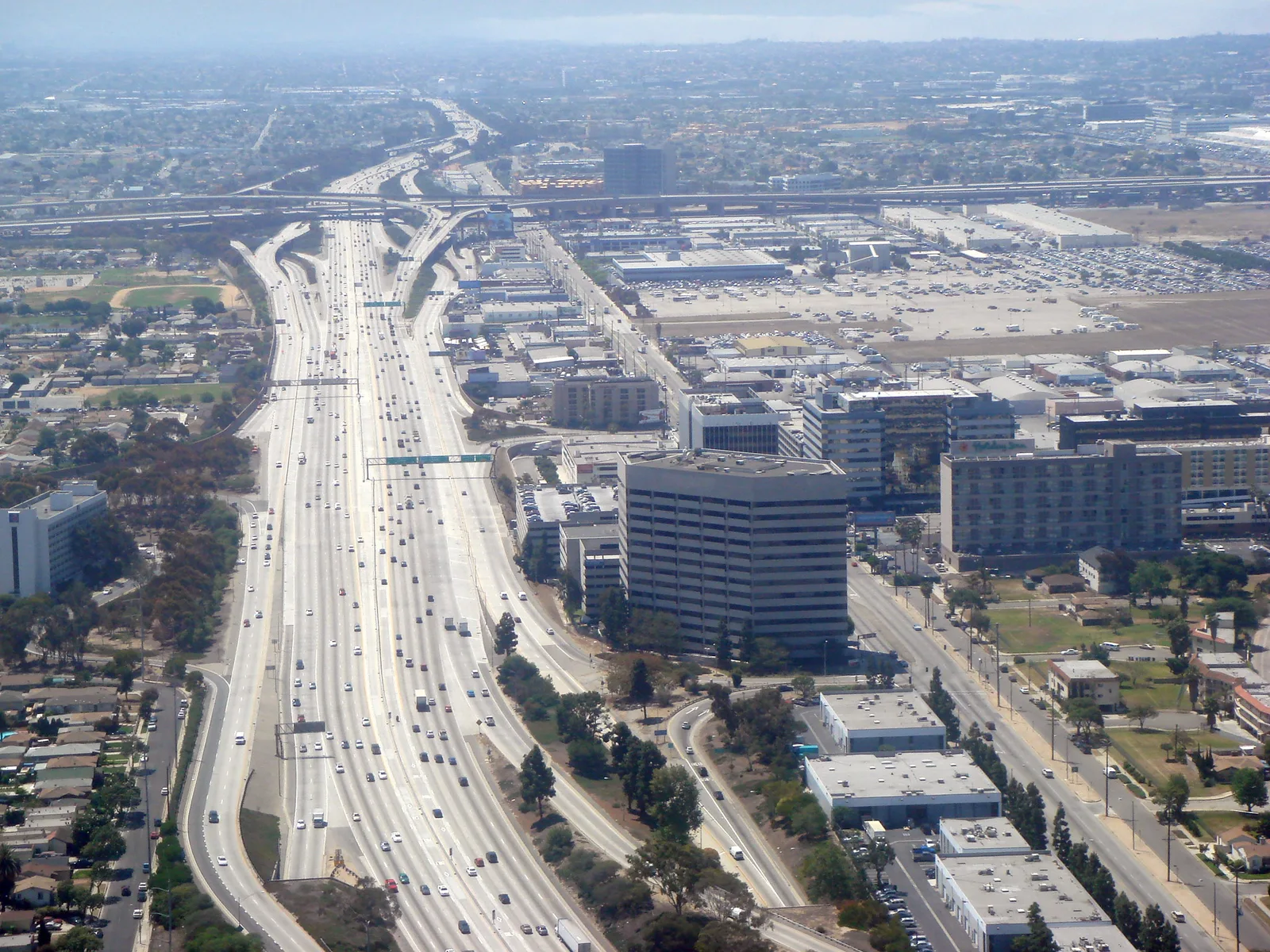
Haze adds scattered light to a scene. The more air between the camera and an object, the more of that light is laid over it, so far things turn pale and flat while near things stay solid. Dehaze is built on a model of that process. It looks at the picture, estimates how thick the veil is in each region (largely from how far the darkest tones there have been lifted off black), and subtracts an amount of light to match. Regions that look veiled get a big correction. Regions that already contain deep, clean darks get very little.
That makes Dehaze an image-adaptive control. The same slider value does different things to different photos, and different things to different parts of one photo. A setting of +30 on a clear, punchy frame changes it only mildly; +30 on a milky view across a valley transforms it. This is the reason there is no single correct number to copy from a tutorial.
You will find the slider beside Texture and Clarity in the basic tonal adjustments of Lightroom Classic and Camera Raw, in the effects group of the cloud and mobile versions of Lightroom, and again inside every mask as a local adjustment. Panels get rearranged between versions, so look for the name, not the position. It runs from minus 100 to plus 100 and is stored as an instruction with the rest of your edit, so it can be changed or zeroed at any time.
Moving the slider changes several things at once. Knowing all of them in advance tells you which other sliders you will need to touch afterwards.
| What changes | Positive Dehaze | Negative Dehaze |
|---|---|---|
| Dark tones | Pulled down hard; shadows can block up | Lifted toward grey, so nothing is truly black |
| Overall brightness | Darker, often by what looks like a third to a full stop | Brighter and flatter |
| Contrast | Higher, mostly in the veiled, low-contrast regions | Lower everywhere, most in the darks |
| Saturation | Higher, strongest in blues and in the distance | Lower, colours turn pastel |
| Colour balance | Any existing cast gets stronger; skies drift toward deep blue or cyan | Casts are diluted |
| Hidden flaws | Noise, dust spots, corner darkening and banding become visible | Flaws are masked; fine detail looks softer |
The histogram shows the main effect clearly. A hazy frame has a graph bunched to the right with an empty gap at the left end. As you raise Dehaze, the left edge of the graph slides toward black and the whole shape spreads out. When the left edge touches the wall and starts to pile up, you are no longer removing haze. You are crushing shadows.
Dehaze versus Contrast, Clarity and Texture
These four sliders all make a picture look “stronger”, which is why they get confused. They work at completely different scales, and choosing the right one is most of the skill.
| Control | What it changes | Scale | Reach for it when |
|---|---|---|---|
| Contrast | Darkens tones below middle grey and brightens those above, by a fixed curve | The whole tonal range, identical for every pixel of a given brightness | The picture is evenly flat and has no veil, such as a scene shot in overcast light |
| Dehaze | Removes an estimated layer of added light, region by region | Large areas, weighted toward lifted darks and low-contrast zones | Blacks are grey and it gets worse with distance: haze, mist, smoke, glare through glass |
| Clarity | Raises contrast between neighbouring areas in the midtones | Broad edges and shapes | Tones are in the right place but forms look soft: rock, clouds, buildings |
| Texture | Raises contrast in medium-sized detail | Small surface detail, larger than the finest grain | You want bark, stone, fabric or foliage to look crisper without changing the overall tone |
A simple way to tell them apart is to ask what each does to a deep shadow and a bright cloud in the same frame. Contrast pushes them apart by a fixed rule. Dehaze pulls the shadow down a lot and barely moves the cloud. Clarity leaves both roughly where they were and exaggerates the edges inside them. Texture leaves them alone and sharpens the surface pattern.
Because of that, the sliders stack well in small amounts and badly in large ones. Dehaze and Clarity together are the usual cause of a gritty, over-processed look, since both raise local contrast and both produce halos. If you have used a real amount of Dehaze, keep Clarity low, and the other way round. Texture is the safest partner, because it works at a scale Dehaze hardly touches. For how contrast behaves across a whole picture, see contrast in photography, and for edge-level crispness see sharpening.
Using Dehaze on the whole image
A global move is right when the veil is fairly even across the frame: a view from an aircraft window, a telephoto shot where everything is far away, a city seen across water on a humid day, a scene shot toward the sun where flare has washed out the blacks, or an underwater picture. It is the wrong choice when the foreground is close and clear and only the distance is hazy.
Order matters, because Dehaze amplifies whatever state the file is in when you reach for it:
- Turn on lens corrections first. Dehaze makes corner darkening much more obvious. Correct vignetting with the lens profile before you touch it, not after.
- Set white balance. Dehaze strengthens colour, including any cast. A slightly blue file becomes a very blue one. Neutralise the cast first; the reasoning is in the guide to white balance.
- Set rough exposure so the brightest parts sit where you want them.
- Raise Dehaze slowly while watching the left side of the histogram and the darkest area of the picture. For most frames the useful range is +10 to +25. Past about +40 on a whole image, side effects usually outweigh the gain.
- Repair what it changed. Lift Exposure a little to restore brightness, raise Shadows if dark areas have closed up, and pull Vibrance or Saturation down by 5 to 15 if colours have gone heavy.
Two other controls can do part of the same job more gently. Lowering the Blacks slider sets a true black point, which is the single biggest component of what Dehaze does, with far less effect on colour. A curve can then stretch the midtones. A reliable habit is to set Blacks first, then add only as much Dehaze as the picture still needs. The number ends up far lower than if Dehaze had been used alone.
Dehaze is not only for weather. It works on anything that behaves like a veil:
- Glass and reflections. Pictures taken through a window, a display case or an aquarium wall carry a pale wash of reflected light. Moderate Dehaze cuts through much of it.
- Veiling flare. Shooting toward the sun lowers contrast across the frame. Dehaze restores a good part of it, though it cannot remove the coloured ghosts described in the lens flare guide.
- Night skies. A small amount helps stars and the Milky Way stand out against sky glow. Too much turns light pollution into strong colour gradients.
- Flat skies. A dull overcast sky often hides cloud structure that a masked Dehaze will bring out.
- Black and white. With colour out of the way, the saturation side effect disappears, so higher values are usable for dramatic skies.
Using Dehaze inside a mask
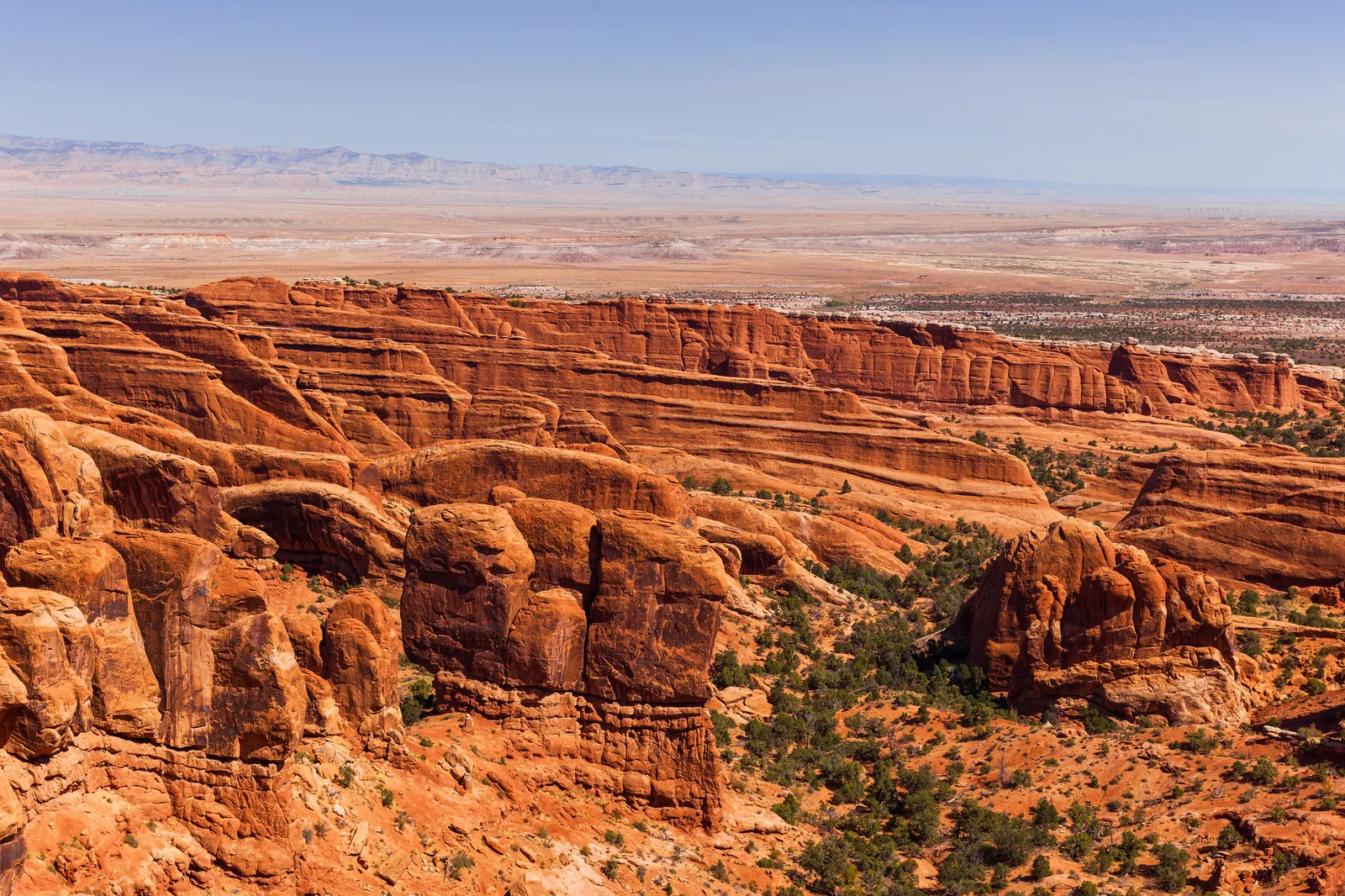
In most landscapes haze is uneven by nature: almost none on the rocks at your feet, a great deal on the horizon. A global setting strong enough to clear the distance over-darkens and over-saturates the foreground. Putting Dehaze in a mask solves this, and it is where the control does its best work. The mask tools themselves are covered in Lightroom masking and selective adjustments; what follows is how to use them for this job.
Which mask for which haze
- Linear gradient. The fastest tool when the land recedes evenly. Drag from the horizon down toward the middle of the frame, so the effect is strongest at the far distance and fades to nothing before the foreground. A long, soft gradient looks more natural than a short one.
- Gradient minus the sky. Skies react badly to Dehaze. Subtract a sky selection from the gradient so only the land is treated, then deal with the sky in its own mask at a lower value.
- Brush. For a single hazy area, such as a far ridge seen through a gap, or a patch of spray at the base of a waterfall. Use a large, soft brush at low flow and build it up.
- Luminance range. Haze lives in the lighter, flatter tones. Limiting a mask to those tones protects deep shadows from being crushed. The idea is the same one explained in luminosity masks.
- Radial gradient. For a hot spot of glare around the sun or a bright window, where the veil is densest in the middle and falls away.
How much to apply locally
Masked areas tolerate higher values than whole images, because the areas you select are the ones with a real veil to remove. Values of +30 to +50 on a distant range are common. Two rules keep it believable. First, stop while the far distance is still lighter and a little bluer than the middle distance, because that gradient is what tells the eye how far away things are (see depth in photography). Second, use two overlapping gentle masks in place of one strong one: a broad gradient at +15 and a smaller one near the horizon at +20 give a smooth ramp with no visible boundary.
Local Dehaze also needs local repair. In the same mask, lower Saturation slightly and raise Exposure a touch to offset the colour and darkening it adds. Keeping the fix inside the mask means the foreground is not affected by it.
Negative Dehaze: adding mist, glow and softness
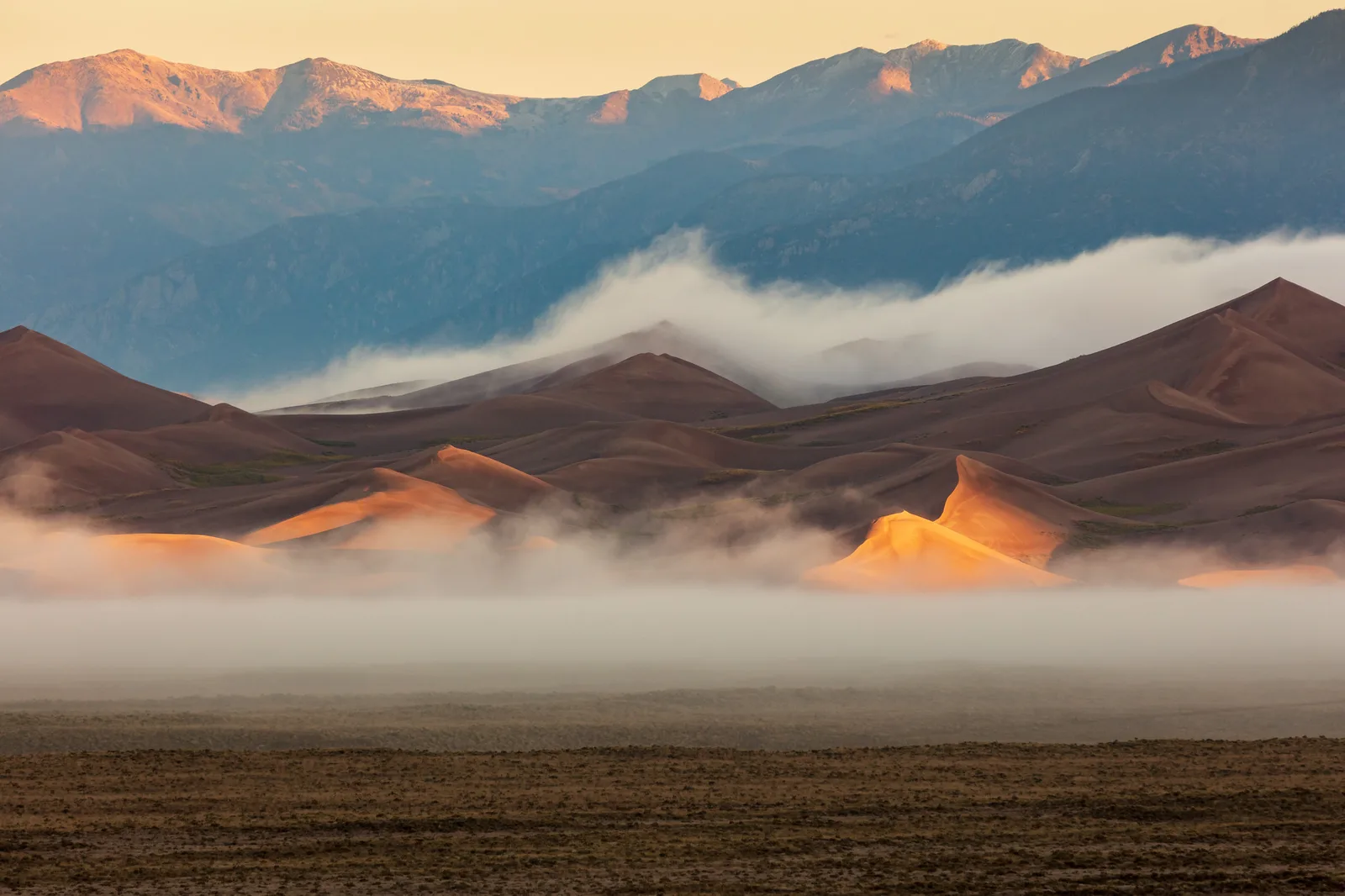
Dragging the slider left does the reverse of clearing. It lays a pale veil over the image, lifts the darks toward grey, lowers contrast and thins the colour. Used globally at a strong setting it simply looks like a washed-out file. Used locally and lightly, it is one of the most useful atmosphere tools in a raw editor.
Good uses for negative values, with typical starting points:
- Strengthening real mist. When a picture already contains fog that the camera recorded as thin and grey, brush minus 15 to minus 30 over the misty band only. Follow it with a small Exposure lift in the same mask so the mist glows instead of going dull.
- Pushing a background back. A busy treeline or a row of buildings behind your subject becomes quieter with minus 10 to minus 20 applied through a mask, which imitates distance.
- Light with a glow. A radial mask at minus 20 to minus 40 over the sun, a street lamp or a bright window spreads a soft bloom, close to what a diffusion filter does.
- Restoring depth after other edits. If Clarity or a contrast curve has made the far distance as punchy as the foreground, a gradient with a little negative Dehaze on the horizon puts the air back.
The rule from real fog applies: mist is thicker with distance and never covers a near object. Keep negative Dehaze off the foreground, and subtract any near tree, person or building from the mask so it cuts cleanly against the soft area behind. If you need mist that is not in the frame at all, a slider will not build it convincingly; the layered method in the haze and fog editing guide is the better route.
Side effects, and how to control each one
Dehaze is a strong contrast stretch, and stretching tones reveals everything that was hidden in them. Check these six things at 100 percent after any setting above about +20.
| Symptom | Why it happens | What to do |
|---|---|---|
| Grain and blotchy colour in shadows and distant areas | Hazy regions hold very little tonal information, and stretching it amplifies the noise along with the detail | Lower the amount, apply noise reduction, or restrict Dehaze with a mask so smooth areas are left out |
| Skies turn deep, uneven blue or cyan; colours look heavy | Removing the white veil raises saturation, most in blues and in the far distance | Set white balance first, then lower Saturation by 5 to 15 (see vibrance versus saturation); keep the sky out of the mask |
| Dark corners | Lens vignetting is a gentle falloff that the contrast stretch makes steep | Enable profile corrections before Dehaze; add manual vignette correction if needed |
| Grey spots in the sky | Dust on the sensor is always in the file at small apertures, at low contrast; Dehaze raises that contrast | Turn on the spot visualisation overlay and remove them with the healing tool; clean the sensor before the next shoot |
| Bright or dark rims along ridges, roofs and trees | The correction changes abruptly where a dark object meets a pale sky | Reduce Dehaze and Clarity together; feather or refine the mask edge; treat sky and land in separate masks |
| Visible steps (banding) in clear sky, fog or still water | A narrow range of tones is stretched across a wide one, more than the file’s bit depth can cover | Work from a raw file, which has far more headroom than an 8-bit JPEG (see raw versus JPEG), and lower the amount |
Dust and corner darkening deserve a closer look, because both are present in most files and normally go unseen. A frame shot at f/11 or f/16 against plain sky is the worst case: small apertures make dust spots sharper, and plain blue hides nothing. A useful trick is to push Dehaze to a very high value on purpose for a moment, find and heal every spot, then bring the slider back to where you want it. If spots keep appearing in the same place across frames, see how to clean your camera’s sensor.
Common mistakes
Using Dehaze as a general “pop” slider. On a picture with no veil, it only crushes shadows and oversaturates. Fix: if the darkest tones already reach black on the histogram, use Contrast, a curve or Clarity instead.
One strong global setting on a scene with a near foreground. The distance improves and the foreground turns dark and harsh. Fix: zero the global slider and apply Dehaze through a gradient that fades out before the foreground.
Removing the haze that made the picture. Layered hills and misty mornings depend on the veil. Fix: decide first whether haze is the fault or the subject. If it is the subject, set a black point on the nearest dark object and leave the rest soft, or go negative.
Stacking Dehaze, Clarity and Texture at high values. The result is gritty, haloed and noisy. Fix: pick one as the main tool for each area and keep the others under about +15.
Copying one Dehaze value across a set. Because the control adapts to each image, a synced value can look subtle on one frame and heavy on the next. Fix: sync it as a starting point, then check each frame. For a stitched panorama, apply Dehaze to the merged file so the correction is worked out once for the whole view.
Try this
Pick a landscape or city view with a clear foreground and a hazy distance, ideally a raw file. Allow 15 minutes.
- Make three virtual copies or versions of the photo. Enable lens corrections and set white balance on all three.
- Version A, global. Raise Dehaze until the distance looks clear. Note the value, then look at the foreground and the corners.
- Version B, masked. Leave global Dehaze at zero. Add a linear gradient from the horizon to mid frame, subtract the sky, and raise Dehaze in the mask until the distance matches version A. Lower Saturation in the mask by about 10.
- Version C, negative. Using the same gradient, set Dehaze to minus 25 and add a third of a stop of exposure in the mask.
- View the three side by side, then zoom to 100 percent on the sky of each and look for noise, dust and halos.
Frequently asked questions
Is Dehaze the same as Contrast or Clarity?
No. Contrast applies one fixed curve to every pixel. Clarity boosts midtone contrast along broad edges. Dehaze adapts to the image and acts mainly where blacks have been lifted by haze, so it clears a veil that the other two would only make harsher.
How much Dehaze is too much?
There is no fixed number because the control adapts to each photo. As a guide, +10 to +25 suits most whole images and +30 to +50 can work inside a mask on a distant area. You have gone too far when shadows clip on the histogram, skies turn unnaturally deep, or halos appear along ridgelines.
Why does Dehaze make my photo noisy and show spots?
It stretches a narrow band of tones across a wide range, and that stretch amplifies anything hidden in it: sensor noise, dust spots, corner darkening and banding. Use a lower value, limit it with a mask, apply noise reduction, and heal the dust spots it reveals.
Does Dehaze work on JPEG files?
Yes, but with less headroom. A JPEG has fewer tonal steps and its white balance is already baked in, so strong settings bring out banding and colour blotches sooner than they would in a raw file. Keep values modest and prefer masked adjustments.
Related guides
- How to remove haze or add fog in photo editing: the full method with levels, curves, layers and painted fog.
- Fog and mist photography: exposure, focus and composition when the veil is the subject.
- Lightroom masking and selective adjustments: how to build the gradients, brushes and range masks used here.
- How to edit landscape photos in Lightroom: where Dehaze fits in a complete landscape edit.
- Contrast in photography: global and local contrast, and when low contrast is the better choice.
- Polarizing filters: cutting haze and glare at the time of shooting, before any slider is needed.
- Camera Raw and Bridge workflow: the same slider in a raw workflow with no catalog.
- AI noise reduction: cleaning up the noise that a strong tonal stretch reveals.