Frequency separation is a Photoshop technique that allows you to retouch skin tones and colors independently from skin texture. By splitting an image into two layers, one containing color and tone information (the low frequency) and one containing texture and detail (the high frequency), you can smooth uneven skin tones without blurring pores and fine detail, or remove blemishes from the texture layer without affecting the surrounding color.
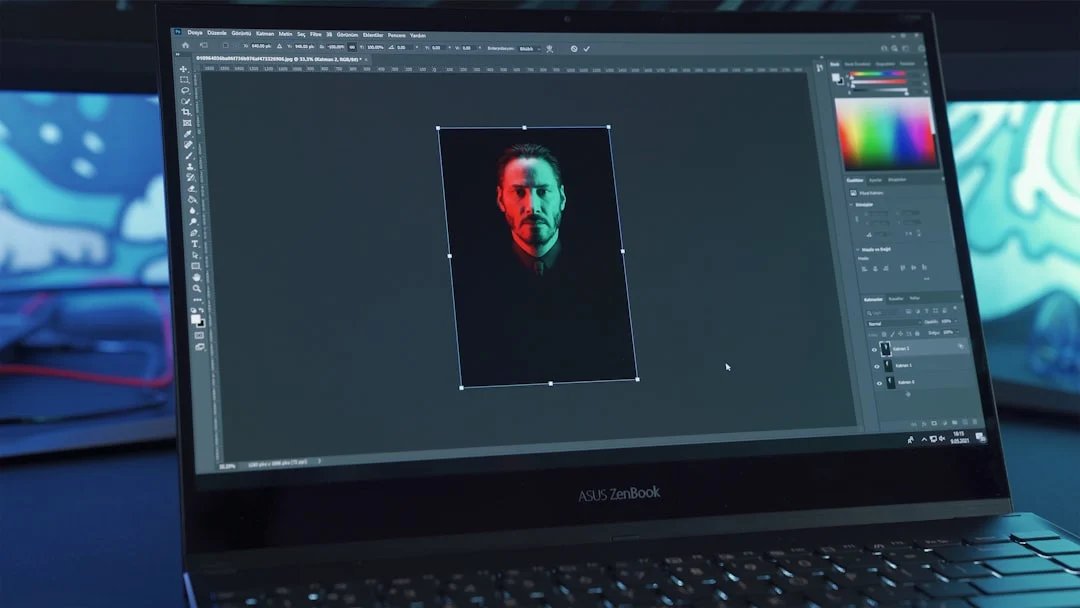
This technique is widely used in portrait, beauty, and headshot photography where natural-looking skin retouching is essential. While it requires some Photoshop knowledge, the basic process is straightforward once you understand the concept.
How Frequency Separation Works
Every image contains two types of visual information. Low-frequency information includes colors, tones, shadows, and broad gradients. These are the large-scale variations you see when you blur a photo. High-frequency information includes fine details like skin texture, pores, hair strands, and sharp edges. These are the details that disappear when you blur a photo.
Frequency separation physically splits these two types of information onto separate layers. The low-frequency layer looks like a soft, blurry version of the image with smooth color transitions but no texture. The high-frequency layer looks like a flat gray image with sharp details overlaid. When these two layers are combined using the correct blending mode, they reconstruct the original image perfectly.
The power of this technique is that you can edit each layer independently. Smooth a blotchy skin tone on the low-frequency layer without touching the pore texture above it. Remove a pimple from the high-frequency layer without creating a smudge in the underlying color.
Setting Up Frequency Separation in Photoshop
Follow these steps to create the two frequency layers. This process works in any version of Photoshop.
Step 1: Duplicate the background layer twice. Name the bottom copy “Low Frequency” and the top copy “High Frequency.”
Step 2: Hide the High Frequency layer by clicking its eye icon. Select the Low Frequency layer.
Step 3: Apply Gaussian Blur to the Low Frequency layer (Filter > Blur > Gaussian Blur). Choose a radius that blurs away skin texture but preserves the overall color and tone distribution. For high-resolution images, a radius between 6 and 12 pixels usually works. For lower-resolution images, try 3 to 6 pixels. The goal is to eliminate texture while keeping color gradients intact.
Step 4: Make the High Frequency layer visible and select it. Go to Image > Apply Image. Set the Layer to “Low Frequency,” the Blending to “Subtract,” Scale to 2, and Offset to 128. Click OK.
Step 5: Set the High Frequency layer’s blending mode to “Linear Light.” The image should now look identical to the original. If it does, the setup is correct.
Retouching the Low Frequency Layer
The low-frequency layer is where you smooth uneven skin tones, reduce color blotchiness, and even out shadows. Since this layer contains only color and tone information with no texture, any smoothing you do here will not affect the pore detail on the high-frequency layer above.
Select the Low Frequency layer and use the Clone Stamp tool set to a soft brush with low opacity (20-40%). Sample from an area with the desired skin tone and paint over areas that are too red, too bright, or otherwise uneven. The soft brush blends the sampled color into the target area gradually.
You can also use the Mixer Brush or even Gaussian Blur on small selections to smooth transitions between different skin tones. A common use is smoothing the transition between a highlighted forehead and shadowed eye sockets, or evening out redness across the cheeks.
Work at 100% zoom and zoom out frequently to check the overall effect. It is easy to over-smooth at close range and create results that look artificial when viewed at normal size.
Retouching the High Frequency Layer
The high-frequency layer is where you remove texture-level imperfections like blemishes, scars, stray hairs, and other small defects. Since this layer contains only texture with no color information, your retouching will not create color smudges or tonal shifts.
Select the High Frequency layer and use the Clone Stamp tool or Healing Brush tool set to “Current Layer” sampling. Clone clean skin texture from a nearby area over the blemish. The patch replaces the unwanted texture with healthy skin texture while the color information on the low-frequency layer below remains untouched.
Match the texture pattern when cloning. Skin texture varies across the face, so sample from an area near the blemish where the pore pattern is similar. Cloning cheek texture onto a forehead blemish may look unnatural because the pore density and pattern differ.
When to Use Frequency Separation
Frequency separation is most valuable for portrait and beauty retouching where you need to smooth skin tones without losing natural texture. It excels at evening out blotchy skin, reducing redness, smoothing transitions between highlight and shadow areas on the face, and removing blemishes cleanly.
It is also useful for product photography where you need to smooth gradients on curved surfaces while preserving surface texture, and for fabric retouching where wrinkles in clothing need to be reduced without losing the weave pattern.
For simple blemish removal where the surrounding skin tone is already even, the standard Healing Brush tool on a normal layer is faster and easier. Frequency separation adds value primarily when tonal issues and texture issues need to be addressed separately.
Maintaining Natural Skin Texture
The biggest risk with frequency separation is over-retouching. Because the technique makes it easy to smooth skin, it is tempting to eliminate every variation in tone and every minor imperfection. The result can look plastic and artificial, which defeats the purpose of using a technique designed for natural-looking results.
Healthy skin is not perfectly uniform. It has subtle color variations, slight texture changes, and minor imperfections that our eyes expect to see. Remove distracting blemishes and smooth obvious blotchiness, but preserve the natural variation that makes skin look real.
A good rule of thumb: if the retouching is invisible at normal viewing size, you have done it right. If you can tell the skin has been retouched, you have gone too far. Always compare your retouched version against the original at the same zoom level to check your work.
Common Mistakes
Choosing the wrong blur radius. Too small a radius leaves some texture on the low-frequency layer, which defeats the purpose. Too large a radius moves tonal information into the high-frequency layer, creating halos around edges. Test the radius by checking that the low-frequency layer looks smoothly blurred with no visible pores or texture.
Over-smoothing the low frequency layer. Aggressive smoothing removes the subtle tonal variations that make skin look three-dimensional. Skin should still show gentle gradients from highlight to shadow after retouching.
Forgetting to work non-destructively. Always keep the original background layer untouched. Work on the duplicate layers so you can compare against the original and undo changes easily.
Using frequency separation for everything. Simple cloning and healing on a regular layer is faster for isolated blemishes. Reserve frequency separation for situations where you specifically need to separate tone from texture. Using it unnecessarily slows your workflow without improving results.
Frequently Asked Questions
Can I do frequency separation in Lightroom?
No. Frequency separation requires layer-based editing, which Lightroom does not support. Photoshop (or similar layer-based editors like Affinity Photo or GIMP) is required. Lightroom’s Healing Brush and local adjustment tools handle basic retouching, but they cannot separate texture from tone.
How do I choose the right Gaussian Blur radius?
The radius depends on image resolution and the size of skin features you want to separate. For a 24-megapixel image at 100% zoom, start with a radius of 8 pixels. Increase until skin pores disappear but facial features (nose shadow, cheekbone highlight) remain visible. If in doubt, err on the side of a slightly larger radius.
Is frequency separation outdated?
Some retouchers prefer newer techniques like dodging and burning for all skin retouching. However, frequency separation remains widely used and is particularly efficient for smoothing large areas of uneven skin tone. Many professional retouchers use both techniques in combination.
Can I automate the frequency separation setup?
Yes. Record the setup steps as a Photoshop Action, and you can apply frequency separation to any image with a single click. Many free and paid Actions are available online. Just make sure the blur radius in the Action matches the resolution of images you typically work with.