Color grading is the process of intentionally adjusting the colors in your photographs to create a specific mood, style, or atmosphere. For more, see our cinematic photography guide. While color correction aims to make colors accurate and neutral, color grading goes further by pushing colors in creative directions that serve the emotional intent of the image.
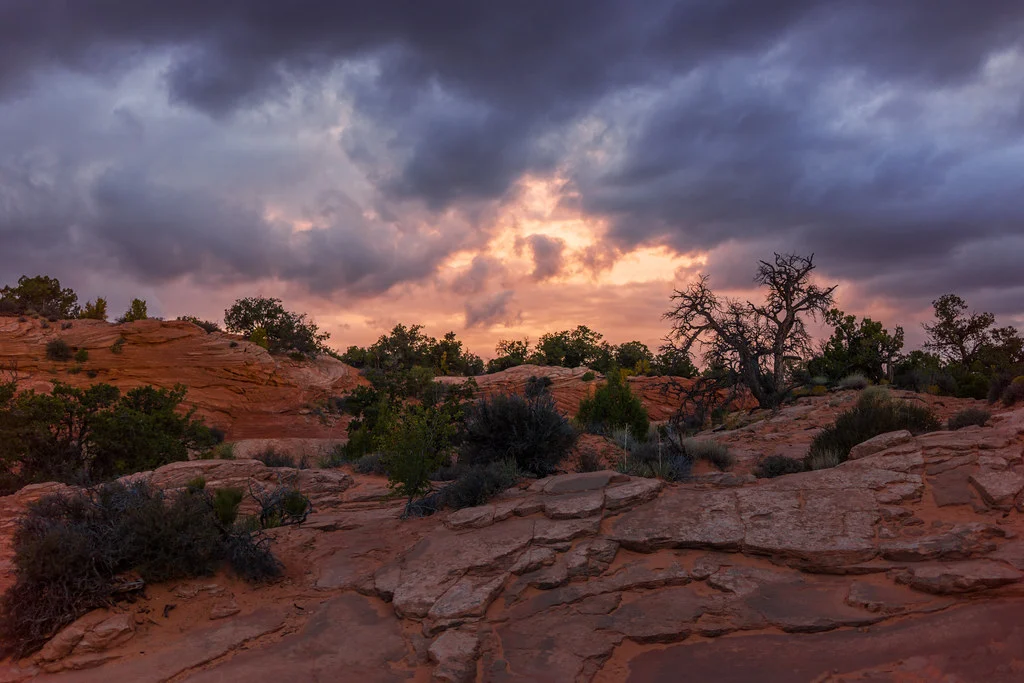
From the warm, golden tones of a vintage film look to the cool, desaturated palette of a moody editorial, color grading is one of the most powerful tools for developing a distinctive photographic style. This guide covers the theory, tools, and techniques you need to start grading your photographs with intention.
Color Grading vs. Color Correction
Color correction and color grading are related but distinct processes. Color correction comes first: it fixes white balance issues, removes color casts, and ensures the image looks natural and accurate. Color grading comes after: it applies creative color shifts to establish mood and style.
Think of color correction as making the image look “right” and color grading as making it look “intentional.” A properly color-corrected image has neutral whites, accurate skin tones, and balanced exposure. A color-graded image may shift those neutrals toward warm or cool tones, tint the shadows with a specific hue, or push the overall palette in a direction that supports the image’s emotional message.
Always correct before grading. Starting with a neutral, well-exposed image gives you a clean foundation for creative adjustments. Trying to grade an image with existing color problems leads to inconsistent and frustrating results.
Can you trust the colors on your screen while you grade? Monitor Calibration for Photography covers why calibration matters, hardware versus software methods and a step-by-step workflow.
Understanding Color Theory for Grading
Color theory provides the framework for effective color grading. The color wheel shows relationships between colors that produce different emotional responses.
Complementary colors (opposites on the color wheel, like orange and teal) create contrast and visual tension. The popular teal-and-orange grade works because skin tones fall in the orange range, and teal in the shadows creates maximum color contrast with the subject. This pairing is everywhere in cinema and editorial photography.
Analogous colors (neighbors on the color wheel, like blue and purple) create harmony and cohesion. Grading an image entirely within a warm palette (yellow, orange, red) produces a unified, comfortable feel. Cool palettes (blue, cyan, purple) convey calm, melancholy, or mystery.
Warm tones suggest nostalgia, comfort, and energy. Cool tones suggest distance, tranquility, or sadness. Desaturated tones create a muted, film-like quality. Highly saturated tones feel vibrant and contemporary. The emotional associations of color are deeply ingrained, and effective grading leverages them deliberately.
Chasing that muted, film-like look? Vintage Photography Look covers faded blacks and lifted shadows, plus a warm 1970s grade.
Split Toning and Color Balance
Split toning is the most fundamental color grading technique. It involves applying different color tints to the highlights and shadows of an image independently. For example, adding warm tones (orange or yellow) to the highlights and cool tones (blue or teal) to the shadows creates the classic cinematic look.
Effective split toning is subtle. A slight push of color in the highlights and shadows is usually enough. Heavy-handed split toning looks artificial and distracting. Start with small adjustments and increase only until you can just barely perceive the color shift. The grade should feel like a natural part of the image, not an overlay applied on top of it.
The midtones are where skin tones and most subject detail live. Be cautious about shifting midtone colors too aggressively, as it can make skin look unnatural. Many photographers grade the shadows and highlights while keeping the midtones relatively neutral.
Color Grading in Lightroom
Lightroom offers several tools for color grading, each suited to different approaches.
The Color Grading panel (formerly Split Toning) provides three color wheels for shadows, midtones, and highlights. Click and drag within each wheel to add a color tint. The further from center, the more intense the color shift. The luminance slider adjusts the brightness of each tonal range.
The HSL/Color panel lets you adjust the hue, saturation, and luminance of individual color ranges. This is powerful for targeted adjustments, like making greens more teal or shifting blues toward purple without affecting other colors.
The Calibration panel adjusts the primary color channels (red, green, blue) at a fundamental level. Small changes here have large effects and can dramatically shift the overall color palette. Many popular Lightroom presets rely heavily on calibration adjustments to create their signature looks.
The Tone Curve allows per-channel adjustments. Pulling the blue channel curve up in the shadows adds blue to the dark tones. Pulling it down in the highlights adds yellow. This is one of the most precise grading tools available.
Color Grading in Photoshop
Photoshop provides more advanced color grading capabilities than Lightroom, with greater precision and flexibility.
Curves adjustment layers are the gold standard for color grading. Switch to individual channels (Red, Green, Blue) and adjust the curve for each. Lifting the blue channel in the shadows adds blue there. Dropping it in the highlights adds yellow. This channel-by-channel approach gives you complete control over how color shifts across the tonal range.
Not sure how curves differ from levels? Curves and Levels covers reading the histogram first, the fast global fix with levels and when curves give you more control.
Selective Color adjustment layers let you adjust the cyan, magenta, yellow, and black components of specific color ranges. This is excellent for fine-tuning skin tones without affecting the rest of the image, or for pushing specific colors in the background while leaving others untouched.
Gradient maps replace the tonal range of an image with a color gradient you define. A gradient from dark blue (shadows) through warm brown (midtones) to pale yellow (highlights) creates a rich, cinematic grade. Reduce the layer opacity to blend the grade subtly with the original colors.
Want to grade only the highlights or only the shadows? Luminosity Masks covers the lights, darks and midtones masks and how to build one from channels.
Creating a Consistent Style Across a Series
One of the most important applications of color grading is maintaining a consistent visual identity across a body of work. Whether you are shooting a wedding, building a social media feed, or exhibiting a gallery series, consistent color grading ties the images together.
Create a base grade that works across different lighting conditions and subjects, then save it as a preset or template. Apply this base to every image, then make minor adjustments for individual shots. The base grade establishes your visual identity while the per-image tweaks ensure each photo looks its best.
Want to reuse a grade on every image? How to Create and Use Lightroom Presets covers building your own, partial presets and installing presets from other sources.
When developing your grade, test it on a variety of images from different sessions and lighting conditions. A grade that looks beautiful on golden-hour portraits may look terrible on overcast street scenes. A versatile base grade needs to work across your typical range of shooting situations.
Common Mistakes
Over-grading. Subtlety is the mark of good color grading. If the first thing a viewer notices is the color grade rather than the subject, you have gone too far. Reduce the intensity until the grade enhances the image without dominating it.
Destroying skin tones. Human skin is the most color-sensitive element in any photograph. Viewers instinctively notice when skin looks wrong. Always check that your grade leaves skin tones looking natural and healthy, even if the rest of the image is heavily stylized.
Grading before correcting. Applying creative color shifts to an image that already has a color cast or poor white balance compounds the problem. Always start with a neutral, properly exposed image.
Chasing trends instead of developing a personal style. Popular grading trends come and go. Rather than copying the latest Instagram filter style, develop a grade that reflects your artistic vision and suits your subject matter. A personal style has longevity that trends do not.
Frequently Asked Questions
Do I need Photoshop for color grading, or is Lightroom enough?
Lightroom is sufficient for most color grading needs. Its Color Grading panel, HSL adjustments, and Tone Curve provide excellent control. Photoshop offers more advanced tools like gradient maps and selective color, but these are primarily useful for specialized editorial or fine art work. Start with Lightroom and add Photoshop tools as your grading skills develop.
Should I shoot in RAW for color grading?
Absolutely. RAW files contain significantly more color data than JPEGs, which gives you much more flexibility when shifting colors during grading. JPEG compression discards tonal information that you may need for smooth color transitions, especially in shadows and highlights.
How do I create the popular teal-and-orange look?
Add teal (cyan-blue) to the shadows using the Color Grading panel or curves, and warm the highlights slightly toward orange. In the HSL panel, shift greens and aquas toward teal. Keep skin tones (oranges and yellows) protected. Reduce overall saturation slightly for a more cinematic feel. The key is subtlety: this look works best when the color shift is barely perceptible.
Can color grading fix bad lighting?
Color grading can compensate for some lighting issues, like correcting a color cast or adding warmth to flat lighting. However, it cannot add dimension, create shadows, or fix fundamentally poor lighting. Good color grading enhances well-lit images. It cannot rescue poorly lit ones.