The HSL controls in Lightroom, found in the panel called HSL / Color or Color Mixer depending on the version, let you change one colour at a time. Eight colour ranges (red, orange, yellow, green, aqua, blue, purple, magenta) each get three sliders: hue shifts the colour toward its neighbours, saturation makes it more or less intense, and luminance makes it brighter or darker. Most good edits stay within about 30 points either way.
This guide covers what each slider really does, the targeted adjustment tool, the standard recipes for skies, foliage, skin and autumn colour, black and white mixing, and the artefacts that appear when you push too far. The global sliders are compared in vibrance vs. saturation, and HSL appears as single steps in the walkthroughs for editing landscape photos and editing portraits. This page explains the tool itself, so those recipes make sense and you can write your own.
The panel, its eight ranges and its three properties
The controls sit in the editing panels, below the basic tone controls and the tone curve. Panel names and layouts shift between versions: older layouts label the panel HSL / Color, later ones call it Color Mixer and may add a point-based colour picker beside it. The eight-range mixer described here has stayed the same throughout.
You can view the same 24 sliders two ways:
- By adjustment. Tabs for Hue, Saturation and Luminance, each showing eight colour sliders. This suits the question “which colours are too strong?”
- By colour. Pick one colour and see its three sliders together. This suits the question “what is wrong with the greens?”
Every slider runs from -100 to +100 and starts at zero. Each slider’s track is tinted to show what will happen at either end, which is the quickest reminder of which way to drag.
Two things about the ranges matter before you touch anything. First, they are ranges, not single colours, and they overlap softly. A colour halfway between orange and yellow responds partly to both sliders. Second, the names describe hue as the software measures it, not as you would name it. Grass and leaves are mostly “yellow”. A clear sky is “blue”, often with some “aqua” near the horizon. Skin of every shade is mostly “orange”. When a slider seems to do nothing, the colour is probably in the next range along.
Each range has three properties, and they behave quite differently.
Hue: slide a colour toward its neighbour
Hue moves every colour in the range around the colour wheel, a limited distance in either direction. It cannot turn blue into red. It can turn blue slightly toward aqua or slightly toward purple.
| Range | Negative values move toward | Positive values move toward | Typically found in |
|---|---|---|---|
| Red | Magenta | Orange | Lips, flushed skin, brick, some flowers |
| Orange | Red | Yellow | Skin, sunsets, wood, sand, rust |
| Yellow | Orange | Green | Sunlit foliage, dry grass, warm lamps |
| Green | Yellow | Aqua | Shaded foliage, moss, painted surfaces |
| Aqua | Green | Blue | Shallow water, sky near the horizon, glass |
| Blue | Aqua | Purple | Clear sky, deep water, open shade, denim |
| Purple | Blue | Magenta | Twilight sky, some flowers, lens fringing |
| Magenta | Purple | Red | Flowers, dawn and dusk clouds, some fabrics |
Hue is the slider to treat with most care. A shift of 5 to 15 points corrects a colour; a shift of 40 or more replaces it, and the edge between shifted and unshifted colours starts to show.
Saturation: how pure the colour is
Saturation at -100 turns the range grey. At +100 it pushes the range toward the purest version of that hue the file can hold. The scale is not even: reductions look gentle and gradual, while increases pile up fast, because colours that were already strong reach the limit and stop, losing the tonal variation that gave them shape. A flower petal boosted too far becomes a flat patch of one colour.
Luminance: how bright the colour is
Luminance lightens or darkens only the pixels in that range. It is the most useful of the three and the least used. Darkening a colour makes it look richer without making it more saturated. Lightening a colour makes it look airy and soft. It is also a contrast tool: it can separate two things of the same brightness but different colours, such as red leaves against green ones.
The targeted adjustment tool: drag on the picture
Guessing which range a colour belongs to is slow. The targeted adjustment tool removes the guess. It is the small circular target icon at the top of the panel.
- Choose which property you want to change: hue, saturation or luminance.
- Click the target icon.
- Put the pointer on the colour in the photo that you want to change.
- Press and drag up to increase, down to decrease. The sliders that govern that exact colour move as you drag.
- Click the icon again, or press Escape, to put the tool away.
Watch which sliders move. Usually it is two neighbours in unequal amounts, such as blue a lot and aqua a little, which gives a smoother result than moving one slider alone. The tool also works on the tone curve and the black and white mixer; all three uses are covered in how to use the targeted adjustment tool.
One limit to keep in mind: the tool samples a colour, not a place. Dragging on a blue jacket also changes the blue sky, the blue car and the blue shadows. If the colour you want to change appears elsewhere in the frame, you need a mask instead (see the comparison table further down).
Five classic HSL recipes
The numbers in these recipes are starting points on the -100 to +100 scale. Light, camera and taste all move them.
Deepening a blue sky with luminance
The classic HSL move is a darker, richer sky. The instinct is to raise blue saturation, and that is the wrong slider. Saturated-but-bright blue looks electric and artificial. Lower the blue luminance and the sky darkens the way it does through a polarising filter, with white clouds left white because they are not blue.
- Select luminance and drag down on the sky with the targeted adjustment tool, or lower Blue by 15 to 30.
- If the sky near the horizon has not followed, lower Aqua by about half as much.
- Check the result. If the sky has become too intense, reduce blue saturation by 5 to 10. Darkening a colour makes it look more saturated, so a small reduction often looks more natural.
- If the sky leans toward purple or toward cyan, correct it with a blue hue shift of 5 to 10 in the opposite direction.
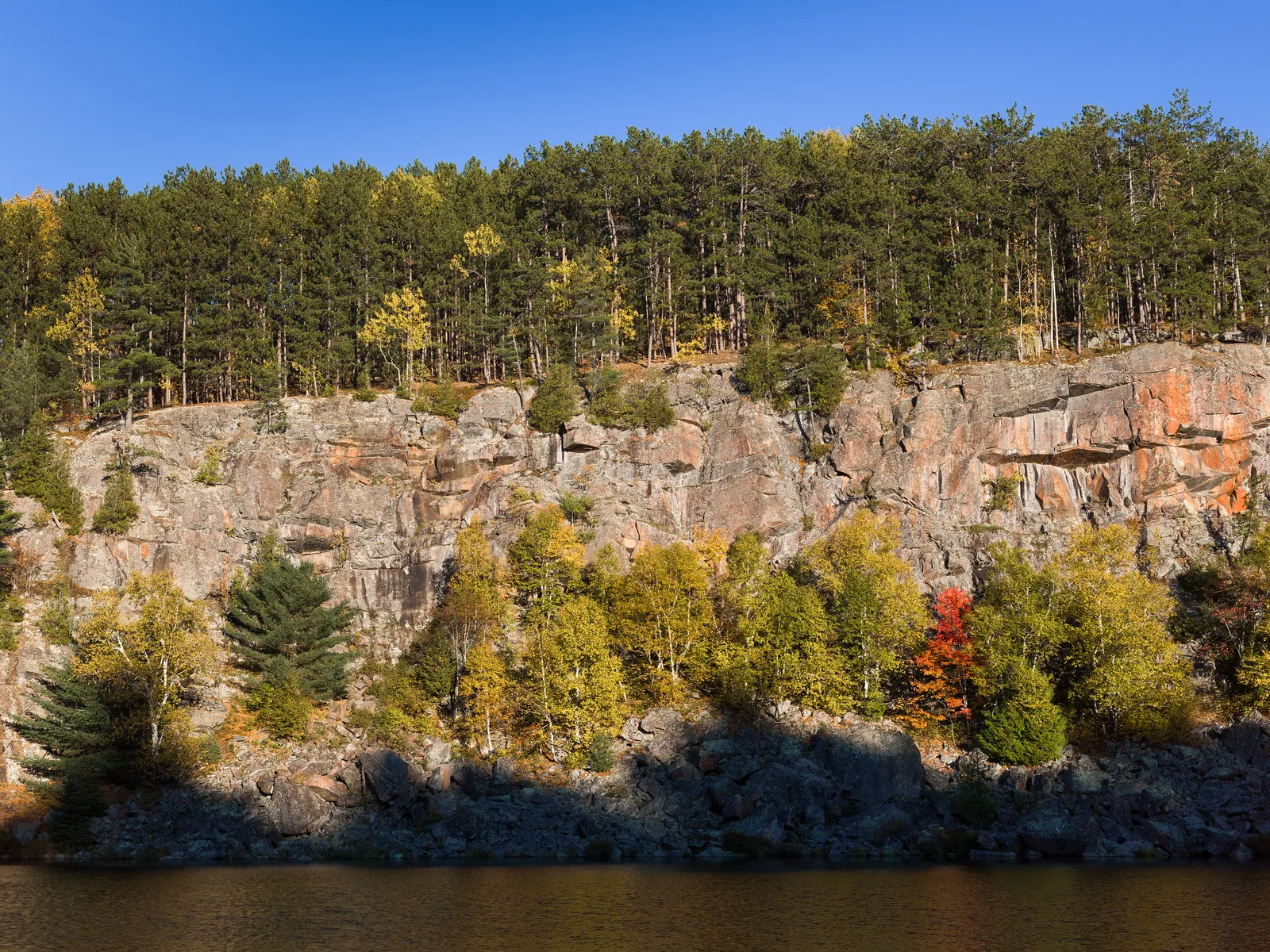
This differs from a real polariser in two ways. A polariser also removes glare from leaves and water, which no slider can do afterwards. And the slider darkens every blue in the frame, including shadows, water and clothing. For a sky that needs darkening without touching other blues, use a sky mask.
Taming greens and other foliage colours
Digital greens often come out too bright, too yellow and too saturated, especially spring leaves in sun and lawns at midday. The fix uses all three properties, and it starts with the yellow range, because that is where most foliage sits.
- Too acid or lime. Move Yellow hue 5 to 15 toward green, and Green hue a few points toward aqua if the leaves still look yellowish. This cools the foliage toward a deeper, more natural green.
- Too loud. Lower Yellow and Green saturation by 10 to 25. Foliage that competes with your subject usually needs this more than anything else.
- Too bright. Lower Yellow and Green luminance by 10 to 20. Darker foliage reads as denser and lets a lighter subject stand forward.
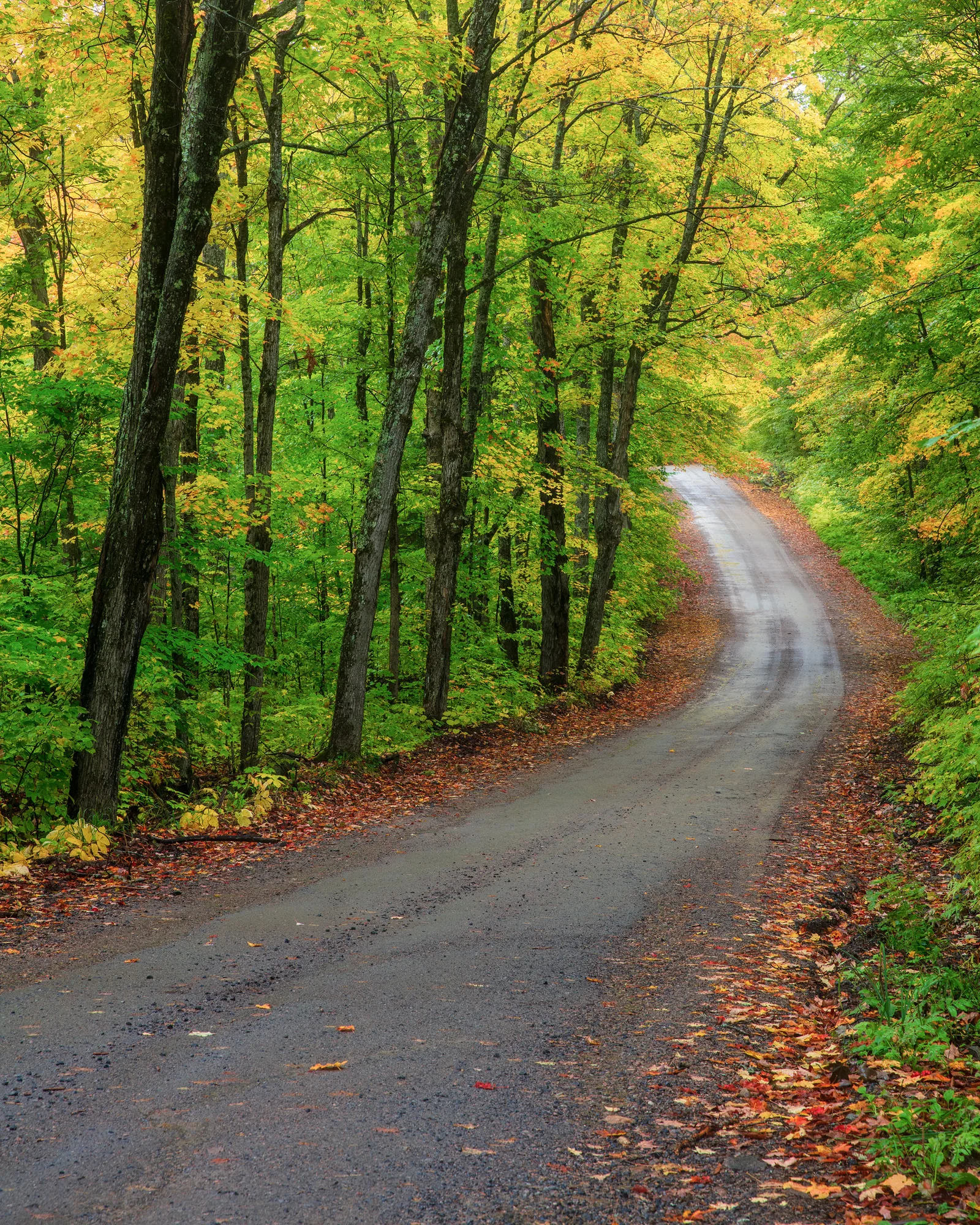
Remember that yellow is shared. Blond hair, sand, dry grass, warm window light and some skin all carry yellow, and they will follow the foliage. Check them after every yellow adjustment.
Skin tones through the orange range
Human skin, across the full range from very light to very dark, sits mainly in orange, with some red in lips, cheeks and ears and some yellow in warm light. Small orange adjustments therefore change how a person looks more than any other sliders in the panel.
- Orange luminance +5 to +15 brightens skin gently and evens it out, without the flattening effect of raising overall exposure. Go further and skin turns chalky.
- Orange saturation -5 to -15 calms skin that looks too tanned or too warm, which often happens after adding contrast.
- Red saturation -5 to -15, sometimes with red luminance +5 to +10, reduces flushed cheeks, a red nose or blotchiness.
- Orange hue a few points toward yellow takes away a pink or sunburned cast; a few points toward red takes away a sallow, greenish one. Keep it under 10. Skin is the colour viewers judge most strictly.
The same sliders affect wood, brick, sand and sunset light. In a portrait against a warm wall, the wall moves with the face; if that hurts the picture, apply the correction through a subject mask instead.
Autumn colour: separating reds, oranges and yellows
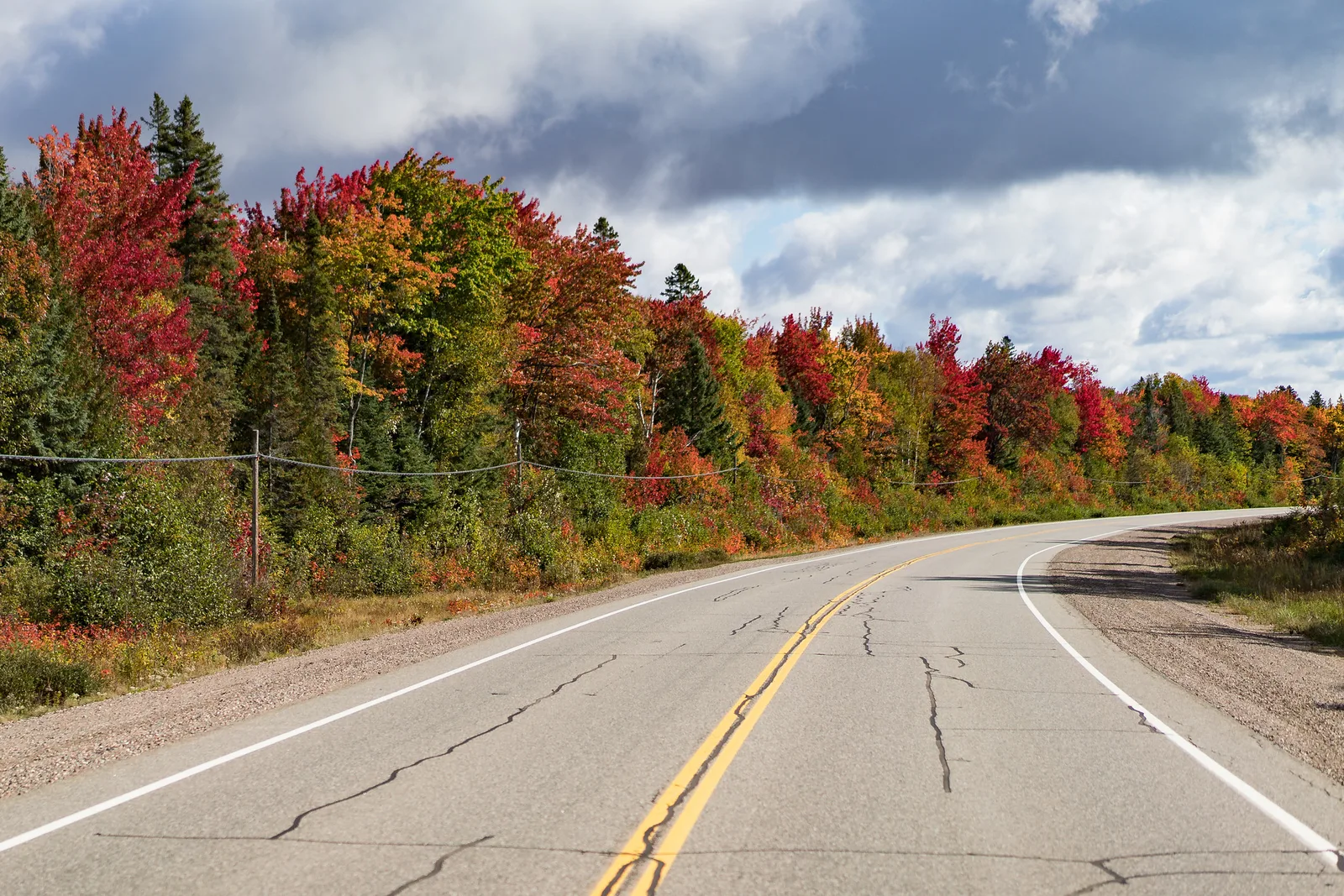
Autumn foliage spans four ranges at once, which makes it the best practice subject for this panel. Raising overall saturation makes everything louder equally. HSL lets you build separation.
- Shift hues apart. Move Yellow hue 10 to 20 toward orange to turn fading yellow-green leaves golden. Move Orange hue 5 to 10 toward red for a deeper, later-season look. Leave Green alone, or cool it slightly, so the evergreens contrast with the warm trees.
- Raise saturation selectively. Add 10 to 20 to Orange and Yellow. Be careful with Red: it is the first channel to clip, and saturated red leaves lose their veins and edges quickly.
- Use luminance for glow or depth. Raising Yellow and Orange luminance makes backlit leaves look lit from within. Lowering them gives rich, heavy colour that suits overcast light. Pick one direction for the picture.
Shooting advice for the season, including light and timing, is in fall photography.
Removing a colour cast from one range
A colour cast across the whole picture is a job for white balance. HSL handles the other kind: an unwanted colour that lives in only one part of the spectrum, after white balance is already right for the subject.
- Blue shadows on snow or white walls. Open shade is lit by blue sky. Lower Blue saturation by 20 to 40 and the shadows turn neutral grey while sunlit areas stay as they were.
- Yellow or orange from indoor lamps. When daylight and lamp light mix, balance for the daylight, then lower Yellow or Orange saturation to quiet the lamp-lit areas. Watch any skin in the frame.
- A distracting coloured object. A bright aqua bin or a magenta sign in the background can be desaturated and darkened by range until it stops pulling the eye.
Black and white mixing with the same eight ranges
Convert a photo to black and white and the panel changes into a black and white mixer. The same eight colour ranges appear, each with a single slider that sets how light or dark that original colour becomes as a shade of grey. Hue and saturation no longer apply; this is luminance by colour, and nothing else.
This does what coloured lens filters do with black and white film, except that you choose afterwards and set each colour independently.
- Blue down darkens a clear sky and makes clouds stand out, the effect of a red or orange filter.
- Orange up lightens and smooths skin; orange down adds grit and emphasises texture and freckles.
- Yellow and green up lighten foliage and grass so they separate from dark trunks and shadows; down turns them heavy and sombre.
- Red up or down controls lips, brick and red flowers, which otherwise land at the same grey as green leaves.
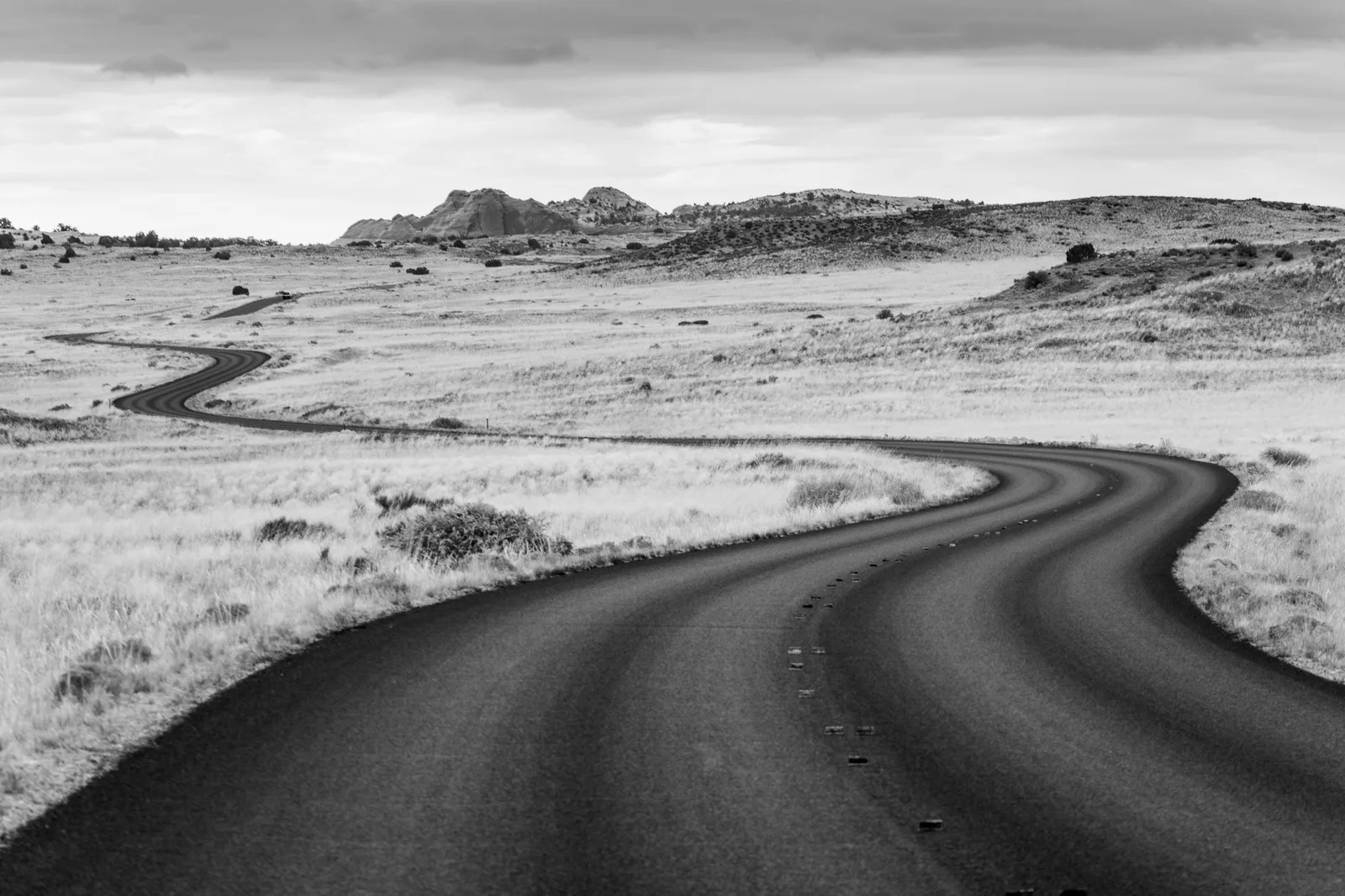
The aim is separation. Two objects of different colour but equal brightness merge into one grey unless you pull them apart here. Use the targeted adjustment tool: drag on the thing you want lighter or darker and let it find the range. Set white balance before converting, because changing it afterwards moves colours between ranges and changes the mix. The wider craft of shooting and converting is in black and white photography.
Artefacts to watch: halos, banding and noise
The panel works by selecting pixels by colour and treating them differently from their neighbours. Push that difference far enough and the boundary shows.
| Artefact | Where it appears | Why | What to do |
|---|---|---|---|
| Halos and pale fringes | Where sky meets trees, roofs, hair or mountains | Edge pixels are a blend of sky and object, so they are less blue and are darkened less than the sky beside them | Reduce the luminance change; darken the sky with a mask for part of the effect |
| Banding | Clear skies and other smooth gradients | A gradient that drifts from blue to aqua crosses a range boundary, and a large change stretches the steps between tones | Move Blue and Aqua together; keep changes moderate; edit the raw file, not a JPEG |
| Noise and blotches | Darkened skies, lifted shadows of one colour | Noise makes neighbouring pixels differ slightly in colour, so they are adjusted by different amounts and the grain is amplified | Ease the adjustment; add noise reduction limited to that area |
| Flat, posterised colour | Flowers, signs, sunset skies | Saturation raised until one channel clips | Lower saturation; darken the colour with luminance for richness |
Check for all of these at 100% along the horizon and along any fine edge against the sky, then again zoomed out, where banding in a sky is easiest to see. If a darkened sky has turned grainy, the masked approach in noise reduction cleans it without softening the land.
How HSL differs from vibrance, calibration, colour grading and masks
Lightroom has several colour tools that overlap. Each answers a different question.
| Tool | What it selects by | What it changes | Reach for it when |
|---|---|---|---|
| White balance | Nothing; whole image | Overall warm to cool and green to magenta balance | Everything has the same cast |
| Saturation and vibrance | Nothing; whole image (vibrance favours muted colours and goes easy on skin) | Intensity of all colours | The whole picture is too flat or too loud |
| HSL / Color Mixer | Hue range | Hue, saturation and brightness of that range, wherever it appears | One colour is wrong everywhere it occurs |
| Calibration | The red, green and blue primaries | How the primaries themselves are defined, which shifts every colour built from them | You want a broad, smooth change of colour character, or a base look for a set |
| Colour grading | Brightness: shadows, midtones, highlights | Adds a tint to that tonal zone | You want a mood, such as cool shadows and warm highlights |
| Masks with local colour controls | Location, or a sampled colour within an area | Any adjustment, only there | One object needs changing and others of the same colour do not |
Two of these are often confused with HSL. Calibration also has hue and saturation sliders, but it works on the three primaries that every pixel is built from, so its changes spread smoothly across the whole image and cannot target a narrow colour. Colour grading ignores existing colour and adds a tint according to how bright a pixel is, which is why it sets mood and cannot fix a green that is too yellow. Mood work is covered in colour grading in photography, and local selections in Lightroom masking and selective adjustments.
A sensible order: white balance first, then tone, then HSL to correct individual colours, then grading for mood. HSL edits made before white balance is settled will need redoing, because a white balance change moves colours from one range to another.
Common mistakes
- Raising saturation when luminance was the answer. The colour gets louder, not richer. Fix: darken the colour with luminance first, then decide whether it needs any saturation at all.
- Moving the wrong range. Dragging Green and wondering why the leaves ignore it. Fix: use the targeted adjustment tool on the leaves and see which sliders move.
- Big changes to one range only. A hard step appears where the range ends. Fix: move the neighbouring range by a third to a half as much.
- Forgetting that colours are shared. The sky edit turned the subject’s jeans navy; the foliage edit dulled blond hair. Fix: scan the whole frame after each change, and switch to a mask when a colour appears in two places that need different treatment.
- Heavy hue shifts on skin. A few points too far and people look ill. Fix: stay under 10 on Orange hue and compare with the unedited version.
- Adjusting HSL before white balance. Fix: settle white balance first; it decides which range each colour falls into.
Try this
Open a raw landscape with blue sky and green foliage, and allow fifteen minutes. First, with the targeted adjustment tool set to luminance, drag down on the sky until it is clearly too dark, and write down the Blue and Aqua numbers. Zoom to 100% on the treeline and look for a pale fringe, then look for grain in the sky. Second, back the adjustment off until both problems disappear and note the numbers again. That gap is your personal safe range for this camera. Third, set the tool to hue and drag on the foliage to see which sliders move; most people are surprised that Yellow moves more than Green. Fourth, convert a virtual copy to black and white and repeat the sky drag in the black and white mixer.
Frequently asked questions
Where is the HSL panel in Lightroom?
It is among the editing panels, below the basic tone controls. Depending on the version it is labelled HSL / Color or Color Mixer. The eight colour ranges and three properties are the same in each.
Why do I get halos around trees when I darken the sky?
Pixels along the edge are a mix of sky and tree, so they count as less blue and are darkened less, leaving a lighter outline. Reduce the blue luminance change, or split the effect between HSL and a sky mask.
Which HSL slider controls skin tones?
Mostly Orange, with Red for lips and flushed areas and some Yellow in warm light. Small moves in orange luminance and saturation have a large effect, so work in steps of about five.
Can HSL change one colour into a completely different one?
No. Hue shifts a range only part of the way toward its neighbours. To turn a blue object red, use a mask with a local hue control, or a dedicated colour replacement tool in a pixel editor.
Related guides
- Vibrance vs. saturation: the two global colour sliders and when each is safer.
- How to use the targeted adjustment tool: dragging on the image in the tone curve, HSL and black and white panels.
- How to edit landscape photos in Lightroom: where HSL sits in a complete landscape edit.
- How to edit portraits in Lightroom: skin, eyes and local adjustments in sequence.
- Colour grading in photography: tinting shadows and highlights for mood.
- Lightroom masking and selective adjustments: changing a colour in one place only.
- Colour theory for photographers: which colour relationships to aim for.
- Black and white photography: seeing and converting in monochrome.