Professional photo editing software can be expensive. Monthly subscriptions add up, and for photographers who are just getting started or working on a tight budget, that cost can feel like a barrier to improving their work. The good news is that several genuinely powerful photo editors are available for free, and some of them rival their paid counterparts in capability.
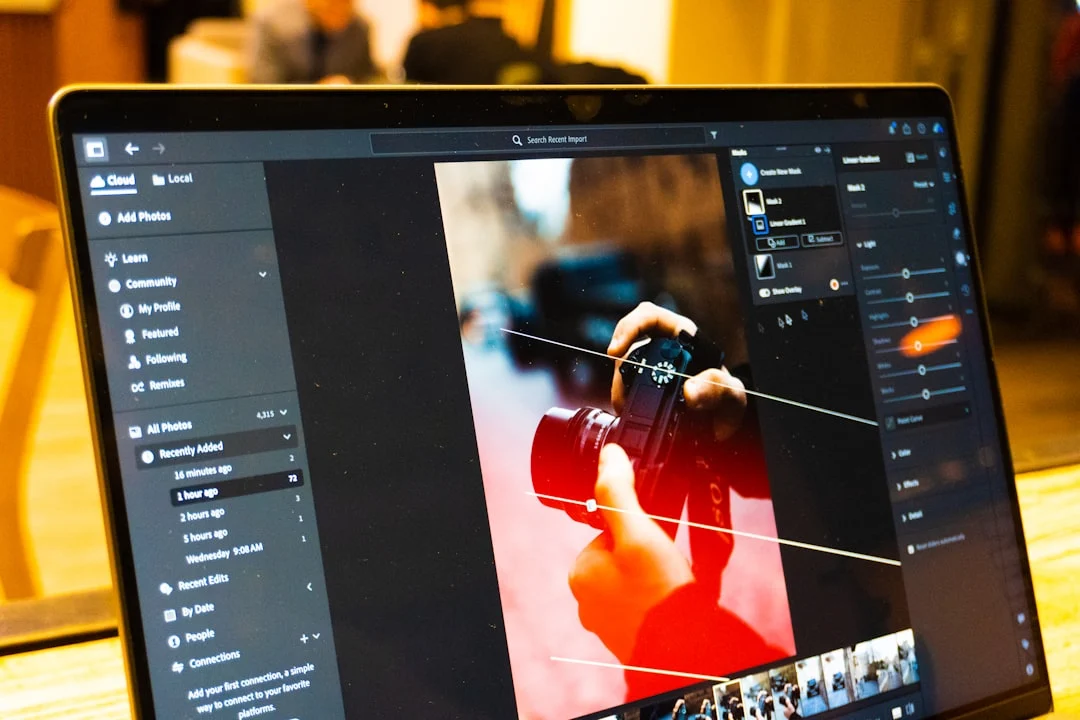
This guide compares the best free photo editing options available to photographers today. We will look at dedicated RAW processors, full-featured image editors, and mobile tools that let you do serious work on a phone or tablet. For each option, you will learn what it does well, where it falls short, who it is best suited for, and how steep the learning curve is. By the end, you will have a clear picture of which free editor matches your needs.
If you are new to photo editing entirely, start with our Photo Editing For Beginners guide to understand core concepts like White Balance, Exposure Triangle, and non-destructive editing before choosing your software.
Darktable: The Free Lightroom Alternative
Darktable is an open-source photography workflow application that handles both photo organization and RAW development. It is the closest free equivalent to Adobe Lightroom, offering a lighttable view for browsing and rating images and a darkroom view for making detailed edits.
Strengths
- Full RAW processing support for hundreds of camera models, updated regularly as new cameras are released
- Non-destructive editing. Your original files are never altered, and you can revisit any adjustment at any time
- Powerful masking system with both parametric masks (based on color, brightness, or other pixel properties) and drawn masks for precise local adjustments
- Color zones module for targeted color adjustments similar to Lightroom’s HSL panel
- Tethered shooting support for studio work
- Runs on Windows, macOS, and Linux
- Excellent noise reduction tools that handle Noise well across different ISO levels
Weaknesses
- The interface can feel cluttered and intimidating to newcomers. There are over 60 processing modules, and knowing which ones to use requires study
- Performance can be slower than Lightroom on large catalogs, particularly during export
- The module workflow order matters. Applying modules in the wrong sequence can produce unexpected results
- Documentation exists but is less polished than commercial software manuals
- No built-in panorama stitching or HDR merge
Best Use Case
Darktable is ideal for photographers who want a complete Lightroom-style workflow without paying for a subscription. If you shoot RAW, need to organize thousands of images, and want precise control over color and tone, Darktable is the strongest free option. It rewards the time you invest in learning it.
Learning Curve
Moderate to steep. Photographers coming from Lightroom will recognize many concepts but will need to learn Darktable’s specific module system. Complete beginners should expect to spend several hours getting comfortable with the interface.
RawTherapee: Precision RAW Processing
RawTherapee is another open-source RAW processor, but it takes a different approach than Darktable. Where Darktable tries to be a complete photography workflow tool, RawTherapee focuses almost entirely on the processing side. It excels at extracting the maximum quality from RAW files.
Strengths
- Outstanding RAW demosaicing algorithms that can extract exceptional detail from RAW files
- Excellent highlight and shadow recovery, giving you strong control over Dynamic Range
- Precise color management tools with ICC profile support
- Advanced sharpening options including capture sharpening and output sharpening
- Handles Chromatic Aberration correction and lens distortion profiles well
- Batch processing with processing profiles you can save and apply across images
- Detailed noise reduction with separate controls for luminance and chrominance noise
Weaknesses
- No library management. RawTherapee opens files from your filesystem, so you need a separate system for organizing your photos
- The interface is dense with technical controls that assume significant photography knowledge
- No local adjustment brushes or gradient filters. All adjustments are global
- Slower than some alternatives when processing large batches
- No tethered shooting support
Best Use Case
RawTherapee is best for photographers who prioritize raw image quality above all else and are comfortable with a technical interface. If you already have a file organization system in place and just need a powerful RAW processor, RawTherapee delivers excellent results. Some photographers use it alongside GIMP, handling RAW development in RawTherapee and pixel-level editing in GIMP.
Learning Curve
Steep. RawTherapee assumes you understand photography concepts like white balance, tone curves, and color spaces. The documentation is thorough but technical. This is not the best starting point for complete beginners.
GIMP: The Free Photoshop Alternative
GIMP (GNU Image Manipulation Program) is the most well-known free image editor. It has been in development since 1996 and offers a remarkably complete set of image editing tools. While it is not specifically designed for photography, it handles many of the same tasks as Photoshop.
Strengths
- Comprehensive layer support including layer groups, blend modes, and opacity controls
- Powerful selection tools (lasso, magic wand, select by color, paths) for isolating parts of an image
- Clone stamp and healing tools for Photo Retouching and removing distractions
- Customizable interface that you can arrange to match your preferred layout
- Extensive plugin ecosystem that adds functionality like batch processing and special effects
- Supports a wide range of file formats for import and export
- Script-Fu and Python scripting for automating repetitive tasks
Weaknesses
- Not designed as a RAW processor. While plugins exist for RAW opening, the experience is less polished than dedicated RAW editors
- Non-destructive editing is limited compared to Photoshop. Adjustments are applied directly to pixels unless you use a workaround with duplicate layers
- No built-in camera profile support or lens correction
- CMYK support is limited, which matters for print work
- The interface conventions differ from Photoshop, so Photoshop For Photographers users will need to relearn many shortcuts and workflows
- Adjustment layers are not yet fully implemented in the way Photoshop handles them
Best Use Case
GIMP is best for photographers who need pixel-level editing: retouching, compositing, removing objects, creating collages, or preparing images for web use. It pairs well with Darktable or RawTherapee. Use one of those for RAW development and global adjustments, then bring specific images into GIMP for detailed retouching work.
Learning Curve
Moderate. GIMP has an unusual interface that takes getting used to, but once you learn the basics of layers, selections, and the core tools, it becomes quite capable. Many tutorials are available online.
Snapseed: Professional Mobile Editing
Snapseed is a free mobile photo editor from Google that packs surprising power into a phone or tablet interface. It is one of the best options for Smartphone Photography enthusiasts who want to edit on the go.
Strengths
- Completely free with no ads, watermarks, or in-app purchases
- Non-destructive editing with a stacking system that lets you revisit and modify any edit
- Selective editing tool that lets you brush adjustments onto specific areas of the image
- Excellent healing and clone tools that work surprisingly well on a touch screen
- Curves and white balance tools for precise color correction
- Looks (filters) that you can customize and save as your own presets
- RAW file support on mobile devices
Weaknesses
- Mobile only. There is no desktop version
- No batch processing. Every image must be edited individually
- Limited layer support compared to desktop editors
- Export resolution depends on your device and input file
- No integration with cloud-based workflows or desktop catalogs
Best Use Case
Snapseed is perfect for photographers who want to do quality editing on their phone without paying for an app. It handles everything from basic exposure corrections to selective edits and portrait retouching. If you post directly to social media from your phone, Snapseed provides a professional editing step before you publish.
Learning Curve
Low to moderate. The gesture-based interface is intuitive once you understand the swipe-to-adjust mechanic. Most photographers can start making meaningful edits within their first session.
PhotoScape X: User-Friendly All-in-One Editor
PhotoScape X is a free photo editor that emphasizes simplicity and ease of use. It bundles a photo viewer, editor, batch processor, collage maker, screen capture, and animated GIF creator into a single application.
Strengths
- Very beginner-friendly interface with clearly labeled tools
- Built-in batch editing for applying the same adjustments to multiple photos quickly
- Collage and combine features for creating composite images
- RAW file support for basic processing
- Quick filters and effects that produce attractive results with one click
- Available on both Windows and macOS
Weaknesses
- Editing tools are less powerful than GIMP, Darktable, or RawTherapee
- Limited masking and local adjustment capabilities
- Some advanced features require the paid Pro version
- Not suitable for complex retouching or compositing work
- Color management options are basic
Best Use Case
PhotoScape X is ideal for photographers who want quick, simple edits without a steep learning curve. If you need to batch resize images, make basic color corrections, or create collages, it does those tasks well. It is also a reasonable starting point for beginners who feel overwhelmed by more complex software.
Pixlr: Browser-Based Editing
Pixlr is a free web-based photo editor that runs entirely in your browser. It offers two main versions: Pixlr X for quick, easy edits and Pixlr E for more advanced work with layers and detailed tools.
Strengths
- No installation required. Works on any computer with a modern web browser
- Pixlr E offers layers, masks, and blend modes similar to Photoshop
- Quick editing tools for common tasks like resize, crop, and color adjustments
- Template system for creating social media graphics
- Regular updates since it is a web application
Weaknesses
- Requires an internet connection to use
- Free version includes ads
- Performance depends on your browser and internet speed
- No RAW file support in the free version
- File size limitations for free users
- Less precise than desktop applications for detailed editing work
Best Use Case
Pixlr works well for photographers who need a quick edit without installing software, or who work on shared computers where they cannot install programs. It is also useful for creating graphics for social media and web use.
Comparison Table: Free Photo Editors at a Glance
| Editor | Platform | RAW Support | Non-Destructive | Best For | Difficulty |
|---|---|---|---|---|---|
| Darktable | Windows, Mac, Linux | Excellent | Yes | Complete workflow | Moderate-High |
| RawTherapee | Windows, Mac, Linux | Excellent | Yes | RAW processing | High |
| GIMP | Windows, Mac, Linux | Via plugin | Limited | Retouching, compositing | Moderate |
| Snapseed | iOS, Android | Yes | Yes | Mobile editing | Low-Moderate |
| PhotoScape X | Windows, Mac | Basic | Limited | Quick batch edits | Low |
| Pixlr | Web browser | Paid only | Limited | No-install editing | Low |
How to Choose: A Decision Framework
The best free editor for you depends on what you actually need to do. Here is a practical framework for choosing.
“I shoot RAW and need a complete workflow.” Start with Darktable. It handles everything from import to export, including organization, rating, and detailed editing. If you are coming from Lightroom For Beginners, Darktable will feel most familiar.
“I need the absolute best RAW quality.” Try RawTherapee. Its demosaicing algorithms and detail extraction are arguably the best available in any free software. Pair it with a separate file manager for organization.
“I need to retouch portraits and remove objects.” GIMP is your best free option for pixel-level work. Its clone, heal, and selection tools handle the kind of Photo Retouching tasks that require working on individual pixels.
“I edit mostly on my phone.” Snapseed is the clear winner for mobile editing. It is free with no catches, and its selective editing tools let you make adjustments that would normally require desktop software.
“I just need quick, simple edits.” PhotoScape X gives you the essentials without overwhelming you. If you do not want to learn a complex interface, start here and move to more powerful tools as your needs grow.
Combining Free Editors for a Complete Workflow
One of the smartest approaches is to combine two free editors that complement each other. Here are the most effective pairings.
Darktable + GIMP. Use Darktable for RAW development, organization, and global adjustments. Export specific images to GIMP when you need to do detailed retouching, compositing, or pixel-level work. This combination covers nearly everything Lightroom and Photoshop offer together.
RawTherapee + GIMP. Similar to the above, but use RawTherapee when you want maximum control over RAW processing quality. You lose the library management of Darktable, but gain RawTherapee’s superior demosaicing.
Darktable + Snapseed. Use Darktable as your desktop workflow tool and Snapseed for quick edits when you are away from your computer. This works well for photographers who share to social media from their phone but want a serious desktop workflow for their best work.
Common Mistakes When Switching to Free Editors
- Expecting an identical interface. Free editors are not clones of Lightroom or Photoshop. They accomplish the same tasks but through different interfaces and workflows. Accept that you will need to learn a new way of working.
- Trying to learn everything at once. Start with the basics: import, white balance, exposure, contrast, and export. Add more advanced techniques gradually as you get comfortable.
- Ignoring color management. Free editors handle color differently than commercial software. Make sure your monitor is calibrated and that you understand the difference between sRGB and wider color spaces. Check our Color Management Photography guide for details.
- Not backing up your edits. Some free editors store edit data in sidecar files next to your originals. Make sure your Photo Backup Guide strategy includes these files.
- Dismissing free software as inferior. The editing tools in Darktable, RawTherapee, and GIMP are genuinely powerful. The difference from paid software is often in polish and convenience, not in capability.
Try This: Your First Free Editing Workflow
- Download Darktable and import a folder of RAW photos. Spend time in the lighttable view rating and organizing your images.
- Pick your best photo and switch to the darkroom. Adjust white balance, exposure, and contrast. Try the tone curve for fine-tuning.
- Export the edited photo as a JPEG and compare it to the original RAW file. Notice how much information was hidden in the RAW data.
- Download GIMP and open the exported JPEG. Try the clone stamp to remove a small distraction from the image.
- Try editing the same photo in Snapseed on your phone. Compare the results and notice where each tool excels.
Frequently Asked Questions
Can free photo editors really replace Lightroom and Photoshop?
For many photographers, yes. Darktable handles the vast majority of tasks that Lightroom users need, and GIMP covers most Photoshop workflows. The main things you lose are polish, speed in some operations, and certain advanced features like content-aware fill. If you are a hobbyist or someone who edits occasionally, free tools can absolutely serve your needs.
Which free editor is best for beginners?
Snapseed is the easiest to learn and start producing good results quickly. On desktop, PhotoScape X is the most approachable. If you want to learn a tool that will grow with you long term, Darktable is worth the initial learning investment.
Do free editors support my camera’s RAW files?
Darktable and RawTherapee support hundreds of camera models and are updated regularly. Very new cameras may take a few weeks or months to be added after release. Check each editor’s supported camera list before committing.
Can I use free editors professionally?
Yes. Many working photographers use Darktable and GIMP for client work. The output quality is comparable to paid software. The main consideration is whether the workflow speed meets your professional demands, since some tasks take more steps in free editors.
Are free photo editors safe to download?
Yes, as long as you download from official sources. Darktable, RawTherapee, and GIMP are all open-source projects with transparent development. Always download from their official websites rather than third-party download sites.
Will my edits be lost if I switch editors?
Edits made in one editor generally cannot be transferred to another. However, if you export your edited photos as high-quality TIFFs or JPEGs, those final images travel with you regardless of which software created them. Your original RAW files always remain untouched and can be re-edited in any software.