Try It Yourself: Camera Simulator
Turn on the histogram (Hist button) and change exposure to see the distribution shift. Red bars warn when shadows or highlights clip.
The histogram is one of the most useful tools built into your camera, yet most photographers ignore it entirely. Instead, they judge exposure by looking at the image on the back of the LCD screen, a method that is wildly unreliable because it changes based on the ambient light, screen brightness, and your eyes’ adaptation to the environment. The histogram, on the other hand, gives you an objective, scientific readout of the tonal distribution in your image. Learning to read it takes five minutes. Using it consistently will eliminate blown highlights, crushed shadows, and bad exposures from your work. This guide explains exactly what a histogram shows, how to read it, and how to use it to nail your exposure every time.
What Is a Histogram?
A histogram is a graph that shows the distribution of brightness values in your photograph. The horizontal axis represents brightness, from pure black on the left to pure white on the right. The vertical axis represents how many pixels in the image have that brightness level. A tall spike means many pixels share that brightness; a low area means few pixels are at that level.
Think of it as a map of your image’s tones. A photo of a dark scene (a cave, a night sky) will have most of its data piled up on the left side. A photo of a bright scene (a snowy landscape, a white sand beach) will have data concentrated on the right. A well-exposed image with a full range of tones will typically show data spread across the entire graph, from left to right, without slamming into either edge.
There is no single “correct” histogram shape. A histogram is not good or bad on its own, it simply describes the tonal content of the image. A deliberately dark, moody photo should have a left-heavy histogram. A high-key portrait should lean right. The histogram is a diagnostic tool, not a target to hit.
Reading the Histogram: Left, Center, and Right
Here is how to interpret the three main regions of the histogram:
- Left side (shadows and blacks). Data piled against the left edge means your image has very dark areas. If the graph is climbing and gets cut off sharply at the left wall, those shadows are “clipped”, meaning they have gone to pure black with no detail. This is called shadow clipping or crushed blacks.
- Center (midtones). The middle of the histogram represents the mid-brightness values in your image, the tones between shadows and highlights. Most well-exposed photos of average scenes will show a healthy amount of data in this region.
- Right side (highlights and whites). Data stacked against the right edge means your image has very bright areas. If the graph is cut off sharply at the right wall, those highlights are “clipped”, blown to pure white with no detail. Highlight clipping is generally more problematic than shadow clipping because blown-out whites cannot be recovered in post-processing, even from RAW files.
Many cameras display blinking highlight warnings (“blinkies”) on the LCD preview, where overexposed areas flash black and white. This is a quick visual indicator of highlight clipping, but the histogram gives you far more precise information about exactly how much of the image is affected and how severely.
Understanding Clipping
Clipping occurs when tonal information exceeds the range your camera’s sensor can capture. Your camera has a finite dynamic range, the span between the darkest shadow and brightest highlight it can record with detail in a single exposure.
Highlight clipping happens when areas of the scene are brighter than the sensor’s maximum capacity. Those areas record as pure white (255, 255, 255 in RGB) with no texture, detail, or color information. A white wedding dress that clips becomes a featureless white blob. A bright sky that clips becomes a blank white void. Once highlights clip in-camera, no amount of post-processing can bring back the detail, the data simply was not recorded.
Shadow clipping happens when areas are darker than the sensor can record. Those areas become pure black with no detail. However, modern cameras can typically recover significantly more detail from underexposed shadows than from overexposed highlights. Shooting RAW helps even more, RAW files contain 2-3 extra stops of recoverable shadow detail compared to JPEGs.
The practical takeaway: protect your highlights first. A slightly underexposed image with recoverable shadows is almost always preferable to an overexposed image with blown highlights.
Expose to the Right (ETTR)
Expose to the Right (ETTR) is an advanced exposure strategy that deliberately pushes the histogram as far right as possible without clipping the highlights. The reasoning is rooted in how digital sensors capture light: more of the camera’s tonal data is recorded in the brighter tones. By exposing as bright as possible without clipping, you capture the maximum amount of tonal information and the least amount of noise.
To use ETTR, increase your exposure (open the aperture, slow the shutter speed, or raise the ISO) until the histogram data pushes close to the right wall but does not clip. After importing the image, reduce the exposure in your RAW processor to bring the brightness back to where you want it. The result is a cleaner image with less noise in the shadows compared to an image that was exposed “correctly” in-camera.
ETTR works best when you have time to check the histogram carefully, landscape photography, studio work, and any controlled situation. It is less practical for fast-paced shooting where you cannot review and adjust between frames. It also requires shooting in RAW; applying ETTR with JPEGs can produce washed-out results because JPEGs have far less latitude for exposure correction in post.
RGB Histograms
Most cameras display a luminance histogram by default: a single graph showing overall brightness. But your camera also offers an RGB histogram, which shows separate graphs for the red, green, and blue color channels.
Why does this matter? It is possible for a single color channel to clip even when the luminance histogram looks fine. A vivid sunset might clip the red channel while the green and blue channels are well-exposed. A bright blue sky might push the blue channel to clipping. When a single channel clips, you lose color information in that area, which can result in patches of oversaturated, detail-free color.
Check the RGB histogram when shooting scenes with highly saturated colors, sunsets, neon signs, vivid flowers, and painted surfaces. If any individual channel is clipping, reduce your exposure slightly to bring it back within range. This is especially important when using the ETTR technique, where you want to push exposure to the limit without clipping any channel.
Using the Histogram in the Field
Here is a practical workflow for using the histogram while shooting:
- Take a test shot. With your initial exposure settings, take a photograph of the scene.
- Review the histogram, not the image. Resist the urge to judge the photo by how it looks on the LCD. Instead, press the info/display button to cycle to the histogram view.
- Check for clipping. Look at both edges. Is data being cut off on the right (blown highlights)? Is it being cut off on the left (crushed shadows)? If you see clipping, decide whether it is acceptable (a specular highlight on metal, the sun itself) or whether it is losing important detail (a face, a dress, a textured surface).
- Adjust exposure. If highlights are clipping, reduce exposure by using a faster shutter speed, smaller aperture, or lower ISO. If shadows are clipping and you have highlight headroom, increase exposure. Use exposure compensation if shooting in an auto or semi-auto mode.
- Reshoot and verify. Take another test shot and check the histogram again. Repeat until you are satisfied with the tonal distribution.
This process takes seconds once it becomes habit, and it is far more reliable than chimping, staring at the LCD image and guessing whether the exposure looks right. The histogram does not lie.
The Histogram in Lightroom and Post-Processing
The histogram in Lightroom, Camera Raw, and other editing software works identically to the one in your camera, but with added interactivity. In Lightroom, you can hover over different regions of the histogram to see which tonal range (blacks, shadows, exposure, highlights, whites) they correspond to. You can even click and drag directly on the histogram to adjust those tonal values.
Lightroom also shows clipping indicators. Click the small triangles in the upper corners of the histogram to toggle clipping warnings. Areas with clipped highlights appear as red overlays on the image, and areas with clipped shadows appear as blue overlays. This makes it easy to see exactly which parts of your image have lost detail.
When editing, use the histogram as your guide. Drag the whites slider up until the highlights just approach the right edge, and pull the blacks slider down until the shadows just approach the left edge. This gives your image the fullest possible tonal range without clipping. Then fine-tune the midtones with the exposure, highlights, and shadows sliders to achieve the mood and feel you want.
Common Mistakes with the Histogram
- Trying to make every histogram look the same. There is no “ideal” histogram shape. A dark, moody image should have a left-heavy histogram. A bright, airy image should lean right. Forcing every image into a centered bell curve will strip your photos of their intended mood and character.
- Ignoring the histogram and trusting the LCD. Your camera’s LCD screen changes apparent brightness depending on the ambient light. In bright sunlight, images look darker than they are. In a dark room, they look brighter. The histogram is the only reliable exposure reference.
- Panicking over small amounts of clipping. Not all clipping is problematic. Specular highlights (the glint on a piece of jewelry, the reflection on water, the sun itself) will and should clip. Shadow clipping in non-essential areas is often acceptable. Focus on whether the clipping affects important detail in your subject.
- Not checking RGB channels. The luminance histogram can look fine while individual color channels clip. If you are shooting vibrant scenes, switch to the RGB histogram view to catch per-channel clipping.
- Only checking the histogram after the shoot. By then, it is too late to fix the exposure. Check the histogram in the field after your first few test shots, and recheck whenever the lighting changes significantly.
Frequently Asked Questions
What does a “good” histogram look like?
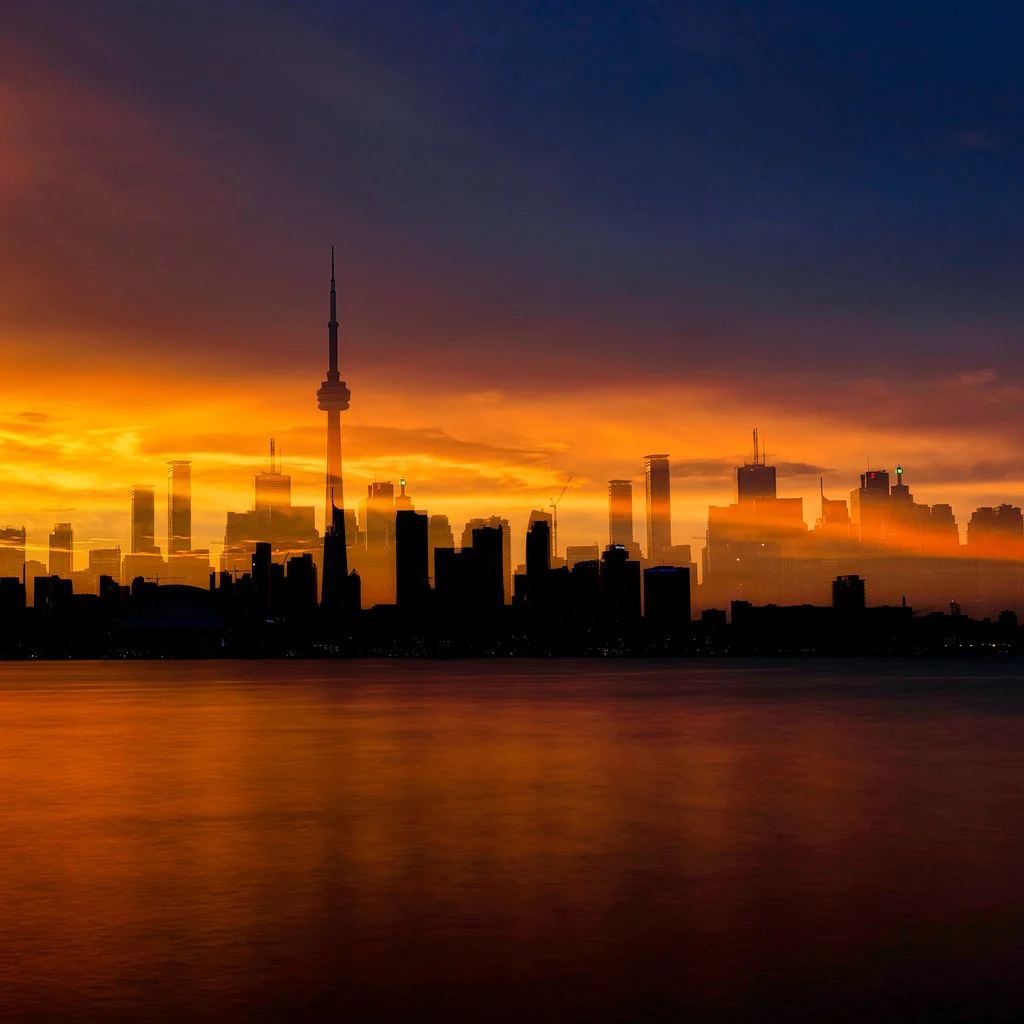
There is no universally “good” histogram. A good histogram is one that accurately represents the scene you are photographing without losing important detail to clipping. For an average daylight scene, data spread across most of the graph with gentle falloffs at both edges is typical. But a nighttime cityscape, a silhouette, or a snow scene will each produce very different, and equally “correct”, histogram shapes.
Should I always expose to the right?
ETTR is most beneficial in situations where you need maximum image quality with minimal noise, landscapes, studio work, and low-light scenes shot on a tripod. For fast-paced shooting (sports, street, events), the time spent fine-tuning exposure to push the histogram right is usually not worth the modest improvement in noise. Expose accurately for those situations and rely on modern sensors’ ability to handle a bit of shadow recovery.
Can I see the histogram before I take a photo?
Yes, if you shoot with a mirrorless camera or use your DSLR’s live view mode. Most mirrorless cameras display a live histogram overlay that updates in real time as you change settings. This lets you dial in your exposure before pressing the shutter, which is far more efficient than the shoot-check-adjust cycle. On a DSLR in optical viewfinder mode, you can only see the histogram after taking a shot.
What is the relationship between the histogram and dynamic range?
Dynamic range is the total span of brightness levels your camera sensor can capture in a single exposure, from the darkest recoverable shadow to the brightest non-clipped highlight. The histogram shows you how the actual brightness values in your scene map onto that range. If your scene’s brightness range exceeds your camera’s dynamic range, you will see clipping on one or both edges of the histogram. In those situations, you must choose which end to sacrifice (usually shadows) or use techniques like HDR bracketing to capture the full range.
Continue Learning
Understanding the histogram is fundamental to mastering exposure. Continue building your knowledge with these guides:
- Understanding Exposure
- ISO Explained
- Aperture and f-stops
- Shutter Speed Explained
- Camera Metering Modes Explained
- How to Shoot in Manual Mode