Global adjustments change the whole photo at once, like exposure, white balance, contrast and saturation sliders. Local adjustments change only part of a photo, using brushes, gradients, radial shapes or automatic selections of the sky, subject or background. Start every edit with global adjustments to get the overall brightness and color right, then use local adjustments to fix specific areas, such as darkening a bright sky, brightening a face or drawing attention to the subject. Keep local edits subtle and blended so they look natural.
When you first start editing photos, every slider seems to affect the whole picture. Brighten the photo and the sky turns white. Darken the sky and the people become too dark. It can feel like a constant tug of war. The way out is understanding the difference between global and local adjustments, one of the most important ideas in photo editing.
This guide explains in plain words what global and local adjustments are, which tools do each, when to use them, a simple order to follow, and the common mistakes beginners make. There is a 10-minute exercise and an FAQ at the end. If you are brand new to editing, start with photo editing for beginners.
What global adjustments are
A global adjustment affects every pixel in the photo equally. When you move the exposure slider, the whole image gets brighter or darker. When you change white balance, the whole image gets warmer or cooler.
Common global adjustments include:
- Exposure: overall brightness. See exposure.
- White balance: warm or cool color. See white balance.
- Contrast: the difference between light and dark.
- Highlights and shadows: brightness of the brightest and darkest areas.
- Whites and blacks: the very brightest and darkest points.
- Saturation and vibrance: color strength.
- Clarity and texture: local contrast and detail, applied across the whole image. See clarity and texture.
- Tone curve: fine control over brightness at each level.
- Crop and straighten.
Note that some sliders, like highlights and shadows, only affect bright or dark tones, but they still work across the whole photo. A shadows slider lifts every shadow everywhere, not just one particular shadow. That makes it global.
What local adjustments are
A local adjustment affects only a chosen part of the photo. You decide where the change happens. This lets you treat different areas differently, the same way a printer in a darkroom would give more or less light to parts of a print. The guide to dodging and burning explains that darkroom tradition.
Common local adjustment tools include:
- Brush: you paint the area to adjust, like brightening a face or darkening a distracting patch.
- Linear gradient: a gradual change across part of the frame, like darkening the top of a bright sky. It works like a digital version of a graduated ND filter.
- Radial gradient: an oval or circle that adjusts inside or outside its shape, useful for spotlighting a subject or darkening edges.
- Automatic selections: many editors can select the sky, subject, people or background with one click.
- Color or brightness range masks: limit an adjustment to areas of a certain color or brightness.
- Healing and cloning: remove small objects or blemishes in specific spots.
The guide to masking explains how these selections, called masks, work in more depth.
Why both matter
Global adjustments set the foundation. They make the photo look correct overall: right brightness, natural color, pleasing contrast. If the foundation is wrong, local adjustments become a long, frustrating patch job.
Local adjustments refine. Real scenes often have areas with very different needs. A sunset may have a bright sky and a dark foreground. A portrait may have a well-lit face and a distracting bright background. One global slider cannot fix both. Local tools let you balance the scene so the photo looks the way you remember it, or the way you want viewers to feel it.
A simple order to follow
- Lens corrections, crop and straighten. Fix the frame first.
- White balance. Get colors natural.
- Exposure. Set overall brightness, usually for the main subject.
- Highlights, shadows, whites and blacks. Recover detail at both ends. Check the histogram.
- Contrast and presence. Add punch or softness.
- Color. Adjust saturation, vibrance and individual colors.
- Local adjustments. Fix specific areas: sky, subject, distractions, edges.
- Final touches. Sharpening, noise reduction and a last check.
Global first, local second. That order saves time, because local changes rarely need redoing after the base is set.
Common local adjustments for beginners
Darken a bright sky
Use a linear gradient from the top of the frame down to the horizon. Lower exposure or highlights inside it. The sky gains color and detail while the foreground stays bright. Many editors can also select the sky automatically.
Brighten the subject
Use a brush or automatic subject selection to raise exposure slightly on a person or main object. This draws the eye and separates them from the background.
Brighten eyes and faces
In portraits, gently brighten the face and eyes with a brush. Keep it subtle; glowing eyes look unnatural. The guide to editing portraits covers more portrait-specific steps.
Darken distractions
Bright spots at the edges, like a white sign or a patch of sky through trees, pull the eye away. Brush them darker so attention stays on the subject.
Add a natural vignette
Use a radial gradient around the subject and lower exposure outside it. This gently darkens the edges and guides the eye inward.
Shape light in landscapes
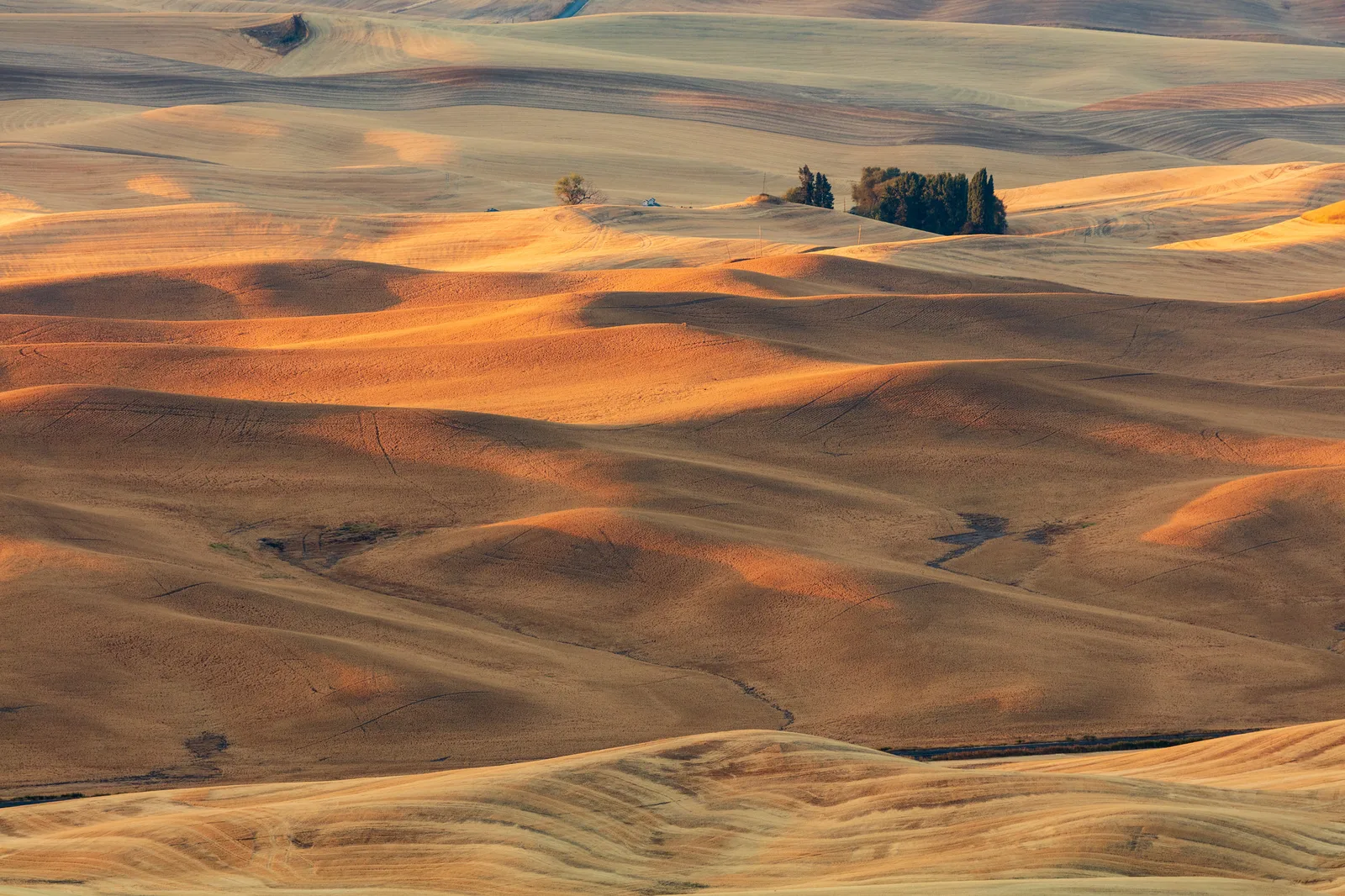
Brighten areas that sunlight is already touching, and darken shadows slightly, to strengthen the feeling of light. The rolling fields at the top of this page are the kind of scene where this helps.
Keeping local adjustments natural
- Use soft edges. Feather brushes and use wide gradients so changes blend smoothly.
- Keep changes small. Many small local adjustments look better than one strong one.
- Watch the edges of masks. Zoom in around hair, branches and horizons for halos or hard lines.
- Follow the real light. Brighten where light would naturally fall, not randomly. Unnatural lighting looks wrong even when viewers cannot say why.
- Toggle the mask overlay to see exactly where your adjustment is applied.
- Compare before and after often.
When global is enough
Not every photo needs local adjustments. Evenly lit scenes, like an overcast landscape or a portrait in open shade, often look finished after global edits alone. Adding local edits just because you can wastes time and can make photos look overworked. If the photo looks balanced after global edits, stop.
A quick test helps. After your global edits, look at the photo as a small thumbnail and ask three questions. Does my eye go straight to the subject? Is there any area that is distractingly bright or dark? Does the light feel the way I remember it? If the answers are yes, no and yes, the photo probably needs no local work at all. If any answer is wrong, a local adjustment is the right tool, and you will know exactly where to apply it.
Local adjustments on a phone
Many phone editing apps offer local tools, often called selective, brush or mask. Some can select the sky or subject automatically. Fingers are less precise than a mouse, so zoom in while painting and use a soft brush. The mobile masking guide walks through phone local adjustments in detail.
A worked example: a sunset landscape
Imagine a sunset over a lake with trees in the foreground. The camera exposed for the bright sky, so the trees are almost black. Here is how global and local adjustments work together.
First, the global edits. Correct the white balance so the sunset looks warm but not orange everywhere. Raise exposure slightly so the photo is not too dark overall. Lower highlights to keep color in the bright sky near the sun. Raise shadows to reveal some detail in the trees. Add a touch of contrast so the scene does not look flat.
Now the photo looks reasonable, but the sky is still a little bright and the trees still a little dark. Time for local edits. Add a linear gradient from the top down to the horizon and lower its exposure slightly to deepen the sky colors. Add a second gradient from the bottom up to the water line and raise its shadows a little more to open up the trees. Finally, brush a small brightening onto the reflection of the sun in the water to make it sparkle.
Each change is small, but together they balance the scene. Compare before and after, and the difference is clear, yet the photo still looks natural. That is the goal of combining global and local adjustments.
Looking closely at the photos on this page
The rolling fields at the top are full of light and shadow. A global edit would set the overall warmth and brightness. Local edits could then gently brighten the golden patches where sunlight falls and slightly deepen the shadowed hollows, strengthening the sense of light moving across the land. Pushed too far, though, the patches would look painted on.
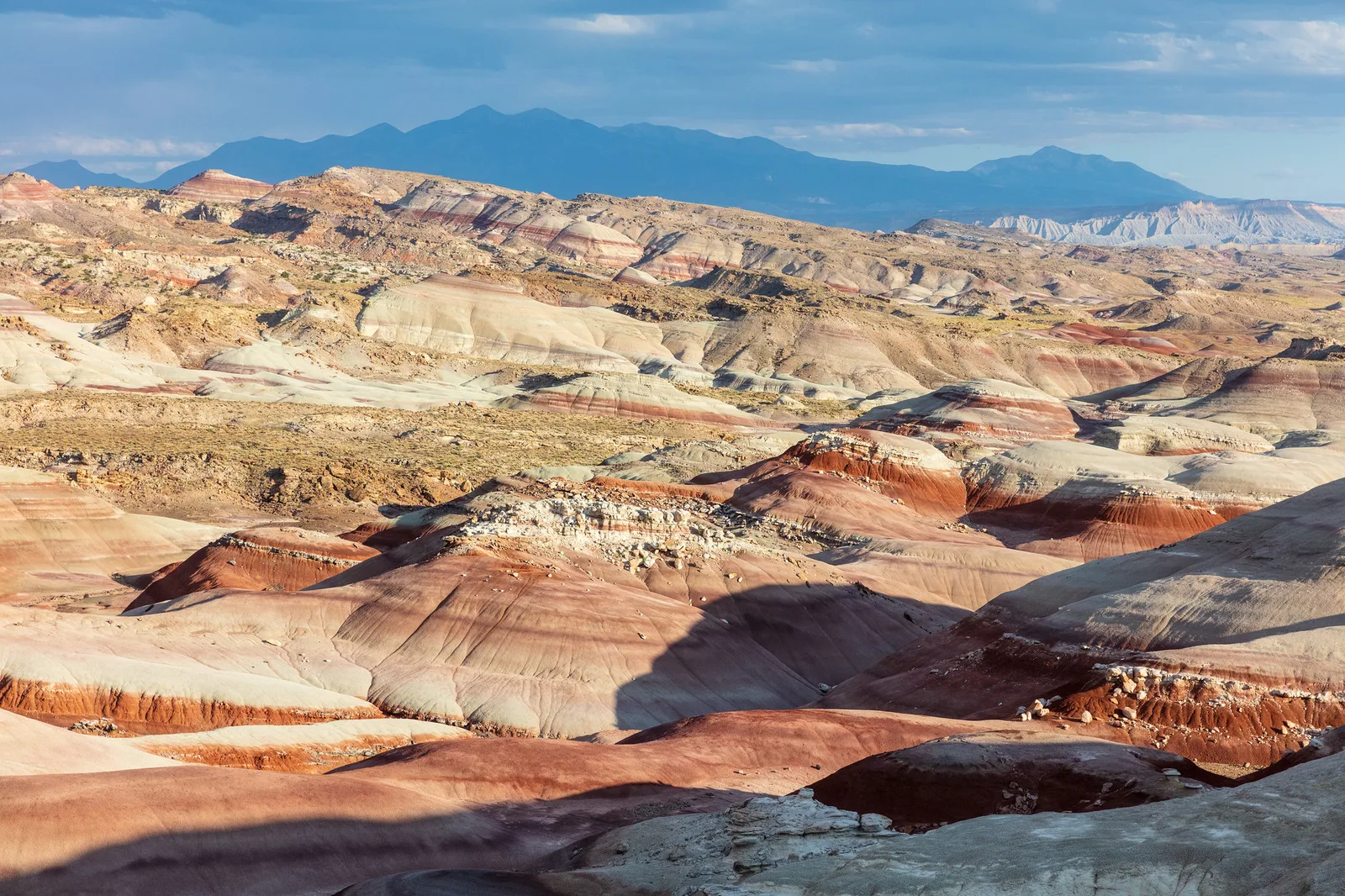
The layered badlands show a classic sky and land situation. The sky is light, and the layered rock carries most of the interest. A gentle gradient over the sky could add a little depth, while a brush or selection on the foreground rock could lift its colors. The distant mountains are best left soft, which keeps the feeling of distance.
Thinking like a darkroom printer
Long before digital editing, photographers printing in a darkroom already worked in a global then local way. First they chose an overall exposure time and paper contrast for the whole print. That was the global adjustment. Then they held back light from some areas with a small card on a wire, which made those areas lighter, and gave extra light to others through a hole in a sheet of card, which made them darker. Those were the local adjustments.
Great printers spent hours on a single print, making tiny local changes to guide the viewer’s eye: a little lighter on a face, a little darker in a corner, a touch more depth in a sky. The tools have changed, but the thinking is the same. Ask yourself where you want the viewer to look first, and use small local changes to lead them there. Brighter, sharper and more colorful areas attract attention. Darker, softer and quieter areas let the eye rest.
Local adjustments and storytelling
Local adjustments are not only for fixing problems. They are also a storytelling tool. In a street photo, a slight brightening of one person in a crowd can make them the main character. In a landscape, a gentle darkening of the edges can make a lone tree feel more isolated. In a portrait, warming the light on the face and cooling the background can make the person feel closer and more alive.
The key is that the viewer should feel the effect without noticing the edit. If someone looks at your photo and thinks “what a beautiful light on her face” rather than “that face has been brightened”, your local adjustment has done its job. Practice subtle changes and compare often, and you will develop a feel for how much is enough.
How automatic selections have changed editing
Not long ago, selecting a sky or a person precisely took patient work with a brush. Many editors can now detect the sky, a subject, people, faces or the background automatically. This makes local adjustments far easier for beginners. With one click, you can darken a sky without touching the trees, or brighten a person without brightening the wall behind them.
Automatic selections are not perfect. They can miss fine details like hair, thin branches or the edge of a hat, or include bits they should not. Always zoom in and check the edges, and use a brush to add or remove areas as needed. Treat the automatic selection as a fast starting point, then refine it by hand.
Common mistakes
- Starting with local adjustments. Fix the overall photo first.
- Hard mask edges. Visible lines or halos around a brushed area look fake. Feather and refine.
- Over-brightened faces or eyes. They glow unnaturally. Keep it subtle.
- Gradients darkening objects that cross the horizon. Trees, buildings and people sticking into the sky can turn dark. Use a brush to erase the gradient from them, or use an automatic sky selection.
- Light that contradicts the scene. Brightening areas that should be in shadow confuses the eye.
- Too many local edits. The photo starts to look patchy. Use fewer, broader adjustments.
- Using local tools to rescue a bad global edit. Go back and fix the base instead.
Try this: a 10-minute global then local edit
- Minute 1: Choose a landscape with a bright sky and darker foreground.
- Minute 2 to 4: Do global edits only: white balance, exposure, highlights, shadows and contrast.
- Minute 5 to 6: Add a linear gradient over the sky and lower its exposure slightly.
- Minute 7: Brush a gentle brightening onto your main subject.
- Minute 8: Add a radial gradient to darken the edges slightly.
- Minute 9: Turn on the mask overlay and check for hard edges or spills.
- Minute 10: Compare before and after. Does it look balanced and natural?
Frequently asked questions
What is the difference between global and local adjustments?
Global adjustments change the whole photo. Local adjustments change only a selected area.
Which should I do first?
Global adjustments first, to set the overall look. Then local adjustments to refine specific areas.
What tools make local adjustments?
Brushes, linear gradients, radial gradients, automatic sky or subject selections, and color or brightness range masks.
How do I stop my local edits looking fake?
Use soft edges, small changes, follow the real light, and check mask edges closely.
Can I do local adjustments on a phone?
Yes. Many phone apps offer brushes, gradients and automatic sky or subject selection.
Do all photos need local adjustments?
No. Evenly lit photos often look finished after global edits alone.
Want to learn how masks let you edit just one part of a photo? Read the guide to masking.
Curious how photographers brighten and darken parts of a print by hand? Try dodging and burning.