Why RAW Processing Matters
Every digital photograph you take is, in a very real sense, unfinished. Your camera’s sensor captures raw data: light values, nothing more. What you see on the back of your camera is an interpretation of that data, processed by software using default assumptions about brightness, contrast, color, and sharpness. When you shoot JPEG, the camera makes those decisions for you, bakes them in, and discards the leftover data. When you shoot RAW, all that data is preserved, and the creative decisions are yours to make.
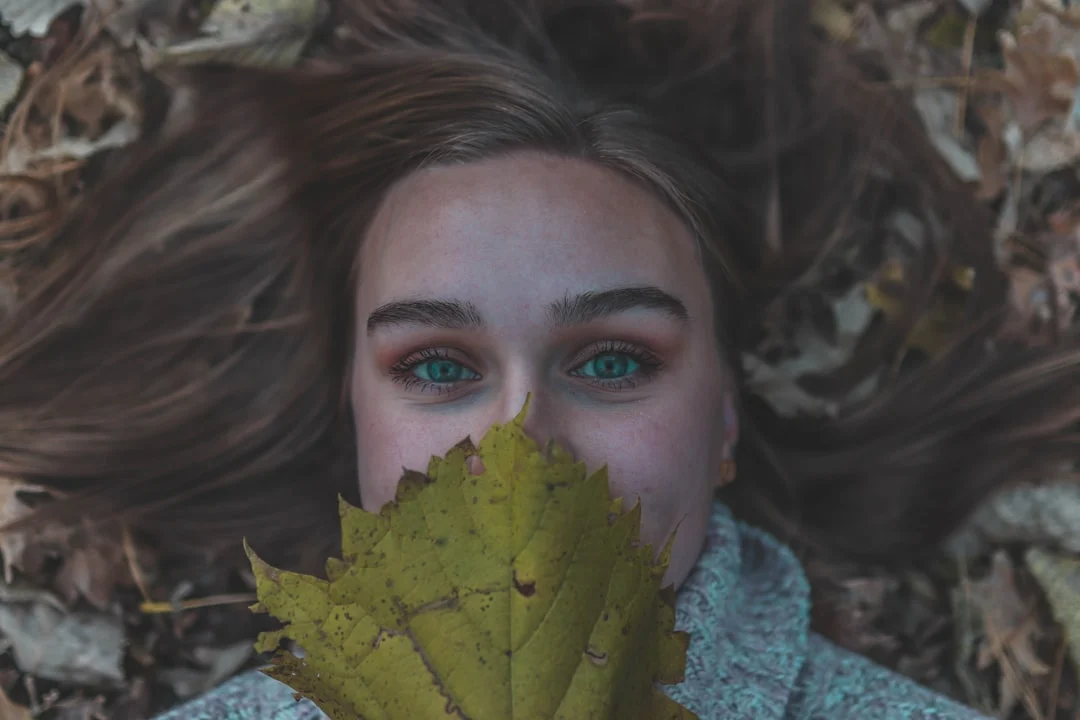
Think of a RAW file as a photographic negative, not a finished print. It contains the maximum amount of information your sensor can record: the full range of brightness values, unprocessed color data, and no compression artifacts. A RAW file does not look great straight from the camera. It typically appears flat and muted compared to a JPEG. That is by design. It is waiting for you to develop it. For a full comparison of the two formats and when each makes sense, see RAW vs JPEG.
The flexibility of RAW is most obvious when something goes slightly wrong in the field. If your exposure is off by a stop or two, a RAW file often lets you recover the image cleanly. If the white balance was set incorrectly, your camera was on tungsten while you were in daylight, you can change it in post with zero quality loss. If the highlights in the sky are overexposed, a RAW file often has recoverable detail that a JPEG would have discarded. This is not about being sloppy in the field. It is about having a safety net for the inevitable moments when conditions change faster than your settings.
But RAW processing is about more than rescue. It is a creative act. Just as darkroom printers once chose how to develop and print a negative to bring out specific qualities, darker skies, warmer skin tones, deeper shadows, RAW processing lets you make those choices digitally. Two photographers can start with the same RAW file and produce images with entirely different moods, tones, and atmospheres. The processing is part of the creative vision, not an afterthought. For a beginner-friendly introduction to the world of editing, see Photo Editing for Beginners.
The goal of this lesson is not to teach you specific software. Applications change, interfaces are updated, and new tools appear regularly. Instead, we will focus on the universal principles and order of operations that apply regardless of which application you use. Once you understand what each adjustment does and why, you can apply that knowledge in any software environment.
The Editing Order of Operations
One of the most common mistakes in photo editing is adjusting things in a random order: cropping first, then adjusting color, then going back to fix the exposure, then cropping again. This scattered approach wastes time and often produces inconsistent results. There is a logical order of operations that produces better images more efficiently, and it applies to virtually every photograph you will ever edit.
Step 1: White balance and color temperature. Start here because white balance affects the appearance of everything else. If the overall color cast is wrong, every subsequent adjustment you make will be built on a flawed foundation. Set the white balance so that neutral tones (white, gray, black) look genuinely neutral. Many RAW processors include a white balance eyedropper: click on something in the image that should be neutral gray, and the software corrects the entire image. If the image has no obvious neutral tone, adjust the temperature and tint sliders until the overall color feels right to your eye.
Step 2: Exposure and tone. Once the color foundation is set, adjust the overall brightness and tonal distribution. Start with the exposure slider to set the overall brightness. Then work the highlights, shadows, whites, and blacks to shape the tonal range. The goal is an image where important detail is visible in both the bright and dark areas, with a tonal distribution that matches the mood you want. A bright, airy image has more weight in the upper tones. A dark, moody image sits in the lower tones. Neither is “correct”: it depends on the story you are telling.
Step 3: Presence. This category includes adjustments that affect the texture and micro-contrast of the image. Clarity enhances midtone contrast, making textures and edges more defined. Used subtly, it adds punch to landscapes and architecture. Overdone, it creates an unnatural, crunchy look. Texture affects fine detail. Dehaze cuts through atmospheric haze, increasing contrast and saturation in distant elements. All three of these should be used with restraint: a little goes a long way.
Step 4: Color. With the tones set, refine the colors. Vibrance increases the saturation of muted colors while leaving already-saturated colors alone, making it more natural than the saturation slider, which affects all colors equally. HSL (hue, saturation, luminance) adjustments let you target individual color ranges: you can make blues deeper, greens more vibrant, or skin tones warmer without affecting the rest of the image. This is where you refine the color palette of your photograph to match your creative intent.
Step 5: Detail. Sharpening and noise reduction come after tonal and color adjustments because they interact with contrast and brightness. Sharpening enhances edge definition, making the image look crisper. Every digital image benefits from at least some sharpening. Noise reduction smooths the grain from high-ISO shots. There is always a tradeoff between noise reduction and detail: too much smoothing makes images look waxy. Find the balance that preserves texture while reducing distracting noise.
Step 6: Local adjustments. After your global adjustments are set, make targeted corrections to specific areas. Darken a bright sky with a graduated filter. Brighten a face with a radial filter. Remove a distracting element with a healing tool. Local adjustments come after global ones because the global edits often resolve issues you thought would need local attention.
Step 7: Crop and straighten. Cropping comes last, not first. Why? Because the tonal and color adjustments you made in the earlier steps may change how you perceive the composition. An area that looked empty before processing might reveal texture and detail after you open the shadows. A distracting element might become less noticeable after tonal adjustments. By cropping last, you make your composition decision based on the fully processed image, not the raw starting point. This also means you never waste time fine-tuning adjustments in areas that get cropped away.
Following this order does not mean you cannot go back and tweak earlier steps. You will. The point is to start with the big foundations (color temperature, overall exposure) and work toward the fine details (sharpening, local corrections, crop). This produces more coherent results than a scattershot approach and trains you to think systematically about your images.
Global Adjustments in Practice
Global adjustments affect the entire image at once. They are the broad strokes of your edit, and getting them right makes everything that follows easier.
Exposure controls the overall brightness of the image. Think of it as the master volume knob. Moving it up brightens everything. Moving it down darkens everything. Start here to get the image in the right ballpark. If the image is significantly underexposed (too dark) or overexposed (too bright), correct that first before touching anything else.
Contrast adjusts the difference between the brightest and darkest tones. Increasing contrast makes lights lighter and darks darker, adding punch and drama. Decreasing contrast compresses the tonal range, producing a flatter, softer look. High contrast suits bold, graphic images. Low contrast suits dreamy, ethereal moods. Neither is inherently better: it depends on what the photograph needs.
Highlights and shadows are among the most useful tools in any editor. The highlights slider controls only the bright tones. Pulling it down recovers detail in bright areas: clouds in a blown-out sky, detail in a white dress, texture in a bright wall. The shadows slider controls only the dark tones. Pushing it up reveals detail in dark areas: texture in a black jacket, detail in a shadowed face, information in a dark foreground. These two sliders together can dramatically expand the visible tonal range of your image without affecting the midtones.
Whites and blacks set the tonal endpoints: the absolute brightest and darkest points in the image. The whites slider controls where the brightest tones in the image sit. The blacks slider controls where the darkest tones sit. Together, they determine the overall tonal range. An image with pure white and pure black has the maximum tonal range. An image where the brightest tone is light gray and the darkest is dark gray looks flat and muted. Setting appropriate white and black points is one of the simplest ways to add life to a dull image.
The tone curve is a more precise tool for controlling tonal distribution. It maps input tones (what your camera captured) to output tones (what you want). A steepened curve in the midtones adds contrast. An S-curve (darks pulled down, lights pulled up) adds rich, punchy contrast. A reverse curve can create faded, vintage looks. The tone curve takes practice to use well, but once you understand it, it becomes one of the most powerful tools in your editing toolkit. For related techniques that use tonal control creatively, see Dodging and Burning.
Local Adjustments and Masking
Global adjustments treat the entire image as one unit. Local adjustments let you target specific regions, which is essential for images where different areas need different treatment: a bright sky and a dark foreground, a well-lit subject in front of a distracting background, or a single element that needs more or less emphasis.
Graduated filters apply adjustments along a gradual transition from full effect to no effect. The classic use is darkening a bright sky: place a graduated filter at the top of the image, pull down the exposure, and the sky becomes richer while the foreground stays untouched. You can also use graduated filters to warm the bottom of a landscape (mimicking golden-hour light on the ground) or to add clarity to one side of an image.
Radial filters apply adjustments in an oval shape, either inside or outside the oval. They are perfect for drawing attention to a subject. Place a radial filter over your subject and darken or desaturate everything outside it. This creates a subtle vignette effect that guides the viewer’s eye. You can also brighten the inside of the filter to lift your subject from a darker surrounding. Radial filters should be subtle: if the viewer notices the effect, you have gone too far.
Adjustment brushes give you the most precise control, letting you paint corrections onto specific areas. Use them to brighten a face, darken a distracting element, sharpen a key detail, or change the color temperature of a single area. The flexibility is enormous. You can dodge (brighten) and burn (darken) just as darkroom printers have done for generations, but with far more precision and the ability to undo.
Many modern RAW processors now offer AI-based masking that can automatically select subjects, skies, people, and other elements. These tools can save significant time. With a single click, the software identifies the sky in a landscape and lets you darken it, deepen its blue, or reduce its highlights. It can select a person in a portrait and let you brighten or warm just the skin tones. These automated masks are not always perfect, edges can be rough, and complex scenes can confuse the algorithms, but they provide an excellent starting point that you can refine manually.
A word of caution: local adjustments are powerful, and it is easy to overuse them. If you find yourself applying radial filters, graduated filters, and dozens of brush strokes to fix fundamental problems with an image, it is often a sign that the photograph itself has issues that editing cannot solve. Local adjustments work best as refinements on an already strong image, not as rescue operations on a weak one.
Developing a Consistent Workflow
The difference between a photographer who spends 20 minutes editing a shoot and one who spends five hours often has nothing to do with the quality of their output. It comes down to workflow: having a systematic, repeatable process for moving from camera to finished image without wasted steps.
A good workflow starts with organization. Import your images, then rate and flag them before you edit anything. Most editing applications let you use star ratings (1-5), color labels, or flags (pick/reject) to sort your images. On your first pass through a shoot, mark the images that are technically sound and emotionally compelling. Reject the obvious failures: out of focus, bad timing, test shots. On a second pass, narrow your selections to the images that truly deserve your editing time. This process is called culling, and it saves enormous time by preventing you from editing photographs that will never make the cut. For a more detailed approach, see Photo Culling Workflow.
Batch processing is one of the biggest time-savers available. When you shoot a series of images in similar conditions, the same location, the same light, the same subject, the edits are likely to be similar. Edit one image from the series until you are happy with it, then sync or copy those adjustments to the rest. This does not mean every image in the batch will be perfect, you will still need to fine-tune individual frames, but it gets you 80% of the way there in seconds rather than minutes.
Presets are another efficiency tool. A preset is a saved set of adjustments that you can apply with a single click. Many photographers build a library of personal presets: one for warm golden-hour light, one for overcast days, one for indoor available light, one for black and white. The preset gives you a starting point, and you refine from there. Building your own presets, based on edits you have made and liked, is more valuable than downloading someone else’s, because your presets will reflect your actual shooting conditions and aesthetic preferences.
Apply the 80/20 rule to your editing. For most images, 80% of the improvement comes from a few basic adjustments: white balance, exposure, highlights, shadows, and a little vibrance or saturation. The remaining 20%, tone curve tweaks, HSL adjustments, local corrections, fine-tuned sharpening, is where you can spend unlimited time. For many images, especially those destined for social media or web display, the basic adjustments are all you need. Reserve the deep editing for your portfolio-quality work.
Perhaps the hardest skill in editing is knowing when to stop. It is easy to keep tweaking, pushing a slider a little further, trying one more adjustment. But there is a point of diminishing returns, and past that point, you are not improving the image: you are just changing it. If you have been staring at the same image for more than 10 minutes, step away. Come back later with fresh eyes. You will often find that the image was better several adjustments ago. For a comprehensive overview of how editing fits into your broader photography process, see Photography Workflow.
Try This: Editing Exercises
Editing is a skill that improves with deliberate practice, just like shooting. These exercises are designed to build both your technical ability and your creative judgment in the digital darkroom.
Order of Operations. Take a single RAW file, one with a good range of tones and some complexity, and edit it twice. The first time, follow the recommended order: white balance first, then exposure and tone, then presence, color, detail, local adjustments, and finally the crop. The second time, work in reverse or random order: crop first, then jump to color, then go back to exposure, and so on. Compare the two final images and, more importantly, compare the experience. The ordered approach should feel more efficient and produce a more cohesive result. The random approach reveals how adjustments interact with each other in ways that can lead you in circles.
Before and After Set. Edit 10 images from a recent shoot, following the full order of operations for each one. For every image, save a before/after comparison (most editing software has a built-in way to toggle between the unedited and edited versions). After editing all 10, review the comparisons as a set. Look for patterns: Do you consistently warm or cool your images? Do you always boost shadows or crush blacks? Do you tend toward high or low contrast? These patterns reveal your emerging editing style: the visual signature that will eventually make your work recognizable.
One Image, Three Moods. Select a single RAW file, something with a good range of tones and interesting light, and create three completely different edits. First, bright and airy: push the exposure up, open the shadows, reduce contrast, and desaturate slightly. Second, dark and moody: pull the exposure down, deepen the shadows, increase contrast, and shift toward cooler tones. Third, warm vintage: add warmth to the white balance, reduce the blacks for a faded look, and shift the tonal curve for a lifted shadow effect. Compare all three. Notice how the same photograph tells an entirely different story depending on how you process it. This exercise is one of the best ways to understand that processing is not just technical: it is a creative decision that shapes meaning.
RAW processing is where your photographs truly come to life. The image you capture in the field is the beginning of the creative process, not the end. By developing a systematic approach, building efficiency through batch processing and presets, and learning to trust your creative judgment in the digital darkroom, you transform raw sensor data into finished images that express exactly what you saw and felt in the moment of capture. The technical skills are learnable. The creative instincts develop with practice. And the more images you process, the faster and more confident your editing will become.