Clarity and texture are editing sliders that add or soften local contrast, the small differences between light and dark next to each other. Texture works on the finest details, like skin pores, bark and fabric, while clarity works on slightly larger details and midtones, giving photos more punch and depth. Raise them a little for landscapes, buildings and weathered subjects; lower texture gently for smoother skin. Small amounts look natural, while large amounts create halos, crunchy detail and an over-edited look.
Almost every photo editing app, on a computer or a phone, has a group of sliders that make photos look crisper or softer. Two of the most useful are clarity and texture. They can make a cloudy sky look dramatic, an old building look rugged, or a portrait look smoother and more flattering. They are also two of the easiest sliders to overdo, which is why so many beginner edits end up looking harsh.
This guide explains in plain words what clarity and texture actually do, how they differ from contrast and sharpening, when to raise or lower them, how much to use, and the common mistakes. There is a 10-minute exercise and an FAQ at the end. If you are new to editing in general, start with photo editing for beginners.
First, what is contrast?
Contrast is the difference between light and dark in a photo. A photo with high contrast has bright highlights and deep shadows. A photo with low contrast looks softer and greyer.
The ordinary contrast slider changes the whole photo at once. It makes all the bright areas brighter and all the dark areas darker. That is called global contrast, because it affects the entire image the same way.
Clarity and texture are different. They change local contrast: the difference between light and dark in small areas next to each other. Instead of making the whole photo brighter and darker, they make edges and details stand out more, or less, without changing the overall brightness very much.
What texture does
The texture slider works on the smallest details in a photo: skin pores, fine hair, the grain of wood, the weave of fabric, tiny leaves, sand, and the surface of stone.
- Raising texture makes these fine details more visible and crisp. Bark looks rougher, fabric looks more detailed, and rocks look more rugged.
- Lowering texture softens fine details while leaving larger shapes and edges alone. This is why it is popular for smoothing skin in portraits without making faces look blurry or plastic.
Texture is usually the gentlest of the detail sliders. Even moderate changes tend to look natural. The guide to texture in photography explains how to find and light textured subjects in the first place.
What clarity does
The clarity slider works on slightly larger details and mostly on the midtones, the middle brightness range between shadows and highlights.
- Raising clarity adds punch and depth. Clouds look more dramatic, buildings look more solid, and landscapes feel crisper and more three-dimensional. It can also make a photo look gritty or harsh if pushed too far.
- Lowering clarity creates a soft, dreamy, glowing look. A little can flatter portraits and suit gentle scenes like misty mornings. A lot looks hazy and blurry.
Clarity is stronger than texture. Small amounts make a visible difference, and large amounts quickly look unnatural.
A helpful way to picture the difference is to imagine an old brick wall. Texture affects the rough surface of each brick: the tiny pits, grains and specks. Clarity affects the shapes of the bricks themselves and the shadows in the gaps between them. Raise texture and the surface looks grittier. Raise clarity and the whole wall looks bolder and more three-dimensional. Raise both a lot and the wall looks like an illustration rather than a photograph.
How they compare with other sliders
Several sliders seem to do similar things. Here is a simple way to think about them, from the finest effect to the broadest:
- Sharpening works on the tiniest edges, a pixel or two wide. It makes things look in focus and crisp. See sharpening.
- Texture works on fine detail, like pores and grain.
- Clarity works on medium-sized detail and midtone contrast.
- Dehaze works on large areas and cuts through haze or fog by boosting contrast and color. The guide to the dehaze slider explains it in detail.
- Contrast works on the whole photo at once.
Because they overlap, raising several of them at once multiplies the effect. A little of each can be lovely. A lot of each almost always looks over-processed.
When to raise clarity and texture
- Landscapes with rocks, mountains, trees and clouds often benefit from a small boost.
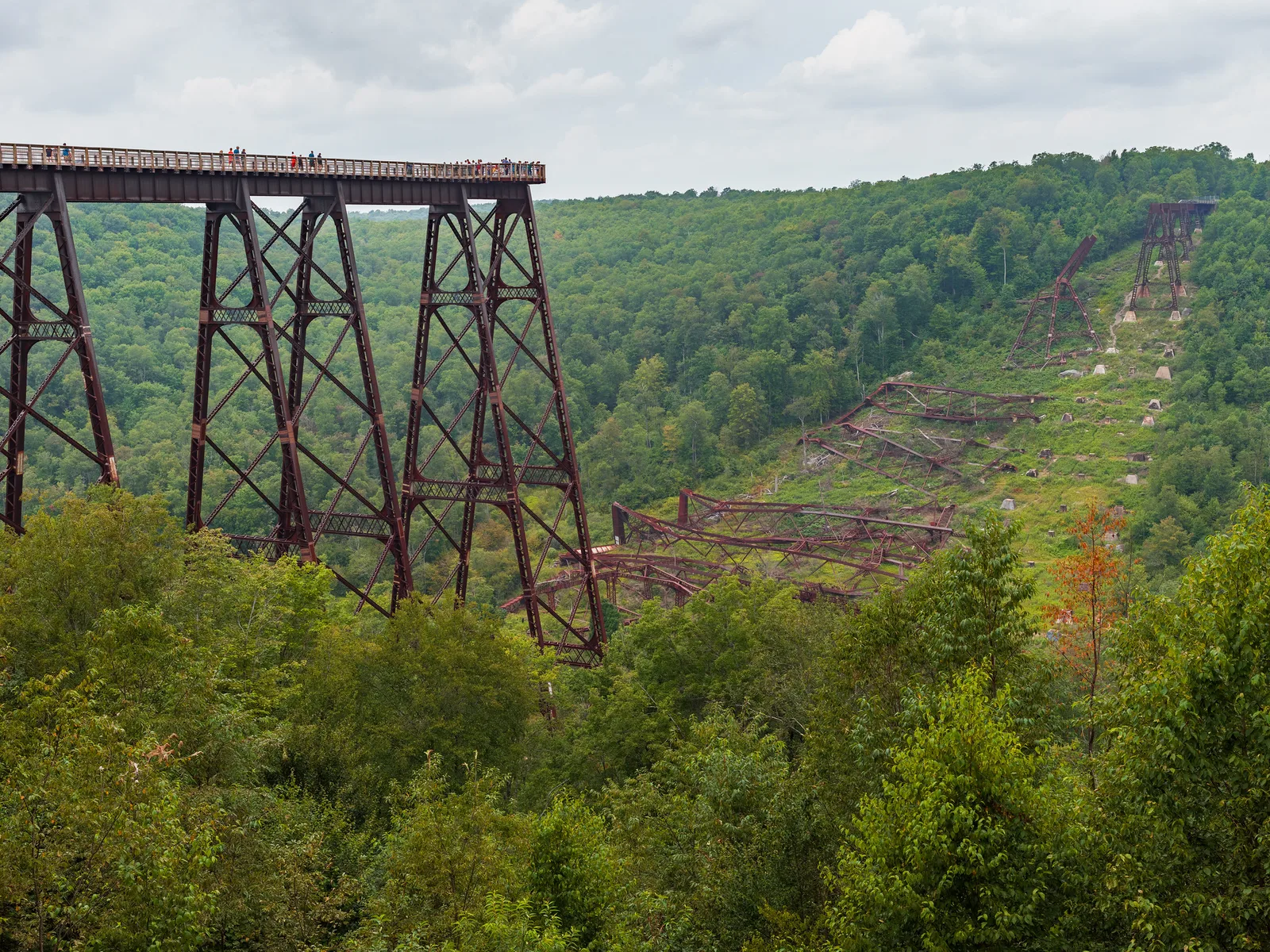
- Architecture and old structures, like the rusted bridge at the top of this page, look more solid and detailed.
- Weathered subjects, like old doors, peeling paint, rusty metal and lined faces of willing older subjects, gain character.
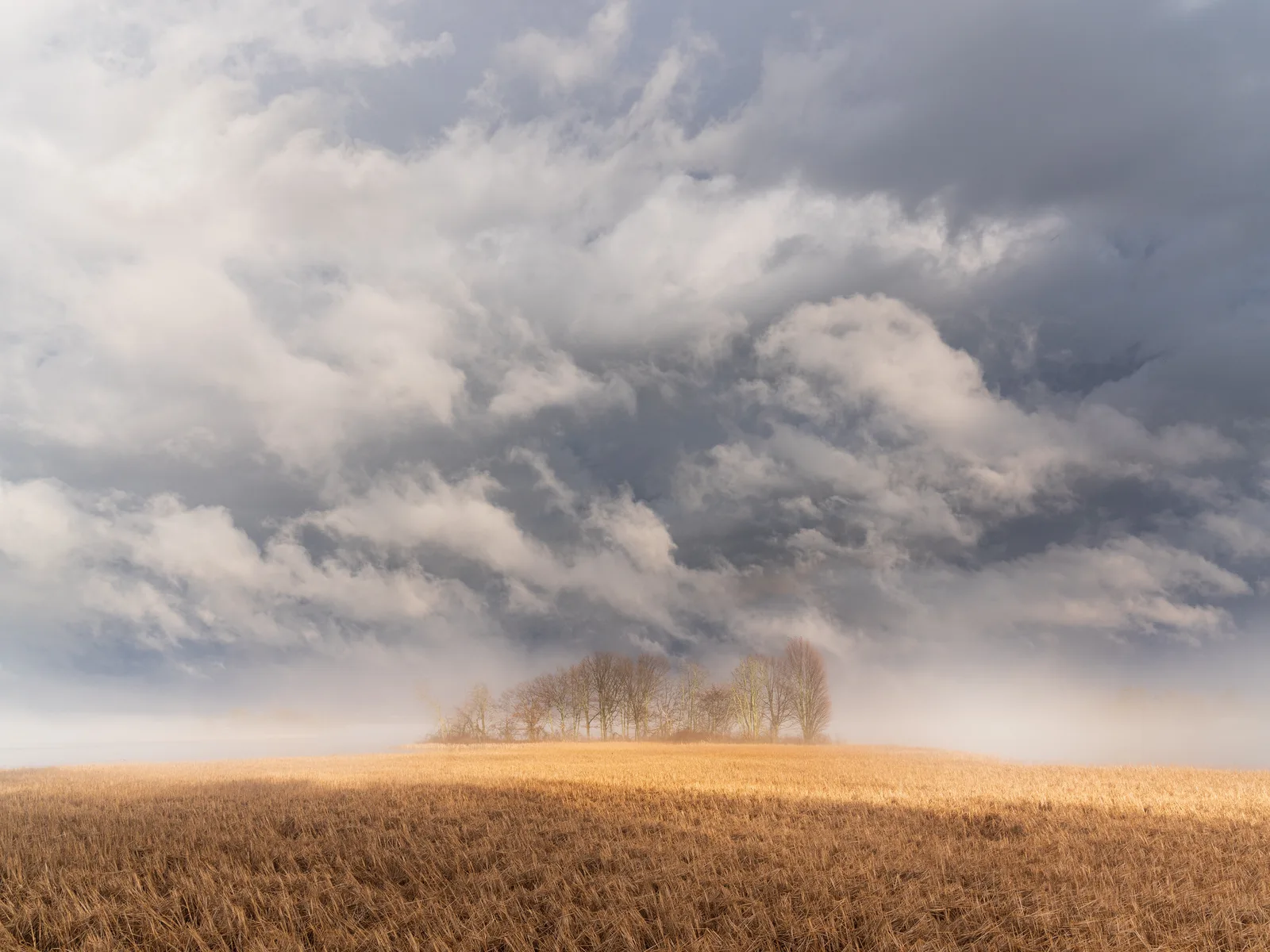
- Dramatic skies, like the storm clouds below, gain depth and shape.
- Black and white photos often rely on local contrast to look rich. See the black and white photography guide.
- Flat, hazy photos taken on dull days can be brought to life with a small clarity boost.
When to lower clarity and texture
- Portraits, especially of children, women and anyone who wants a softer look. A small reduction in texture smooths skin while keeping eyes and hair sharp. The guide to photographing skin tones has more on flattering skin.
- Dreamy scenes, like fog, soft flowers and pastel sunsets, where softness is the mood.
- Noisy photos, where raising detail would also raise grain. Lowering texture can hide a little noise, although noise reduction is the proper tool.
- Water and sky in long exposures, where smoothness is the point.
How much to use
There are no fixed numbers, because every app and every photo is different. Still, beginners do well with these rough guidelines:
- Texture: small to moderate moves either way usually look natural.
- Clarity: start very small. A modest boost is often enough for landscapes. For portraits, many people leave clarity alone or lower it slightly.
- Zoom in and out. Check the photo at full size for halos and crunchy edges, then view it small to judge the overall look.
- Toggle the before and after. Most editors let you compare quickly. If the “after” looks harsh or fake, go back.
- Come back later. Eyes get used to strong edits after a few minutes. A fresh look the next day often shows you went too far.
A useful trick is to push the slider too far on purpose, so you can clearly see what it does, then pull it back until the effect is barely noticeable. Then pull it back a little more.
Using clarity and texture on just part of a photo
Often the best edit is not a global change at all. You might want crisp rocks but a soft sky, or a sharp face with smooth skin. Most editors let you apply clarity and texture with a brush, a gradient or an automatic subject or sky selection. This is called a local adjustment, because it affects only part of the image.
- Add clarity to a sky only, to make clouds more dramatic without making a person’s face harsh.
- Lower texture on skin only, while leaving eyes, lips and hair crisp.
- Add texture to the foreground rocks of a landscape, but not the distant mountains, which helps create a feeling of depth.
The guide to masking and selective adjustments explains how to make these local edits.
Clarity, texture and depth
In real life, distant things look softer and lower in contrast because of the air in between. Nearby things look crisp and detailed. You can use clarity and texture to strengthen this natural effect. Add a little detail to the foreground and leave the background soft, and the photo feels deeper. Add strong clarity everywhere, and distant hills can look as crisp as the rocks at your feet, which flattens the sense of space and looks unnatural.
This is one reason heavily processed landscapes sometimes feel strange even when people cannot say why. The eye expects distance to soften detail. Respecting that keeps your edits believable.
On a phone
Many phone editing apps include a clarity or structure slider, and some also offer texture or detail. They work the same way as on a computer. Because phone screens are small and bright, it is easy to overdo them. Make a small adjustment, then zoom in to check edges, especially along the horizon and around people. The guide to mobile photo editing apps covers common tools.
Looking closely at the photos on this page
The collapsed bridge is the kind of subject that welcomes a little extra detail. Rusted steel, crossing beams and a textured forest all contain lots of fine edges. A gentle texture boost brings out the rust and the leaves, while a small clarity boost makes the steel towers stand firmly against the softer sky. Too much would turn the trees into a crunchy mess and add bright outlines around the beams.
The storm clouds show what clarity does best. Clouds are made of soft midtones, and clarity gives those midtones shape, so the sky looks heavy and dramatic. The flat field below needs very little. If the same strong clarity were applied to the field, it could look gritty, which is why many photographers add clarity to the sky only.
Where clarity and texture fit in your editing
Clarity and texture work best near the end of your basic edits, not at the start. If you add them before fixing brightness and color, you may end up changing them again later. A simple order that suits most beginners looks like this.
- Crop and straighten so you are working on the final frame.
- Set the overall brightness with exposure, then adjust highlights and shadows.
- Fix the color with white balance, so whites look white and skin looks natural.
- Set contrast for the overall mood.
- Add or reduce clarity and texture to taste.
- Make local adjustments, such as adding clarity to the sky only.
- Sharpen and reduce noise as a final step.
The reason for this order is simple. Brightness and contrast change how strong clarity and texture appear. A dark photo with lifted shadows may reveal noise that texture then exaggerates. Getting the foundation right first means you only need small amounts of the detail sliders, which keeps the photo natural.
Why the same amount looks different on every photo
Beginners often find a slider setting they like and try to use it on every photo. With clarity and texture, that rarely works. The effect depends on how much detail is in the photo, how large the photo is, how much noise it has, and even what screen you view it on.
A photo full of small detail, like a forest or a city seen from above, reacts strongly to texture, because there are so many fine edges. A simple photo, like a smooth sky with one bird, barely changes. A photo taken in low light, with higher ISO, has more noise, so raising texture also raises grain. A photo viewed on a large screen shows halos that a phone screen hides.
That is why it is better to judge each photo by eye than to rely on numbers. Treat any settings you read about, including the guidelines on this page, as a starting point. Then trust what you see when you compare before and after.
Common mistakes
- Pushing clarity too far. Halos appear around edges, and the photo looks gritty or fake. See over-editing photos.
- High clarity on faces. It exaggerates wrinkles, pores and blemishes. Use it gently or not at all on portraits.
- Lowering texture too far on skin. Faces start to look plastic. Keep some natural texture.
- Stacking every detail slider. Sharpening, texture, clarity and dehaze all at high values multiply into harshness.
- Judging only when zoomed out. Check full size for halos and noise.
- Judging only when zoomed in. Check the whole photo too, because the overall mood matters most.
- Adding detail to distant backgrounds. It flattens depth. Keep backgrounds softer.
- Using clarity to fix a blurry photo. It cannot create real sharpness. It only adds edge contrast.
Try this: a 10-minute clarity and texture test
- Minute 1: Pick a landscape or building photo with plenty of detail, and a portrait if you have one of a willing friend or yourself.
- Minute 2 to 3: On the landscape, push clarity all the way up. Look at the edges and the sky. Then push it all the way down. Notice the difference.
- Minute 4 to 5: Reset, then do the same with texture. Notice how it affects only fine detail.
- Minute 6: Now find a natural amount of each: raise them until you notice the effect, then pull back slightly.
- Minute 7 to 8: On the portrait, lower texture a little. Check that eyes and hair stay crisp.
- Minute 9: Compare before and after for both photos.
- Minute 10: Save your edits and look again tomorrow. Do they still feel natural?
Frequently asked questions
What is the difference between clarity and texture?
Texture affects the finest details, like pores and grain. Clarity affects slightly larger details and midtone contrast, adding punch and depth.
Is clarity the same as sharpening?
No. Sharpening enhances the tiniest edges to make things look in focus. Clarity adds contrast to medium-sized details.
Should I use clarity on portraits?
Usually very little or none. Many people lower texture slightly instead, to smooth skin naturally.
Why does my photo have halos after editing?
Too much clarity, dehaze or sharpening. Reduce them until the bright outlines along edges disappear.
Can clarity fix a blurry photo?
No. It can make edges look a little crisper, but it cannot restore real focus.
How much clarity is too much?
If you notice halos, gritty skin or a fake look, it is too much. Pull back until the effect is subtle.
Wondering how to cut through fog and haze in a photo? Read the guide to the dehaze slider.
Want to know how to make photos look crisp without overdoing it? Try the guide to sharpening.