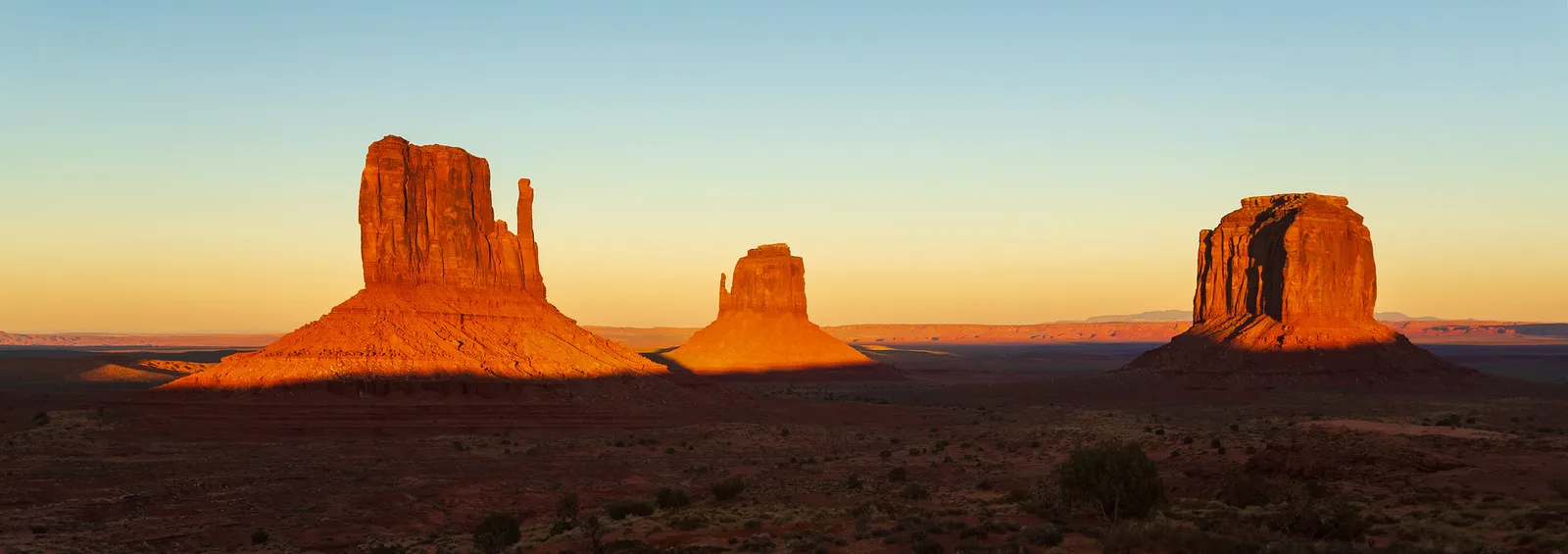
A photo is over-edited when the changes draw more attention than the picture itself. The usual signs are colors that look neon or radioactive, orange or plastic-looking skin, glowing outlines around trees and buildings called halos, gray “dirty” skies, crunchy over-sharpened detail, shadows lifted so far the photo looks flat, and smooth skies that break into stripes. To fix it, reset the sliders you pushed hardest, reduce every remaining change by about a third, work on a calibrated or at least sensibly bright screen, and compare your edit with the original before you save.
Almost everyone over-edits when they first start. That is completely normal. When you discover what the sliders can do, it is exciting to push them, and for a while everything looks better with more. Then, a few weeks later, you look back and wonder why your sunset looks like a cartoon. That moment is a sign of progress: your eye is improving.
This guide shows you the most common signs of over-editing, explains in plain words what causes each one, and gives you a simple fix for every problem. It finishes with a calm editing routine that keeps you from going too far in the first place.
Why over-editing happens
A few things push beginners toward heavy edits:
- Your eyes adjust while you edit. After staring at a photo for a few minutes, your eyes get used to its colors and contrast. A small change feels like nothing, so you add more. Ten minutes later, the photo is far stronger than you meant.
- Each slider looks good on its own. A bit more saturation, a bit more contrast, a bit more clarity. Each step looks like an improvement. Added together, they are too much.
- Bright screens and small previews. A photo edited on a very bright phone screen at night can look harsh everywhere else.
- Trying to rescue a weak photo. When the light was dull, it is tempting to add drama in editing. The result usually looks forced.
- Copying a style. Popular looks change, and heavily stylized edits can look dated quickly.
None of this means editing is bad. Editing, also called post-processing, is a normal part of photography. The aim is just to make your photo look its best, not to make the editing the star. If you are new to editing, photo editing for beginners walks through a first edit step by step.
Sign 1: colors that glow
What it looks like: grass that is neon green, skies that are electric blue, sunsets that are radioactive orange, and colors that seem to glow off the screen.
What causes it: too much saturation. Saturation is how intense colors are. Many apps also have a gentler slider called vibrance, which boosts muted colors more than strong ones. Pushing either too far makes colors look fake. Often only one or two colors are the problem, especially greens, blues and oranges.
The fix:
- Lower the saturation slider back toward zero, then add back only a little.
- Prefer vibrance to saturation for a gentler boost.
- Use the color mixer, often called HSL (hue, saturation, luminance), to calm down just the color that is too strong, such as green grass.
- Check skin. If people look orange, colors are too strong.
Sign 2: orange or plastic skin
What it looks like: faces that are orange, red or yellow, or skin that looks smooth and waxy like a doll, with no pores or texture.
What causes it: boosting warmth or saturation for the whole photo affects skin first. Smoothing tools and heavy noise reduction erase natural skin texture.
The fix:
- Check the white balance. Move the temperature slider slightly cooler if skin is too orange.
- Reduce orange and red saturation a little in the color mixer.
- If you smoothed skin, reduce the effect until you can see texture again when zoomed in. Real skin has pores.
- Use a light touch with noise reduction, which can also make skin look plastic.
Sign 3: halos around edges
What it looks like: a bright, glowing outline where a dark subject meets a bright sky, such as around trees, mountains, buildings or a person’s head.
What causes it: sliders that boost local contrast, such as clarity, structure, texture or dehaze, and strong shadow and highlight changes. They brighten one side of an edge and darken the other. Heavy HDR processing, which combines several exposures or squeezes a big range of brightness into one photo, often causes halos too. The page on tone mapping explains that process.
The fix:
- Reduce clarity, dehaze or structure sliders. These are the usual suspects.
- Pull back strong highlight and shadow adjustments.
- If you used a graduated filter or a brush to darken the sky, check that it does not spill over the subject. Masking tools that select the sky automatically help a lot.
- Zoom in to 100 percent along the skyline to check.
Sign 4: flat, gray, “HDR” look
What it looks like: the photo has no real darks or brights. Shadows are gray, the sky is muddy, and everything is the same middle brightness. Skies may look dirty or stormy even on a clear day.
What causes it: pushing shadows all the way up and highlights all the way down. This shows detail everywhere but removes the contrast that makes a picture feel real and three-dimensional.
The fix:
- Bring shadows and highlights back toward zero, then adjust gently.
- Set the darkest and brightest points: lower the blacks slider until the darkest parts are truly dark, and raise the whites slider until the brightest parts are bright. The histogram helps you see when you have reached the ends.
- Let some parts of the photo stay dark. Shadows give a photo shape and mood.
Not sure how far shadows and highlights can safely go? Highlight recovery explains what can be rescued and what is gone for good.
Sign 5: crunchy, over-sharpened detail
What it looks like: edges with white outlines, gritty texture on smooth surfaces, sand-like grain in the sky and a harsh, digital look.
What causes it: too much sharpening, often combined with high clarity or texture. Sharpening boosts edges, but it also boosts noise and tiny details that should stay soft.
The fix:
- Reduce the sharpening amount. Most photos need only a little.
- Use the sharpening mask, if your app has one, so sharpening only affects edges and not smooth areas like skies and skin.
- Check at 100 percent, then look again at normal size. If it looks sharp at normal size, it is sharp enough.
Sign 6: stripes in smooth skies
What it looks like: a smooth sky or wall breaks into visible bands or steps of color instead of a smooth gradient. This is called banding, or posterization.
What causes it: pushing a JPEG file hard, especially brightening it a lot or adding heavy contrast or dehaze to a sky. JPEG files have less color information than RAW files, so big changes reveal the gaps. Saving with strong compression makes it worse.
The fix:
- Edit from the RAW file if you have one. It has far more information to work with.
- Reduce heavy dehaze, contrast or saturation on the sky.
- Add a very small amount of grain or noise. It breaks up the bands and makes the gradient look smooth again.
- Save at a high quality setting when you export.
Sign 7: heavy vignettes and effects
What it looks like: a dark, smudgy ring around the edges of every photo, or a filter effect so strong that you notice it before the subject.
What causes it: a vignette, which darkens the corners, can gently draw the eye to the center. Pushed too far, it looks like you are peering through a tube. Filters and presets, which are saved groups of settings, can be strong when applied at full strength. The page on vignetting explains the effect.
The fix:
- Reduce the vignette until you can barely see it, then decide if you even need it.
- Many apps let you set the strength of a filter or preset. Try 30 to 60 percent instead of 100.
- Use presets as a starting point, then adjust for each photo. See the mobile presets guide.
How to check if you have gone too far
These simple habits catch over-editing before you share or print.
- Compare with the original. Almost every app has a before and after view. Flip between them. If the edit looks dramatically different, ask whether that is what you wanted.
- Take a break. Step away for ten minutes, or even a day, and look again with fresh eyes. This is the single best test.
- Look at it small and large. View the photo as a small thumbnail, then full screen. Over-editing often jumps out at both sizes.
- Check skin, skies and whites. Skin should look like skin. White things should look white, not blue or yellow. Skies should look smooth.
- Look on another screen. Check the photo on a different phone, a laptop or a TV. If it looks harsh everywhere except your editing screen, your screen is fooling you.
- Ask someone. A friend who does not edit photos will often notice what you have stopped seeing.
Your screen matters
If your screen is set very bright or has strong colors, you may make photos darker and duller than you think to compensate, or the opposite. Turn off any automatic brightness or “vivid” display mode while you edit, and set brightness to a comfortable middle level. For serious editing, calibrating your monitor with a small device makes its colors and brightness accurate. The guide to monitor calibration explains how.
A calm editing routine
Following the same order every time helps you make small, sensible changes. Here is a simple routine for beginners.
- Crop and straighten. Fix the frame first.
- White balance. Make whites look white and skin look natural.
- Exposure. Set the overall brightness.
- Highlights and shadows. Recover a little detail at each end. Small moves.
- Whites and blacks. Set the brightest and darkest points so the photo has punch.
- Contrast. Add a little if needed.
- Color. Small vibrance boost, then adjust single colors only if one stands out.
- Local tweaks. Brighten a face or darken a bright corner with a brush or mask. Dodging and burning explains this classic technique.
- Sharpening and noise reduction. Last, and gently.
- Step back and reduce. Take a break, look again and pull back anything that now looks too strong.
A good rule of thumb: if you move a slider more than halfway, stop and ask why.
Starting points that keep edits natural
Every photo is different, but these rough limits help beginners stay on the safe side. Treat them as a guide, not a rule.
- Saturation and vibrance: small moves, usually well under a quarter of the slider’s range.
- Clarity, texture and dehaze: light touches; watch the skyline for halos.
- Shadows and highlights: moderate moves; if the photo starts to look gray, back off.
- Sharpening: a little, with a mask so skies and skin stay smooth.
- Vignette: so subtle you only notice it when you turn it off.
If you find yourself always reaching for big moves, it is often a sign the problem is in the shooting, such as dull light or a dark exposure, rather than the editing.
When a strong edit is the right choice
Bold edits are not always wrong. Some styles are meant to be strong: dramatic black and white, moody color grades for music or fashion, surreal or artistic work. The difference is intention. An over-edited photo looks like an accident; a strong style looks like a choice and is consistent across a set of photos. If you want a bold look, learn the basics first so you can control it. The guide to color grading shows how to create a deliberate color style, and the black and white photography guide covers bold monochrome looks.
Honesty matters too. For news, documentary and nature photos, heavy editing that changes what was there can mislead people. The page on photo retouching ethics discusses where the lines are.
Common mistakes
- Editing for a long time without a break. Your eyes adjust and you lose perspective. Take breaks.
- Pushing every slider a little. Small changes add up. Only move what the photo needs.
- Using presets at full strength on every photo. Every photo is different. Adjust the strength.
- Editing at night on a bright phone. Turn the brightness to a medium level or check again in daylight.
- Trying to make a dull photo dramatic. Editing cannot add light that was not there. Reshoot in better light if you can.
- Never looking back at old edits. Revisiting older edits is the best way to see how your taste is improving.
Try this: a 10-minute edit rescue
- Minutes 1 to 2: Find a photo you edited some time ago that you suspect went too far.
- Minutes 3 to 4: Go through the seven signs above. Write down which ones you see.
- Minutes 5 to 7: Make a copy of the photo, reset the edits and redo them using the calm editing routine, keeping every slider under halfway.
- Minutes 8 to 9: Put the old and new versions side by side. Look at skin, skies and edges.
- Minute 10: Decide which you prefer, and why. Many people are surprised how much they like the gentler edit.
Frequently asked questions
How do I know if my photo is over-edited?
Look for neon colors, orange or waxy skin, glowing outlines around edges, gray flat tones, crunchy detail and stripes in skies. Compare with the original and look again after a break.
What is the most common editing mistake?
Too much saturation, closely followed by too much clarity or dehaze, which causes halos and a gritty look.
Why do my edited photos look different on other screens?
Screens vary in brightness and color. A very bright or vivid screen fools you. Use a medium brightness, turn off vivid modes and consider calibrating your monitor.
How do I fix halos in my photos?
Reduce clarity, dehaze and strong shadow or highlight changes, and make sure any sky adjustments do not spill onto the subject.
Is it bad to use filters and presets?
No. They are a great starting point. Just lower their strength and adjust each photo so the effect suits it.
How much editing is too much?
When people notice the editing before the photo. A good edit makes the picture look its best without shouting about how it was done.
Wondering which other habits hold beginners back? Common beginner photography mistakes covers shooting as well as editing.