To edit photos consistently, start from the same base for every photo in a set, fix white balance and exposure first so the photos match in brightness and color, then apply one shared look with a preset or copied settings and fine-tune each image. Compare photos side by side while you edit, match skin tones, skies and whites across the set, and keep a short written recipe for your look. Consistency makes a group of photos feel like one story, whether it is a trip, an event, a portfolio or a social feed.
Have you ever put a set of your photos side by side and noticed that they do not quite belong together? One looks warm and orange, the next cool and blue, one bright and airy, another dark and contrasty. Each photo might look fine on its own, but together they feel messy. The fix is consistent editing: giving a group of photos a shared, matching look.
This guide explains why consistency matters, how to match color and brightness between photos, how to use presets and copied settings, how to build your own recognizable look, and the common mistakes. There is a 10-minute exercise and an FAQ at the end.
Why consistent editing matters
When photos are seen together, viewers compare them, even without meaning to. Big jumps in color or brightness pull attention away from the content. A consistent set feels calm, professional and intentional, so viewers can focus on the story.
Consistency matters most when photos appear together:
- Trip and travel albums, where the photos tell one journey.
- Events and family gatherings, where people appear in many photos and skin tones should match.
- Portfolios, where a coherent look shows skill and vision. See building a photography portfolio.
- Social feeds and grids, where photos sit next to each other.
- Photo books and wall groupings, where pages and frames are seen together.
- Pairs and triptychs, where two or three photos form one piece. See diptychs and triptychs.
What makes photos look consistent
Several qualities need to match, roughly in order of importance:
- White balance and color temperature. Whether photos look warm, neutral or cool. This is the biggest visible difference between photos.
- Brightness. Whether photos look light or dark overall.
- Contrast. Whether photos look punchy or soft.
- Saturation. Whether colors look strong or muted.
- Color palette. How particular colors, like greens, blues and skin, are rendered.
- Finishing style. Grain, vignetting, black and white or color, and the amount of clarity.
You do not need every photo to be identical. Light changes during a day, and a sunset should look different from midday. The goal is that the photos clearly belong to the same family.
A simple test is to imagine the photos printed and laid out on a table. If one jumps out because it looks like it came from a different camera, a different season or a different photographer, it needs attention. If they all look like chapters of the same story, even with different subjects and light, your set is consistent. Training your eye to spot the odd one out is the most important skill in consistent editing, and it improves quickly with practice.
Step 1: start with consistent shooting
Consistent editing is much easier when the photos are consistent to begin with.
- Shoot RAW if you can. RAW files allow much larger changes in white balance and exposure without damage.
- Use a fixed white balance for a scene instead of auto, which can shift from frame to frame. The guide to white balance explains the settings.
- Keep exposure steady in similar light.
- Avoid mixing very different light in one set when you can, such as harsh noon sun and warm indoor lamps.
Step 2: fix white balance and exposure first
Before applying any creative look, bring every photo to a similar neutral starting point.
- Neutralize color casts. Use the white balance eyedropper on something that should be neutral grey or white, like a wall, a shirt or a cloud. The guide to color casts explains how.
- Match brightness. Adjust exposure until photos look similarly bright when placed side by side.
- Match contrast roughly. Bring very flat or very contrasty photos closer to the middle.
This step removes the random differences caused by changing light and camera settings. Once the base is even, any look you add will appear consistent across the set.
Step 3: apply one shared look
Now add your creative style to all the photos at once.
Presets
A preset is a saved group of editing settings that you can apply with one click. Many editors include presets, and you can create your own. The guide to presets explains how they work. Presets are the easiest way to give many photos the same look.
Copy and paste settings
Edit one photo carefully, then copy its settings and paste them onto the others. Many editors also let you sync settings across selected photos at once. The guide to batch editing walks through this process.
Choose what to copy
Do not always copy everything. Crop, spot removal and local adjustments are usually specific to each photo. Copy the global look: color, contrast, tone curve, saturation and grain. Leave exposure and white balance flexible if they need individual tweaks.
Step 4: fine-tune each photo
A shared look gets you most of the way, but each photo still needs a quick check.
- View photos side by side or in a grid. Most editors have a comparison or survey view.
- Look for the odd one out. Is one photo noticeably warmer, darker or more saturated than the rest? Adjust it toward the group.
- Match key colors. Skin tones, skies, grass and whites should look similar across the set.
- Check brightness in thumbnails. Small previews make brightness differences obvious.
Matching color between photos
Color matching means making the colors in one photo look like those in another. It is the trickiest part of consistency, but some simple approaches help.
- Pick a reference photo. Choose your favorite edit in the set and compare every other photo against it.
- Match the whites first. If whites and greys look the same, most other colors will follow.
- Match skin tones. For people, skin is what viewers notice most. The guide to photographing skin tones covers natural skin.
- Use color sliders. Adjust the hue, saturation and brightness of individual colors, like making the greens in one photo match the greens in another.
- Try a match feature. Some editors can automatically match the color and tone of one photo to another. Check and refine the result.
Building your own recognizable look
Over time, many photographers develop a signature editing style that people recognize. A consistent look across your work makes it feel like yours. The guide to finding your photographic voice explores style more broadly.
To start building a look:
- Collect examples you love. Save photos whose color and mood attract you, and notice what they have in common: warm or cool, bright or dark, punchy or soft.
- Experiment with a few photos. Try different settings until you find a look you like.
- Save it as a preset. This makes it easy to reuse.
- Test it on varied photos. A good personal look works across different subjects and light, with small adjustments.
- Refine slowly. Style grows with time. Small changes over months are better than switching looks every week.
Keep a written recipe
Write down the main settings of your look: white balance direction, contrast, saturation, tone curve shape, color adjustments and any finishing touches like grain or vignette. A short recipe helps you recreate the look in a different app, on a phone, or after a computer change. It also helps you notice when your edits are drifting.
Consistent editing on a phone
Many phone editing apps let you copy edits from one photo and paste them to others, or save your own presets or filters. Edit one photo, copy the edits, then paste them to the rest of the set. Check each photo afterwards, because phone photos often vary more in brightness and color than camera photos. The guide to mobile presets explains how to create and sync looks on a phone.
Screens and consistency
If your screen shows colors inaccurately, your edits may look consistent to you but different on other screens. A screen that is too bright, for example, often leads to edits that look dark elsewhere. Lowering screen brightness to a moderate level helps, and calibrating your monitor helps more. See monitor calibration.
Looking closely at the photos on this page
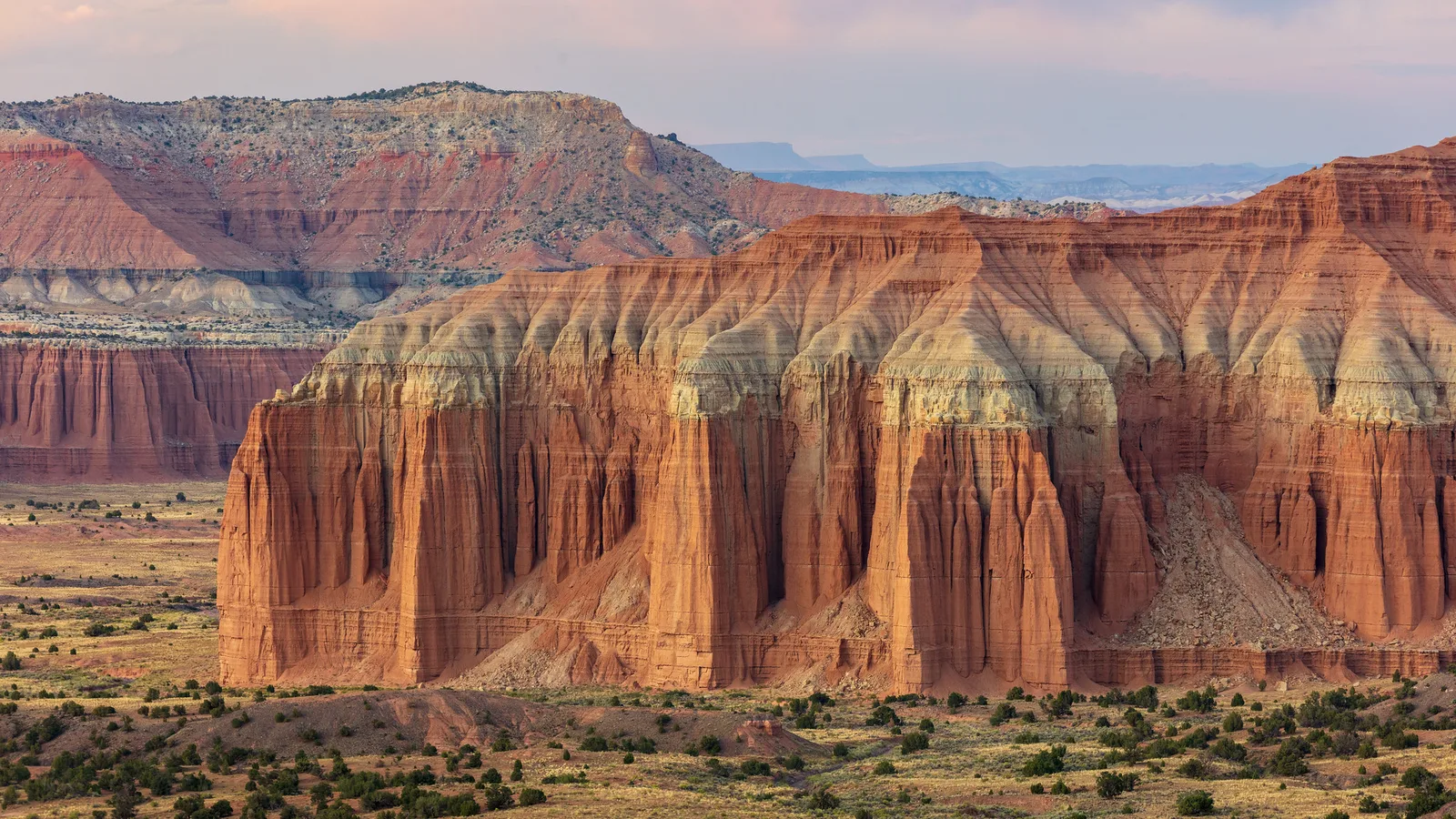
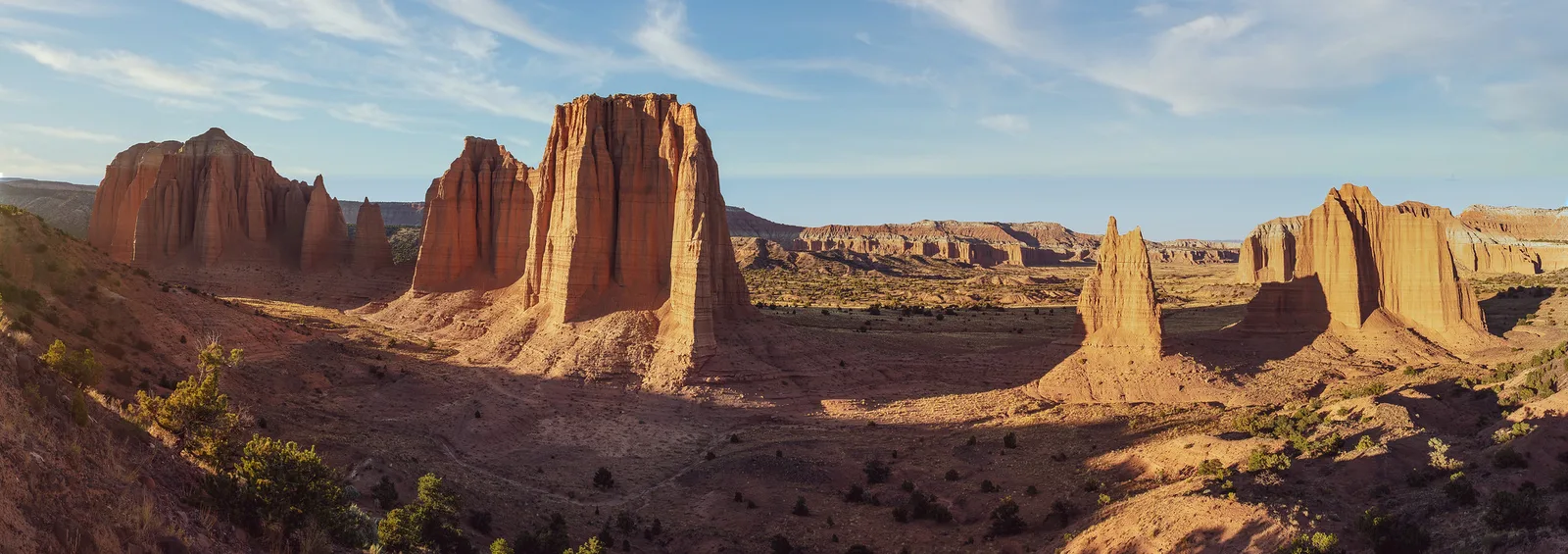
The two desert photos on this page were taken in the same valley on the same trip, one with a long lens and one with a wider view. They feel like a pair because the colors match: the red and cream rock looks the same in both, the sky is a similar soft blue, and the overall brightness is close. If one had been edited warm and orange and the other cool and blue, they would look like two different places.
Notice also that they are not identical. The light is a little different, and the compositions differ. Consistency is about a shared family look, not making every photo the same. That balance, similar color and mood with varied content, is what makes a set enjoyable to scroll through.
Ordering a set
Consistency also depends on the order in which photos appear. Even well-matched photos can feel uneven if a very bright image sits next to a very dark one. Arrange photos so changes in light and color feel gradual, like moving from morning to evening. The guide to photo sequencing explains how to order photos so they flow.
A worked example: editing a weekend trip
Imagine you come home from a weekend away with sixty photos. Some were taken in bright morning sun, some under cloud, a few indoors at a cafe, and several at sunset. Here is how you might bring them together.
First, pick your best twenty. Editing fewer photos makes consistency much easier, and a tighter set is more enjoyable to view anyway. Next, sort them roughly by light: sunny, cloudy, indoor and sunset. Work on one group at a time, because photos in similar light need similar corrections.
In each group, fix white balance and exposure on one photo, then copy those corrections to the rest of the group and check each one. The cloudy photos may need warming, the indoor photos may need cooling to remove orange from lamps, and the sunny photos may need slightly lower highlights.
Once every group looks neutral and even, choose your favorite photo from the whole trip and apply your creative look to it. Copy that look to all twenty. Finally, view the set as a grid and nudge any photo that still stands out. The sunset photos will still be warmer than the rest, and that is fine, because they should be. The goal is that a viewer scrolling through feels one trip, not four separate sets.
When mixed light makes matching hard
Some situations make consistency especially tricky. Indoor events often mix window light, ceiling lights and lamps, each with a different color. Concerts and night markets have colored lights that change constantly. In these cases, perfect matching may not be possible.
A few approaches help. Prioritize skin tones, because viewers forgive a slightly different background color more easily than odd-looking faces. Consider converting the whole set to black and white, which removes color differences entirely and often looks elegant for events. Or accept some variation, and use ordering to make color changes feel gradual rather than jumpy.
When to break consistency on purpose
Consistency is a tool, not a rule. Sometimes a single photo in a set deserves a different treatment, such as one black and white image in a color series to mark a quiet, emotional moment. That works best when it is clearly deliberate and rare. If several photos break the pattern, the set starts to feel random again.
Common mistakes
- Applying a preset without fixing white balance first. Differences in the originals carry through. Neutralize first.
- Copying crops and spot fixes. These belong to each photo. Copy only the global look.
- Never comparing side by side. Differences are hard to see one photo at a time.
- Making every photo identical. Sunsets should still look like sunsets. Aim for a family look.
- Changing your style constantly. A new look every week makes a portfolio feel scattered.
- Ignoring skin tones. Mismatched skin is the first thing viewers notice.
- Editing on a very bright screen. Lower brightness or calibrate.
Try this: a 10-minute consistency check
- Minute 1: Choose five photos from one outing or trip.
- Minute 2 to 3: View them side by side. Note which ones look warmer, cooler, brighter or darker.
- Minute 4 to 5: Fix white balance and exposure on each so they look similar.
- Minute 6 to 7: Edit your favorite one with the look you like.
- Minute 8: Copy its color and tone settings to the other four.
- Minute 9: Compare again and fix any photo that stands out.
- Minute 10: Save the settings as a preset and write a short recipe.
Frequently asked questions
How do I make my photos look consistent?
Fix white balance and exposure first, apply one shared look with a preset or copied settings, then compare side by side and fine-tune.
Should every photo in a set look identical?
No. They should share a family look in color and mood, while still reflecting different light and subjects.
Do presets make photos consistent?
They help, but only if the starting photos are similar. Correct white balance and exposure before applying them.
How do I match skin tones across photos?
Neutralize white balance, then adjust orange and red color sliders until skin looks the same in each photo.
How do I find my own editing style?
Collect examples you love, experiment, save a preset you like, and refine it slowly over months.
Why do my edits look different on other screens?
Your screen may be too bright or inaccurate. Lower its brightness and consider calibration.
Want to apply one set of edits to many photos at once? Read the guide to batch editing.
Wondering how to save your favorite look so you can reuse it? Try the guide to presets.