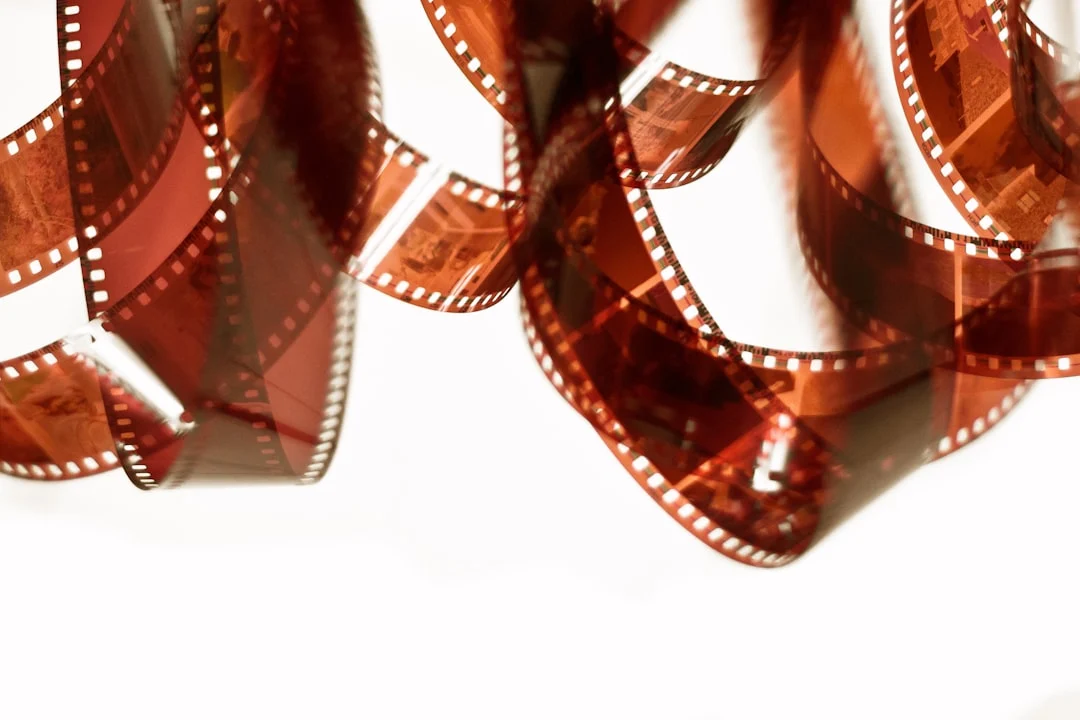
Scanning film negatives bridges the analog and digital worlds. Once you have developed your film (or received it back from a lab), scanning converts those physical negatives or slides into digital files that you can edit, share, print, and archive. The quality of your scan determines how much of the detail, tonality, and character captured on the film actually makes it into your final digital image. A good scan preserves everything the film recorded. A poor scan can make excellent film look flat, muddy, and lifeless. This guide covers the major scanning methods, equipment options, software, and techniques for getting the best possible digital files from your analog work.
Why Scanning Matters
Film captures a remarkable amount of information. A well-exposed 35mm negative contains roughly 20 to 25 megapixels of resolving power, depending on the film stock and lens. Medium format film captures far more. Slide film has even higher resolution per area than negative film. The challenge is extracting all of that information during scanning.
Many photographers who are disappointed with the look of their film have actually never seen a quality scan of their work. The drugstore scans and basic lab scans that most people start with capture only a fraction of the information on the negative, with limited dynamic range, imprecise color, and low resolution. Upgrading your scanning process, whether by investing in better equipment or refining your technique, is often the single most impactful improvement you can make to your film photography results.
Scanning Methods Overview
There are three main approaches to scanning film, each with different cost, quality, and workflow trade-offs.
Flatbed Scanners
Flatbed scanners with a transparency unit (a backlight in the lid) can scan film negatives and slides alongside regular documents and prints. They are the most versatile option, handling 35mm, medium format, and even large format film. The scanning surface is large enough to batch multiple strips of negatives at once.
The downside is that flatbed scanners generally produce lower resolution and less sharp scans than dedicated film scanners, especially for 35mm. The small size of a 35mm frame demands very high optical resolution to extract full detail, and most flatbed scanners fall short of their advertised resolution when actually measured. That said, for medium and large format film, where the negatives are physically larger and demand less magnification, flatbed scanners perform well and represent excellent value.
Flatbed scanners at two levels:
Entry-level film flatbeds: An entry-level flatbed with a transparency unit scans 35mm and medium format with acceptable quality, and the bundled film holders work reasonably well. Good for getting started and for medium format work. For 35mm, results are usable for social media and moderate-size prints but will not match a dedicated film scanner.
High-end film flatbeds: Higher-end models add better optics, higher effective resolution, and better film holders with adjustable height for optimizing focus. They are noticeably sharper than entry-level flatbeds for 35mm and excellent for medium format. Worth the investment if you scan medium format regularly.
Dedicated Film Scanners
Dedicated film scanners are purpose-built for scanning negatives and slides. They typically offer higher resolution, better sharpness, and more accurate color than flatbed scanners, especially for 35mm. The trade-off is that they only scan film (not prints or documents) and often handle only one format.
Single-frame 35mm scanners: A dedicated 35mm scanner that takes one frame at a time produces sharp, detailed scans at high optical resolution. Scanning one frame at a time makes it slow for bulk work but ensures each frame gets optimal focus and exposure. The bundled scanning software is often powerful if complex. Among new scanners, this type gives some of the best 35mm quality for the money.
Batch-feeding 35mm scanners: Some 35mm film scanners have a strip feeder that can batch-scan an entire roll. Resolution and sharpness are good, though often slightly behind the best single-frame models. The automation makes them practical for scanning large quantities of film.
Discontinued high-end scanners (used): Some discontinued dedicated scanners from the height of the film era produced some of the finest film scans ever achieved by consumer equipment, and a few handle both 35mm and medium format. Used prices are high and driver support on modern operating systems often requires workarounds, but the scan quality is outstanding. Worth seeking out if you are serious about film scanning.
DSLR/Mirrorless Camera Scanning
Using a digital camera to photograph your negatives has become the preferred scanning method for many serious film photographers. The camera acts as the scanner, capturing the negative with its sensor. This method is fast (a few seconds per frame compared to minutes with a flatbed), produces excellent resolution, and handles any film format.
The basic setup requires a digital camera with a macro lens (or a macro-capable lens with extension tubes), a light source (a dedicated scanning light, a tablet, or an LED panel), a copy stand or tripod for stability, and a film holder to keep the negative flat and positioned over the light.
No macro lens? Macro Without a Macro Lens covers extension tubes, close-up filters and reversing a lens, and what each one costs you.
The resolution you get depends on your camera’s sensor. A 24-megapixel camera produces roughly 24-megapixel scans of each frame. A 45-megapixel camera captures even more detail. This easily surpasses what most flatbed scanners extract from a 35mm frame and approaches or exceeds dedicated film scanners.
The main challenge with camera scanning is color conversion for negatives. When you photograph a color negative, you get an inverted, orange-masked image that needs to be converted to positive color. Negative conversion software, either a plugin for your raw editor or a standalone app, handles this conversion. The results can be excellent with proper technique. Understanding color management principles helps you get accurate results.
Camera scanning setups at three levels:
Budget setup: Any digital camera with a macro lens or lens with extension tubes, a tablet or phone screen as a backlight (set to pure white at full brightness), and a DIY film holder made from cardboard or 3D-printed parts. Beyond the camera and lens, this costs very little.
Dedicated setup: A camera with a macro lens, a purpose-built scanning light (an even, high color-accuracy LED panel), and a dedicated film holder that keeps the strip flat and lets you advance it frame by frame. Beyond the camera and lens, the cost depends mostly on the holder and light you choose.
Professional setup: A high-resolution camera (40+ megapixels), a premium macro lens, a film carrier system with motorized film advance, and dedicated conversion software. This produces scans that compete with drum scanners at a fraction of the cost and time. The investment is significant (the scanning accessories alone cost real money, on top of the camera system), but the per-scan cost is essentially zero and the throughput is unmatched.
Scanning Resolution: How Much Do You Need?
Resolution is one of the most misunderstood aspects of film scanning. Scanner manufacturers advertise maximum optical resolution (often 4800, 6400, or 7200 dpi), but the effective resolution is almost always lower. Understanding how much resolution you actually need prevents wasted time scanning at unnecessarily high settings.
For 35mm film: Most films resolve between 80 and 150 line pairs per millimeter. To fully capture this detail, you need approximately 2400 to 4000 dpi of true optical resolution. Scanning at 3200 dpi captures essentially all the detail on most 35mm film and produces files of approximately 15 to 20 megapixels. Scanning at higher settings (6400 or 7200 dpi) may extract slightly more from the sharpest films and lenses but produces much larger files with diminishing returns.
For medium format film: Because the negatives are larger, you need lower resolution to capture the same amount of detail. 2400 dpi is usually sufficient for medium format scanning on a flatbed. At that resolution, a 6x7cm frame produces roughly a 50 to 60 megapixel file.
For practical output: If you primarily share images online and make prints up to 11×14 inches, scanning 35mm at 2400 dpi is more than adequate. For larger prints or maximum archival quality, scan at the highest true optical resolution your scanner offers.
Unsure how dpi relates to print size? DPI vs PPI explains the difference and shows how to work out print size from pixel dimensions.
Scanning Software
The software you use for scanning and conversion has a significant impact on the quality of your results.
For Flatbed and Dedicated Scanners
Bundled scanner software: Most scanners come with their maker’s own scanning software. It is functional and free, and its advanced or professional mode usually offers reasonable control over exposure, color, and unsharp masking. For basic scanning, it works fine. For maximum quality, consider third-party alternatives.
Professional scanning software: Paid third-party scanning programs work with most scanners and offer advanced features like multi-exposure scanning (scanning each frame at two different exposures and combining them for greater dynamic range), film-specific color profiles for many film stocks, and infrared-based dust and scratch removal. The learning curve is steep and the interfaces are dense, but the results justify the effort. Some scanners include such a program in the box.
Universal scanning software: Other third-party programs aim to support virtually every scanner ever made, including old models their makers no longer support. They are simpler than the professional packages and offer good control over color and exposure, a good middle ground between bundled software and the most advanced options.
For DSLR Scanning
Negative conversion plugins: Plugins for raw editing software convert camera-scanned negatives to positive images. They handle the orange mask removal and color inversion for color negatives, and tonal conversion for black-and-white negatives. The results are excellent and the workflow fits directly into the photo library you already use. This is the most popular approach for camera scanning.
Standalone conversion apps: Some conversion tools run as standalone applications, and some work either way. They offer their own color science and fine-grained control over the conversion process.
Manual inversion in a photo editor: You can invert negatives manually using curves adjustments, but the orange mask on color negatives makes this tedious and inconsistent. For black-and-white negatives, manual inversion works well because there is no color mask to remove. Simply invert the image and adjust the tone curve to taste.
Step-by-Step: Flatbed Scanning
The process is much the same on any flatbed scanner with a transparency unit.
1. Clean the scanner glass and film. Use a microfiber cloth on the scanner glass and a blower brush on the film. Dust is the enemy of scanning. Every speck on the glass or film will show up in the scan. Work in a clean area and handle film by the edges only.
2. Load the film into holders. Place your negative strips or slides into the scanner’s film holders. Ensure the emulsion side (the matte, slightly concave side) faces down toward the glass. The shiny base side faces up toward the light. Flat film produces sharper scans, so make sure the strips sit flat in the holder without buckling.
3. Set scanning parameters. In your scanning software, select the film type (color negative, black-and-white negative, or positive/slide). Set the resolution (2400 to 3200 dpi for 35mm, 1200 to 2400 dpi for medium format). Choose 16-bit color depth if available for maximum tonal information. Set the output format to TIFF for lossless quality.
4. Preview and crop. Run a preview scan. Crop each frame individually. Adjust the scan area to include a small border of unexposed film around each frame. This border helps scanning software determine the film base color for accurate color conversion.
5. Adjust exposure and color (optional). Some photographers prefer to scan “flat” with minimal adjustments and do all color and tonal work in their editing software. Others use the scanner software’s tools to set black and white points and adjust color balance during the scan. Either approach works. Scanning flat preserves maximum flexibility for post-processing.
6. Scan and save. Run the final scan. Save as 16-bit TIFF files for maximum quality. Name files consistently (roll number, frame number, film stock). A single 35mm frame scanned at 3200 dpi in 16-bit color produces a file of approximately 100 to 150 MB.
Step-by-Step: DSLR Scanning
DSLR scanning is faster and can produce higher-quality results than flatbed scanning, particularly for 35mm film.
1. Set up your station. Mount your camera on a copy stand or tripod, pointing straight down at the light source. Position the light source (LED panel, scanning light, or tablet) below the film holder. Ensure the camera sensor is perfectly parallel to the film plane. Even slight angles cause uneven focus across the frame.
2. Set camera parameters. Shoot in RAW for maximum data. Set your ISO to the base value (typically 100 or 200) for minimum noise. Set aperture to the sharpest setting for your macro lens (typically f/5.6 to f/8). Use a 2-second timer or remote release to eliminate camera shake.
3. Focus precisely. Focus on the film grain using live view magnification. The grain should be sharp and clearly visible. If your lens has focus peaking, use it. Focus on the center of the frame and check the corners. If corners are soft, stop down the aperture slightly or adjust the camera alignment.
4. Set white balance. Photograph the light source through an empty film holder (no film) and set a custom white balance from that image. This helps remove the color cast of the light source and simplifies color conversion later. For color negatives, some photographers prefer to set white balance in post using the unexposed film border as a reference.
Want to understand what white balance is correcting? What Is White Balance? covers why cameras need it, the Kelvin scale, and the presets.
5. Photograph each frame. Advance the film through the holder and photograph each frame. Check focus periodically, especially if the film is curled. Work through the entire roll systematically.
6. Convert in software. Import the RAW files into your raw editor and use your conversion software to invert and color-correct the negatives. The conversion software handles the orange mask removal and produces positive images ready for further editing.
Post-Processing Scanned Film
Once you have your digital files, you can edit them using the same tools and techniques you would use for digital photographs. The key is to enhance the film’s natural characteristics rather than override them.
Dust and scratch removal: Even with careful handling, scans will often show dust spots. Use the healing brush or clone stamp in your editing software to remove them. Some scanner software offers automated dust removal that uses an infrared channel to detect and remove dust. This works well for color film but not for traditional silver-based black-and-white film, which blocks infrared light.
Color correction: Adjust white balance, tint, and individual color channels to match the look you want. Each film stock has its own color character, and your scan should honor that character while correcting for any inaccuracies introduced by the scanning process. Knowing the expected look of your film stock helps you evaluate whether your scan is accurate.
Tone and contrast: Adjust the tone curve to set your black point, white point, and midtone density. Film scans often benefit from a slight lift in the shadows (raising the black point) to maintain the film’s characteristic shadow detail. Avoid crushing the shadows or blowing the highlights aggressively unless that is the look you want.
Sharpening: Apply gentle output sharpening appropriate to your intended use (screen or print). Film has inherent softness compared to digital capture, and a modest amount of sharpening can bring out detail without making the image look artificial. Avoid over-sharpening, which creates unnatural edges and amplifies grain.
Grain management: Film grain is a feature. Resist the urge to apply heavy noise reduction to film scans. Noise reduction algorithms treat grain as noise and smooth it away, which destroys the organic texture that is part of the film’s character. If grain is truly excessive, apply light luminance noise reduction. Otherwise, leave it alone. It is part of what makes film look like film.
Not sure how much cleanup is too much? Noise Reduction covers the two kinds of noise, what each slider does, and how much is too much.
Archiving and File Management
A proper archival workflow ensures your scans are organized, backed up, and accessible for years to come.
File format: Save master scans as 16-bit TIFF files for maximum quality and editing flexibility. Create JPEG exports for sharing and everyday use. Keep the TIFFs as your archive copies.
File naming: Develop a consistent naming convention. A practical format is: YYYY-MM_RollNumber_Frame_FilmStock. For example: 2026-03_R045_F12_TriX400.tif. This keeps files chronologically organized and immediately tells you what film and frame you are looking at.
Backup: Follow the 3-2-1 backup rule: three copies of your files, on two different media types, with one copy off-site. Your scans represent hours of work and irreplaceable images. Treat them with the same care you give your digital RAW files. Good workflow habits protect your archive.
Wondering how to back up thousands of scans? How to Back Up Photos covers the 3-2-1 rule, how drives fail, cloud backup versus sync, and test restores.
Physical negative storage: Your film negatives are the ultimate master files. Store them in acid-free, archival-quality negative sleeves in a cool, dry environment. Even if your digital files are lost, you can always re-scan from the originals. Properly stored negatives will outlast any digital storage medium.
Common Mistakes
Scanning dusty film. Dust is the number one quality problem in film scanning. Clean your film, clean your scanner glass, and work in the cleanest environment you can. A five-minute cleaning session saves hours of retouching.
Scanning at maximum resolution “just in case.” Scanning 35mm at 7200 dpi when your scanner only resolves 2400 dpi of actual detail produces enormous files with no additional information, just interpolated pixels. Know your scanner’s true optical resolution and scan accordingly. Use a resolution test target to determine what your scanner actually resolves.
Over-processing scans to look digital. Heavy noise reduction, aggressive sharpening, and hyper-saturated color negate the entire point of shooting film. The goal is to honor and enhance the film’s natural rendering, not to make it look like a digital file with a filter applied.
Saving scans as JPEG only. JPEG compression discards tonal information permanently. Always save your master scans as TIFF files. Export JPEGs for sharing, but keep the lossless originals for any future editing needs.
Not keeping physical negatives. Some photographers scan their film and then neglect or discard the physical negatives. This is a serious mistake. Film negatives are your original master files. Future scanning technology will likely extract even more detail and quality from them. Store them properly and treat them as permanent, irreplaceable originals.
Judging film quality from lab scans. Many lab scans are quick, low-resolution, and roughly color-corrected. They are a starting point, not a final representation of what your film captured. If you think your film looks bad, try scanning it yourself with proper technique before blaming the film stock. See our film stock comparison for the expected look of various films.
Try This
Compare lab scans to your own. Take a roll of developed film that a lab has already scanned. Re-scan a few frames yourself using your best technique. Compare the results side by side. In most cases, you will see a significant improvement in detail, color accuracy, and tonal range from your own scans, even with modest equipment.
Try DSLR scanning with what you have. If you own a digital camera and a macro lens (or a lens with extension tubes), try scanning a few negatives by photographing them on a light source. Even a basic setup can produce surprisingly good results and will give you a feel for the workflow before you invest in dedicated equipment.
Scan one roll at two different resolutions. Pick a few frames and scan them at 1200 dpi and 3200 dpi. Compare the files at 100% magnification. This exercise teaches you what resolution differences actually look like and helps you decide on a scanning resolution that balances quality with file size for your needs.
Process a scan two ways. Take a single scan and create two edits: one that honors the film’s natural look (gentle adjustments, preserving grain and color character), and one that pushes the image toward a more processed, digital aesthetic. Compare them. Most photographers find that the lighter touch produces better results with film scans.
Set up a batch scanning workflow. Scan an entire roll in one session. Time yourself. Refine your setup to make the process as efficient as possible. A good workflow lets you scan a 36-exposure roll of 35mm in under 30 minutes with a DSLR setup, or about an hour with a flatbed. The faster your workflow, the more likely you are to actually scan your film regularly.
FAQ
What is the best way to scan 35mm film?
For the best combination of quality and speed, DSLR scanning with a macro lens and dedicated conversion software produces excellent results. For a more traditional approach, a dedicated single-frame 35mm scanner offers the best quality for 35mm without the overhead of a camera scanning setup. An entry-level film flatbed works well for medium format but is a compromise for 35mm.
How many DPI should I scan at?
For 35mm film, 2400 to 3200 dpi captures essentially all the detail. For medium format, 1200 to 2400 dpi is sufficient. Higher resolutions create larger files without capturing additional real detail unless you have a scanner that truly resolves at those higher numbers. Scan at a resolution appropriate for your output needs and your scanner’s actual capability.
Should I scan in TIFF or JPEG?
Always scan your master files as 16-bit TIFF. This preserves the maximum amount of tonal information for editing. Export JPEGs from the TIFF for sharing and everyday use. JPEG compression is lossy and permanently discards information. Your TIFFs are your digital negatives.
Can I scan slides the same way as negatives?
Yes. Slides (positive film) are actually easier to scan because there is no orange mask to remove and no inversion needed. The scan directly captures the positive image. Slide film scans tend to need less color correction than negative scans. Set your scanner to “Positive” or “Transparency” mode rather than “Negative.”
How do I remove dust from scans?
Prevention is better than cure. Use a blower brush and anti-static cloth on film before scanning. Some scanners offer infrared dust detection that automatically removes dust and scratches during the scan. This works well for color and chromogenic black-and-white films but not for traditional silver-based black-and-white film. For remaining dust spots, use the healing brush in a raw editor or a layer-based editor.
Is camera scanning really better than a flatbed?
For 35mm film, camera scanning with a good digital camera and macro lens generally produces sharper, more detailed results than a consumer flatbed scanner. The speed advantage is also significant. For medium format film, the difference between camera scanning and a good high-end flatbed is smaller. The “best” method depends on your format, budget, and how much you value speed versus simplicity.
What does negative conversion software do?
Negative conversion software turns camera-scanned negatives into positive images. It handles the orange mask removal, color inversion, and initial color correction for color negative film, and tonal inversion for black-and-white negatives. Many conversion tools run as plugins inside a raw editor, so the converted files sit in your library alongside everything else and use the same editing tools. Conversion software has become a standard part of DSLR scanning workflows.
Building Your Scanning Practice
Like film development, scanning improves with practice. Your first scans may have color casts, dust spots, or inconsistent exposure. By your twentieth roll, you will have a refined workflow that produces consistent, high-quality results efficiently. Keep notes on your scanning settings and refine your process over time.
Good scanning is the bridge between the analog craft of shooting and developing film and the digital tools of modern post-processing. A thoughtful scanning workflow preserves everything the film captured and presents it in a form that can be shared, printed, and enjoyed for generations. Your negatives hold the information. Your scan releases it.