Panorama photography lets you capture scenes that are too vast and immersive for a single frame. From sweeping mountain ranges to expansive cityscapes, panoramas convey a sense of scale that standard aspect ratios simply cannot match. The technique is surprisingly accessible. Modern cameras and software have made stitching multiple images into a seamless panorama easier than ever. This guide covers camera settings, shooting technique, stitching software and multi-row panoramas.
What Is Panorama Photography?
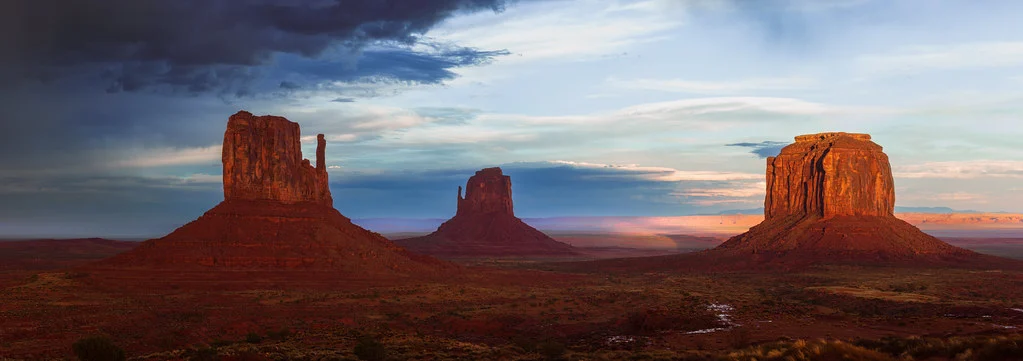
A panorama is a wide-format image created by stitching together multiple overlapping photographs. While you can crop a single image to a panoramic aspect ratio, true panorama photography involves shooting a sequence of frames across a scene and merging them in software. The result is an image with far more resolution and field of view than any single shot could achieve.
Panoramas are not limited to horizontal landscapes. Vertical panoramas (sometimes called vertoramas) are perfect for tall subjects like waterfalls, skyscrapers, and forest canopies. Multi-row panoramas combine horizontal and vertical sweeps for massive, ultra-high-resolution images that can be printed at billboard scale.
Essential Gear for Panoramas
You do not need specialized equipment to shoot panoramas, but certain gear makes the process much easier and produces cleaner results.
- Any camera with manual mode: DSLRs and mirrorless cameras work best because you need consistent exposure and white balance across all frames. Lock your settings to manual so nothing shifts between shots.
- Tripod with a level: While handheld panoramas are possible, a tripod keeps your rotation axis consistent and your horizon level. A bubble level or electronic level in your camera helps enormously.
- Panoramic tripod head (optional): A dedicated pano head lets you rotate the camera around the lens’s nodal point (more on this below), which eliminates parallax errors. This matters most for scenes with close foreground elements.
- Normal to short telephoto lens: Contrary to what you might expect, wide-angle lenses are not always ideal for panoramas. They introduce more distortion at the edges, which complicates stitching. A 35mm to 85mm lens often produces cleaner stitches and more natural-looking results.
- Remote shutter release: Prevents camera shake between frames, especially important for maintaining sharpness across the entire panorama.
Is your tripod really level? How to Use a Tripod Properly covers setting up in the right order, the centre column problem and levelling the legs versus levelling the head.
Camera Settings for Panorama Photography
Consistency is the single most important factor in panorama photography. Every frame in your sequence must have identical exposure, focus, and white balance. If any of these shift between shots, you will see visible seams in the final stitch.
- Shooting mode: Manual (M). Lock your shutter speed, aperture, and ISO so exposure stays constant across all frames.
- Aperture: f/8 to f/11 for maximum sharpness across the frame. You need good depth of field since different parts of the panorama may be at different distances.
- ISO: As low as possible (100-400) to minimize noise and maintain clean details across the high-resolution final image.
- White balance: Set a specific white balance preset (Daylight, Cloudy, etc.) rather than Auto. Auto white balance may shift slightly between frames, causing color inconsistency.
- Focus: Use autofocus to find the right focus point for the scene, then switch to manual focus and do not touch it again. The focal distance must be identical across all frames.
- File format: Shoot in RAW for maximum flexibility in post-processing and to ensure consistent color across frames.
How Much Overlap Do You Need?
This is one of the most common questions in panorama photography, and the answer is straightforward: aim for 30 to 50 percent overlap between adjacent frames. More overlap gives your stitching software more data to work with when aligning and blending images.
For most scenes, 30 percent overlap is sufficient. Increase to 40-50 percent when shooting with a wide-angle lens (which distorts edges more), when the scene has repetitive patterns like open water or blank sky (where software needs more reference points), or when you are creating multi-row panoramas where both horizontal and vertical alignment matter.
A practical approach: pick a recognizable feature near the edge of your frame. When you rotate to the next position, that feature should be roughly one-third of the way into the new frame. This naturally produces about 30-35 percent overlap.
Understanding the Nodal Point
The nodal point (technically the “no-parallax point”) is the specific point in your lens around which you should rotate the camera to avoid parallax errors. Parallax is the apparent shift of foreground objects relative to the background when you change viewing position. You can see this effect by holding your thumb at arm’s length and alternating which eye you close. Your thumb appears to jump relative to the background.
When you rotate your camera on a standard tripod, the rotation axis is at the tripod mount, which is behind the nodal point. This causes foreground and background elements to shift relative to each other between frames, creating stitching errors especially near objects close to the camera.
For distant landscapes where everything is far away, parallax is negligible and you can rotate around any point. But if your scene includes foreground elements within a few meters, rotating around the nodal point produces much cleaner stitches. Panoramic tripod heads are designed specifically to let you position the camera so it rotates around this point.
Want the parallax problem explained more fully? Understanding Parallax covers what it is, how it affects photography and how to manage it.
Step-by-Step Shooting Technique
- Scout and compose. Before you start shooting, look at the entire scene you want to capture. Identify your start point and end point. Check whether a horizontal or vertical camera orientation makes more sense. Shooting in portrait orientation gives you more vertical coverage and requires more frames, but produces a taller, more detailed final panorama.
- Level your tripod. Take the time to get your tripod perfectly level. If the tripod is tilted, your panorama will curve, and you will lose significant image area when cropping to a rectangle.
- Set your exposure. Point the camera at the brightest part of the scene and meter for it. Then lock those settings in manual mode. This prevents the camera from adjusting exposure as you sweep across areas of different brightness.
- Set and lock focus. Focus on your subject using autofocus, then switch the lens to manual focus. Do not refocus between frames.
- Shoot from left to right (or right to left). Pick a direction and stick with it. Start with a frame that extends slightly beyond your intended final crop on one side, and end the same way on the other side. This gives you a safety margin.
- Overlap consistently. Rotate the camera smoothly between frames, maintaining 30-50 percent overlap. Use landmarks in the viewfinder to judge overlap distance.
- Shoot quickly. Clouds move, light changes, and people walk through scenes. The faster you complete your sequence, the more consistent your frames will be. Some photographers use a motorized pano head that automates the rotation.
- Mark the start and end. Take an identifiable marker shot (like your hand in front of the lens) before and after the panorama sequence so you can easily identify which frames belong together when importing.
Handheld Panorama Tips
You do not always have a tripod with you, and handheld panoramas can produce excellent results with good technique. The key is minimizing parallax and keeping your rotation axis consistent.
- Rotate around yourself, not the camera. Keep your elbows tucked in and rotate your whole torso rather than swinging the camera in an arc with your arms. Imagine your spine is the tripod center column.
- Keep the camera level. Use the in-camera electronic level if available. Tilting up or down between frames is the most common handheld error.
- Use a faster shutter speed. You need at least 1/125s or faster to prevent motion blur in each frame. Raise your ISO if necessary.
- Increase overlap to 50 percent. Extra overlap compensates for the less precise alignment of handheld rotation.
- Shoot in burst mode. Some photographers continuously pan while shooting in burst mode. This produces many more frames than needed but ensures complete coverage.
Stitching Software: Your Options
Once you have your overlapping frames, you need software to align and blend them into a seamless panorama. Here are the most popular options:
Curious how stitching actually works? Image Stitching covers how to capture photos for stitching and how to stitch them together in post-processing.
Raw editors with a panorama merge (raw editing software): The easiest option for most photographers. Many raw editing and cataloguing programs include a panorama merge: select your frames and choose the merge command. The software handles alignment, blending, and exposure matching automatically. Most offer a choice of projection modes (usually spherical, cylindrical, and perspective), and some have a boundary warp setting that stretches the edges to fill the frame so you lose less of the image to cropping. For straightforward panoramas, a raw editor is fast, reliable, and produces excellent results.
Layer-based editors (image editing software): Layer-based image editors with a panorama merge give you more control than a raw editor, including the ability to manually adjust alignment and mask individual layers. They are better for complex stitches that need fine-tuning.
Dedicated stitching programs: Paid, dedicated panorama software is the professional standard for stitching. It handles complex multi-row panoramas, 360-degree spherical panoramas, and HDR panoramas with ease, and provides manual control point editing, masking tools, and batch processing. If you shoot panoramas regularly or work with multi-row and spherical formats, a dedicated stitcher is worth the investment.
Open-source stitchers: Free, open-source stitching programs are powerful and handle multi-row panoramas well, though the interfaces tend to have a steeper learning curve. For photographers who want professional-level control without the cost, they are an excellent choice.
Simple free stitchers: Basic free stitching apps work well for straightforward horizontal panoramas and are simple to use, though they lack the advanced features of dedicated and open-source stitching programs.
Types of Panoramas
Panorama photography goes well beyond simple horizontal sweeps. Understanding the different types helps you choose the right technique for each situation.
- Single-row horizontal panorama: The classic format. You rotate the camera left to right (or vice versa) in a single row. This is the easiest type to shoot and stitch, and it works beautifully for landscapes, cityscapes, and wide interior shots.
- Vertorama (vertical panorama): Instead of sweeping horizontally, you tilt the camera from bottom to top. Vertoramas are ideal for tall subjects like waterfalls, skyscrapers, tall trees, and narrow streets with towering buildings on either side.
- Multi-row panorama: You shoot multiple rows of overlapping images, covering a larger area of the scene both horizontally and vertically. Multi-row panoramas produce massive files with extraordinary resolution. They require more careful technique and stitching software that supports multi-row alignment, usually a dedicated or open-source stitcher.
- 360-degree panorama: A full rotation captures everything around you. These can be displayed as interactive images that viewers can pan around. Shooting a 360 requires careful planning to avoid tripod shadows and ensure seamless wrapping where the first and last frames meet.
- Spherical panorama: A 360-degree horizontal rotation combined with full vertical coverage (nadir to zenith). Spherical panoramas are used for virtual tours, VR content, and immersive photography. They require a specialized workflow and a panoramic head.
Planning a multi-row panorama with huge detail? How To Create Gigapixel Photos covers equipment setup, shooting the grid with overlap and rows, and stitching software.
Common Stitching Errors and How to Fix Them
Even with good technique, you may encounter stitching problems. Here are the most common issues and their solutions.
- Visible seams with exposure differences. This happens when exposure shifts between frames, usually because you shot in an automatic mode. The fix: always shoot in full manual mode with locked settings. In post, most stitching software has exposure blending that can compensate for minor differences.
- Ghosting from moving objects. People, cars, or waves that moved between frames appear as transparent ghosts or duplicates. Most stitching software has masking tools that let you choose which frame’s version of the moving object to keep. If your software offers several projection modes, try each one, as some handle ghosting better than others.
- Parallax errors in the foreground. Foreground objects that appear to shift position between frames create misalignment or duplication. The solution is to rotate around the nodal point of your lens using a panoramic head. For handheld shooting, avoid including close foreground elements.
- Curved horizon. If your tripod was not level or you tilted the camera during the sweep, the horizon will curve in the stitched image. Level your tripod carefully before shooting. In post, a wide-angle or warp correction tool in your editor can help straighten a curved horizon.
- Blank areas at edges. After stitching, the panorama edges are usually irregular. You need to crop to a clean rectangle, which means losing some image area. Shoot wider than you need so the final crop still includes everything you want. A boundary warp setting, where your software has one, can reduce this loss significantly.
- Software fails to align frames. If your scene lacks distinct features (open sky, blank walls, calm water), the software cannot find matching points. Increase your overlap to 50 percent and try to include textured areas in each frame. In a dedicated or open-source stitcher, you can manually add control points to help the software align stubborn frames.
Seeing bands across the sky after stitching? Fixing a panorama shot with a polarizing filter covers why the problem occurs, fixing banding with graduated masks and fixing the raw files before stitching.
Post-Processing Panoramas
After stitching, your panorama will benefit from some targeted editing. Keep these tips in mind:
- Crop with intention. The final aspect ratio of your panorama is a creative choice. A 2:1 ratio feels cinematic, while 3:1 or wider creates an ultra-wide dramatic effect. Crop to the ratio that best suits the scene.
- Watch for uneven brightness. Some panoramas show a subtle brightness gradient from one side to the other, especially if the sun was off to one side. Use a graduated filter or brush to even out the exposure across the image.
- Sharpen carefully. Panoramas are often printed large, and sharpening helps them hold up at scale. Apply capture sharpening in your raw editor, then output sharpening appropriate to your print size and viewing distance.
- Consider the final output. Panorama files can be enormous, hundreds of megapixels for multi-row stitches. Make sure your computer can handle the file, and export at a resolution appropriate for your intended use (print, web, or both).
Wondering how big your stitched file will print? Print Size Calculator checks your photo resolution against print size.
Common Mistakes to Avoid
- Using auto exposure or auto white balance. These settings shift between frames and create visible seams. Always shoot in full manual mode with a fixed white balance preset.
- Not enough overlap. Skimping on overlap is the number one cause of failed stitches. When in doubt, add more frames with more overlap.
- Shooting too slowly. Changing light conditions, moving clouds, and shifting shadows between your first and last frame cause inconsistencies. Work quickly once you start shooting.
- Ignoring the foreground. A panorama of just sky and distant mountains can feel flat. Including an interesting foreground element gives the image depth and a sense of immersion.
- Not shooting in portrait orientation. Shooting panoramas with the camera in landscape orientation is intuitive but wastes potential. Portrait orientation gives you more vertical coverage per frame and a taller final image with more resolution.
- Forgetting to check the level. A tilted sweep produces a curved horizon that wastes image area when cropping. Take five seconds to check your level before you start.
Frequently Asked Questions
How many photos do I need for a panorama?
It depends on the field of view you want to cover and your lens’s focal length. A simple horizontal panorama might need 5-8 frames with a 50mm lens, while a 360-degree panorama could require 20 or more. A multi-row panorama of a full landscape might use 30-60 frames. Start with the coverage you need and shoot enough frames with 30-50 percent overlap to cover it completely.
Can I shoot panoramas handheld?
Yes, and modern stitching software is remarkably good at handling handheld panoramas. The keys are rotating your body (not just your arms), keeping the camera level, using a fast enough shutter speed to avoid blur, and overlapping frames by at least 50 percent. For critical work or multi-row panoramas, a tripod produces consistently better results.
What is the best lens for panorama photography?
A normal to short telephoto lens (35-85mm) often produces the best results because it introduces less distortion than a wide-angle lens. However, wide-angle lenses (14-24mm) are useful when you want fewer frames or when shooting in tight spaces. The “best” lens depends on the scene. Experiment with different focal lengths to see what works for your style.
Should I shoot panoramas in portrait or landscape orientation?
Portrait (vertical) orientation is generally preferred for panoramas. It gives you more vertical coverage in each frame, resulting in a taller and higher-resolution final image. The trade-off is that you need more frames to cover the same horizontal field of view. For quick handheld panoramas where speed matters, landscape orientation works fine.
How do I print a panorama?
Panoramas look spectacular printed large. Metal prints and canvas wraps are popular choices for panoramic images. For print, make sure your stitched file has enough resolution, at 300 DPI for fine art prints, or 150 DPI for large-format prints viewed from a distance. A multi-row panorama with 40-60 megapixels of data can easily produce a sharp print several feet wide.
Continue Learning
Panorama photography combines technical precision with creative vision. As you develop your technique, explore these related guides:
- Landscape Photography Guide
- Understanding Exposure
- Composition Techniques
- HDR Photography
- White Balance Guide
- Photography Masterclass