Choosing the Right Shooting Mode
You already know what aperture priority, shutter priority, and manual mode do. That is fundamentals-level knowledge. The intermediate question is different: which mode should you use right now, in this specific situation, to get the result you want with the least friction? The answer changes depending on what you are photographing, how quickly conditions are shifting, and which variable matters most to your image.
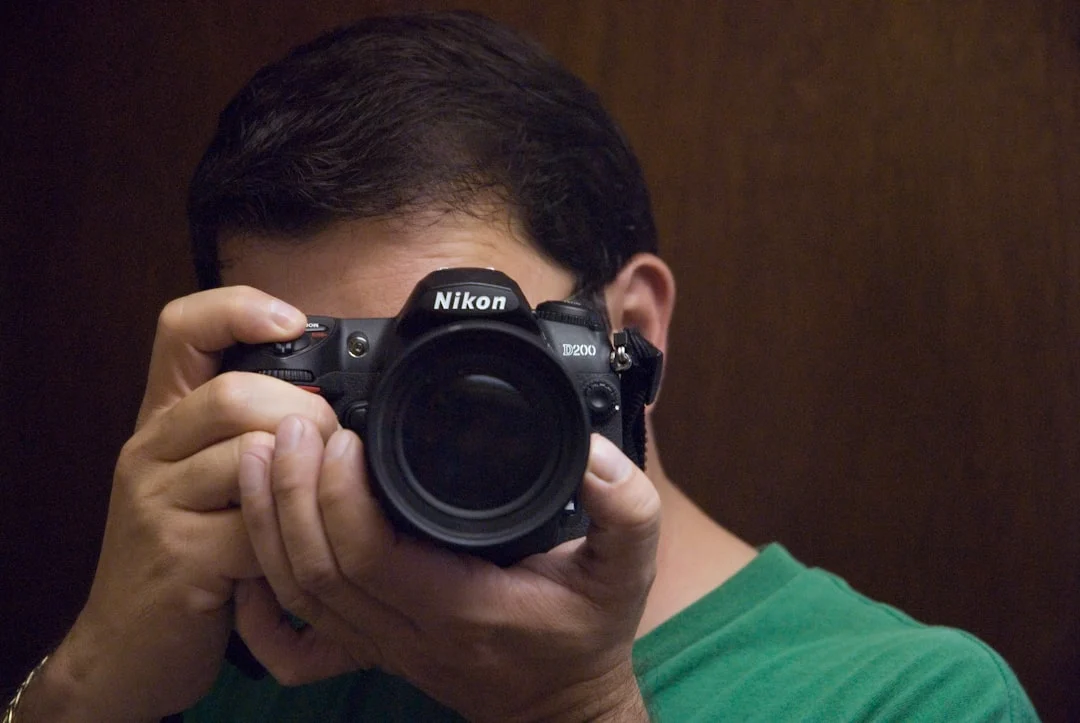
Let’s start with aperture priority, because for most photographers in most situations, it is the single most useful mode on the dial. In aperture priority, you choose the aperture, and the camera selects the shutter speed to match. This gives you direct control over depth of field, which is one of the most powerful creative tools at your disposal. Want a blurred background for a portrait? Set a wide aperture. Want everything sharp from foreground to horizon in a landscape? Stop down to f/8 or f/11. The camera handles the exposure math, and you focus on the image. For a deeper look at how this mode works and when to reach for it, see Aperture Priority Mode.
Aperture priority works best when the light is changing but depth of field is your priority. Walking through a city, moving from shade to sun and back again, aperture priority lets you concentrate on framing and timing while the camera adapts the exposure. It is also the mode of choice when you are working quickly and cannot afford to fiddle with settings between every shot.
Shutter priority flips the relationship. You choose the shutter speed, and the camera picks the aperture. Reach for this mode when motion is the primary concern. If you are photographing sports, wildlife, or anything that moves unpredictably, locking in a fast shutter speed ensures you freeze the action regardless of how the light shifts. Conversely, if you want motion blur, a waterfall rendered as flowing silk, or car headlights as streaks of light, shutter priority lets you set a slow shutter speed and let the camera figure out the aperture.
Manual mode gives you total control over both aperture and shutter speed. This is essential when you need consistent exposure across a series of images, such as when shooting a panorama where every frame must match, or in a studio where the light is not changing. Manual mode is also the right choice when the camera’s meter is likely to be fooled: very dark scenes, very bright scenes, or high-contrast situations where the meter cannot decide what to do. For a full comparison of all camera modes and when each one earns its place, see Camera Modes Explained.
What about program mode? Many intermediate photographers dismiss it as “fancy auto,” but that undersells it. Program mode lets the camera choose both aperture and shutter speed, but unlike full auto, it gives you the ability to shift the combination. If the camera picks f/5.6 at 1/125, you can shift to f/4 at 1/250 or f/8 at 1/60, maintaining the same exposure with different creative characteristics. It is useful when conditions are shifting so rapidly that even aperture priority feels too slow, and you just need a correctly exposed frame right now. Think of it as educated auto: the camera makes the first decision, and you refine it.
The real skill is not mastering any single mode. It is knowing when to switch. A working photographer might start the day in aperture priority, switch to shutter priority when the action picks up, move to manual for a controlled lighting situation, and flip to program mode when a fleeting moment demands a quick grab shot. The mode dial is a tool, not a badge of honor. Use whatever gets you the image.
Auto ISO Strategy
Auto ISO might be the single most underappreciated feature on a modern camera. When used thoughtfully, it transforms your camera into a remarkably intelligent exposure partner. When used carelessly, it introduces noise into images that did not need it. The difference is all in how you set it up.
Here is the core idea: auto ISO lets the camera raise or lower the ISO sensitivity to achieve correct exposure, within limits that you define. You set two boundaries. First, the minimum shutter speed: the slowest shutter speed you are willing to accept before the camera bumps up the ISO. Second, the maximum ISO: the highest sensitivity you are comfortable with before noise becomes unacceptable.
The minimum shutter speed setting is the key to sharp handheld shots. A good starting point is the reciprocal rule: set it to roughly 1/focal length. If you are shooting with a 50mm lens, 1/60 is a reasonable minimum. With a 200mm lens, you want at least 1/200. Many cameras let you set this automatically based on your current focal length, which is especially useful with zoom lenses. If your camera or lens has image stabilization, you can often get away with a slower minimum, but be conservative. It is better to have a slightly higher ISO than a subtly blurry image.
The maximum ISO depends on your camera and your tolerance for noise. Every camera has a point where noise transitions from “invisible” to “acceptable” to “distracting” to “unusable.” You need to test yours. Shoot a series of images at increasing ISO values, view them at the size you typically display them (screen, social media, print), and identify the point where quality degrades past what you find acceptable. For many modern cameras, ISO 3200 to 6400 is a reasonable maximum. For older or smaller-sensor cameras, ISO 1600 might be the ceiling. Set your maximum ISO just below that threshold.
One of the most powerful combinations in modern photography is auto ISO in manual mode. This sounds contradictory, but it is brilliant. You set your aperture for the depth of field you want. You set your shutter speed for the motion control you need. The camera adjusts ISO to get the correct exposure. You have locked in the two creative variables (depth of field and motion) while letting the camera handle the purely technical one (sensitivity). Many professional photographers work this way for event photography, street photography, and documentary work. It gives you the control of manual mode with the adaptability of auto exposure.
When should you override auto ISO and set it manually? Whenever you want consistent noise characteristics across a set of images. In a studio with controlled lighting, set ISO to its lowest native value. For long exposures on a tripod, do the same. And if you are in a situation where the light is constant and you know exactly what ISO works, there is no reason to let the camera guess.
Customizing Your Camera
Every second you spend digging through menus is a second you are not watching your subject, reading the light, or composing your frame. The photographers who work most fluidly are the ones who have set up their cameras so that the most important functions are available at the press of a button, without ever taking their eye from the viewfinder.
Start with custom function buttons. Most cameras have at least two or three buttons that you can assign to different functions. Think about what you change most often in the field. For many photographers, the top candidates are ISO, white balance, focus area mode, metering mode, and drive mode (single vs continuous shooting). Assign the functions you change most frequently to the most accessible buttons: the ones you can reach without shifting your grip.
Next, set up user presets if your camera supports them. These are saved configurations that you can recall instantly from the mode dial or a menu. A landscape preset might include aperture priority at f/8, base ISO, single-point autofocus, and a two-second self-timer. A street preset might include aperture priority at f/5.6, auto ISO with a minimum shutter speed of 1/250, continuous autofocus, and continuous drive. Being able to switch between these configurations in seconds rather than minutes is transformative when conditions change quickly.
Many cameras also offer custom menus, sometimes called “My Menu” or similar. This lets you pull your most-used settings out of the deep menu structure and into a single, curated list. Instead of scrolling through five tabs to find a setting you use regularly, you access it in two button presses. Take 10 minutes to build your custom menu around the settings you actually adjust in the field.
If you have not already set up back button focus, this is a good time to do it. Back button focus separates the autofocus activation from the shutter button, assigning focus to a button on the back of the camera (usually the AF-ON button). This simple change gives you the flexibility to focus and recompose without the camera refocusing when you press the shutter. It also makes it easy to switch between continuous and single autofocus behavior without changing any settings: just hold the button for continuous tracking or tap it once and release for single focus. If you covered this in the earlier lesson on focus systems, revisit your setup now and make sure it is truly working the way you want.
The goal with all of this customization is to reduce what photographers call “menu diving”: the frustrating process of navigating deep into your camera’s menus to change a setting while a moment unfolds in front of you. The more you can access with physical buttons and preset configurations, the more your camera becomes an extension of your hands rather than a device you have to operate.
File Formats and Settings
The file format you choose determines how much information your camera records and how much flexibility you have in post-processing. This is not a trivial setting. It shapes what you can and cannot do with your images after you take them.
RAW files contain all the data your camera’s sensor captured, with minimal processing applied. They give you the widest latitude for adjusting exposure, white balance, and color in post. If you underexpose a shot by a stop, a RAW file often lets you recover it cleanly. If the white balance is wrong, you can change it after the fact with no quality loss. The tradeoff is file size, RAW files are significantly larger than JPEGs, and they require processing before you can share them. You cannot post a RAW file to social media or email it directly.
JPEG files are processed in-camera. The camera applies white balance, sharpening, noise reduction, color adjustments, and compression, then throws away the data it deems unnecessary. The result is a smaller, ready-to-use file that looks good straight out of the camera. The tradeoff is reduced flexibility. If the exposure is off, you have less room to correct it. If the white balance is wrong, you can adjust it, but with some quality loss. JPEGs are perfect when you need to deliver images quickly, when storage space is limited, or when you are shooting in conditions where getting it right in-camera is straightforward.
Many photographers use RAW + JPEG, which saves both formats simultaneously. This gives you the immediate usability of a JPEG for quick sharing and the full flexibility of a RAW file for serious editing. The cost is storage space: you are saving every image twice. Whether this is worthwhile depends on your workflow. For a detailed comparison of the two formats, see RAW vs JPEG.
Color space is another setting worth understanding. Most cameras offer two options: sRGB and Adobe RGB. sRGB is the standard color space of the web and most consumer displays. It covers a smaller range of colors but is universally compatible. Adobe RGB covers a wider range of colors, which can be useful if you print your work on high-quality paper or need maximum color fidelity for professional reproduction. However, if you share Adobe RGB images on the web without converting them to sRGB, the colors can look muted or wrong. For most photographers, sRGB is the safer and simpler choice. If you shoot RAW, the color space setting only affects your JPEG previews: you choose the color space during processing.
Pay attention to your image quality settings as well. Even within JPEG, most cameras offer different compression levels (fine, normal, basic). Always shoot at the highest quality setting available. The storage savings from lower quality settings are rarely worth the loss in image detail. Memory cards are inexpensive. Your photographs are not.
Working with Your Camera’s Tools
Modern cameras are packed with tools that go well beyond the basic exposure controls. Learning to use them effectively can make a real difference in the precision and efficiency of your shooting.
Live view (or the electronic viewfinder on mirrorless cameras) lets you see your composition on the screen or in the viewfinder with real-time exposure preview. This is enormously useful. On a DSLR, the optical viewfinder shows you the scene as your eye sees it, not as the camera will expose it. Live view shows you the actual brightness, white balance, and depth of field of your image before you press the shutter. This is especially valuable for studio work, macro photography, and any situation where precision matters more than speed.
Electronic viewfinders on mirrorless cameras take this further, providing a continuous “what you see is what you get” experience. You can see the effect of exposure compensation in real time. You can preview white balance shifts, creative filters, and even focus peaking overlays. If you are coming from a DSLR background, the EVF can feel unfamiliar at first, but the information it provides is genuinely useful once you learn to trust it.
Most cameras have a built-in electronic level: a virtual horizon indicator that tells you whether your camera is tilted. Use it. Crooked horizons are one of the most common and easily preventable problems in photography. You can straighten images in post-processing, but that means cropping, which means losing some of the frame you composed. Getting it level in-camera is always better.
Understand your camera’s buffer and write speeds. When you hold down the shutter button in continuous drive mode, images are stored temporarily in the camera’s buffer before being written to the memory card. Once the buffer fills, the camera slows down or stops shooting until it can write images to the card. If you shoot action or events, a fast memory card and a camera with a large buffer can be the difference between capturing a decisive moment and staring at a “busy” indicator. Test your camera’s burst depth, how many continuous frames you can take before the buffer fills, so you know your limits before you are in the middle of a critical sequence.
If your camera offers mirror lock-up (on a DSLR) or electronic first curtain shutter (on a mirrorless camera), these features reduce vibration caused by the camera’s mechanical components. For most handheld shooting, the effect is negligible. But for tripod-based work, landscapes, macro, architecture, even the tiny vibration from the mirror flipping or the shutter firing can soften your image. Using these features in combination with a remote shutter release or self-timer eliminates that vibration entirely. It is a small detail, but the difference shows up when you zoom in to 100% on a fine-detail image.
Try This: Camera Craft Exercises
Knowing your camera’s capabilities intellectually is not the same as being able to use them without thinking. These exercises are designed to build the muscle memory and confidence that let you operate your camera fluidly, so technique never gets between you and the photograph.
Speed Setup Challenge. Time yourself switching your camera from a landscape configuration (f/11, base ISO, single-point AF, two-second self-timer) to a street configuration (f/5.6, auto ISO, continuous AF, back button focus). Practice until you can make the switch in under 10 seconds without looking at the menus. Then try it with your eye in the viewfinder. This exercise reveals how well you actually know your camera’s controls versus how well you think you know them.
One Mode, One Week. Choose either aperture priority or manual mode and commit to using nothing else for an entire week. No switching to auto when things get tricky. No reaching for shutter priority when you are unsure. Force yourself to become completely fluent in one mode before expanding. By the end of the week, that mode should feel like second nature. You will understand its strengths, its limitations, and the situations where you instinctively know it is the right or wrong choice.
Custom Button Setup. Set aside 30 minutes with your camera manual (physical or digital) and configure your custom buttons, user presets, and custom menus. Assign the three functions you change most often to the most accessible buttons. Set up at least two user presets for your most common shooting scenarios. Build a custom menu with your 8-10 most-used settings. Then go out and shoot for a full day using your new configuration. Take notes on what works and what needs adjustment, and refine your setup the next day. This is an investment that pays off every single time you pick up your camera.
Camera craft is not glamorous. It will never make a dramatic before-and-after comparison on social media. But the photographers who work most effectively are the ones whose camera operation is so automatic that all of their attention is free for the creative work of seeing, composing, and timing. That fluency only comes from deliberate practice with your specific equipment. The exercises above are your starting point. From here, keep refining. Every time you find yourself hunting through a menu in the field, that is a signal to customize your setup further. The goal is a camera that does what you want the instant you want it, so you can focus entirely on what matters: the photograph.