Exposure blending is the technique of combining two or more photographs taken at different exposure levels into a single image that captures the full range of light in a scene. Where a single exposure forces you to choose between a properly exposed sky and a properly exposed foreground, exposure blending lets you have both.
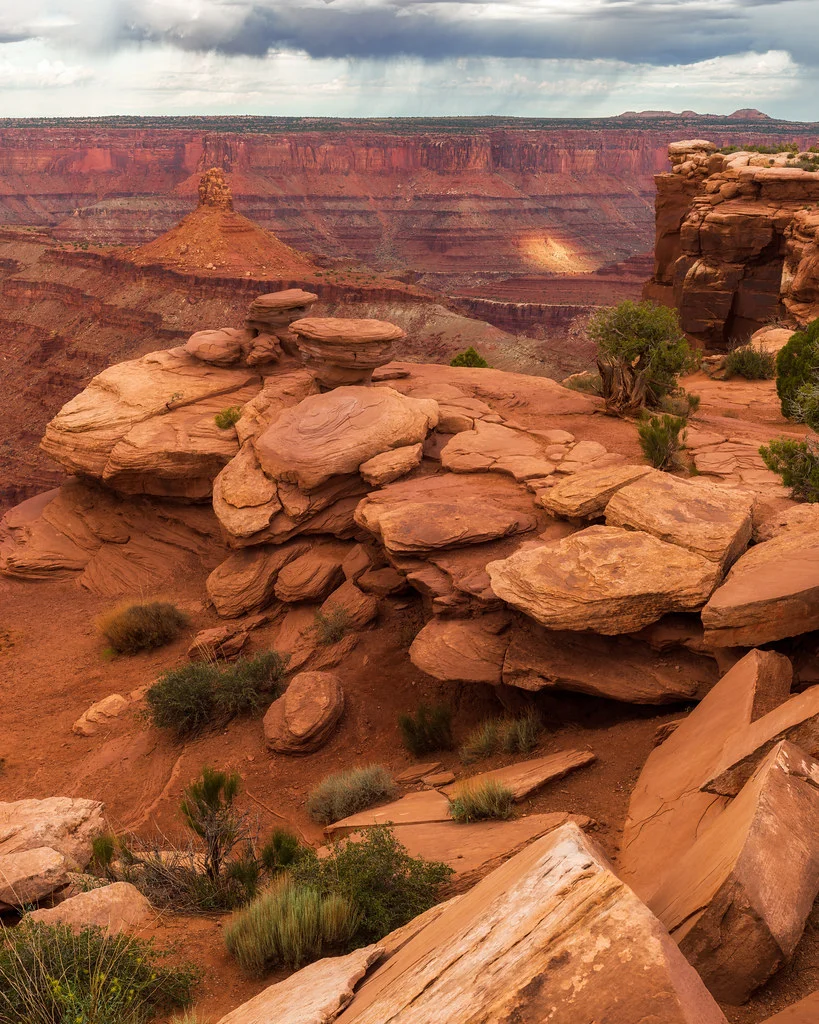
This technique is fundamental to landscape and architecture photography, where scenes routinely include bright skies and dark shadows that exceed the dynamic range of any single exposure. While HDR software automates much of this process, manual exposure blending in Photoshop gives you finer control over how the exposures merge and avoids the telltale artifacts that automated HDR can produce.
Why Blend Exposures?
Your eyes can perceive a much wider range of brightness than your camera sensor. When you stand in a dark interior looking out a bright window, you see detail in both the room and the outdoor scene. Your camera, limited to roughly 12 to 15 stops of dynamic range, must compromise: expose for the room and blow out the window, or expose for the window and lose the room to darkness.
Exposure blending solves this by capturing multiple exposures, each optimized for a different brightness zone, and combining the best parts of each into one final image. The result looks natural because it represents what your eyes actually saw, not the limited capture of a single frame.
Shooting for Exposure Blending
You need a bracketed set of exposures: the same composition shot at different exposure levels. A typical bracket is three shots:
- Base exposure: Metered normally, a good average
- Dark exposure: 2 stops underexposed, preserving highlight detail in the sky
- Bright exposure: 2 stops overexposed, showing detail in the deepest shadows
High contrast scenes (sunset into a dark canyon, interior with a bright window) may need 5 or more brackets at 1-stop intervals. Check each exposure’s histogram to verify you have captured the full range from deep shadows to bright highlights across the set.
Essential shooting requirements:
- Tripod: The frames must align perfectly. Even slight movement between frames creates ghosting and blending artifacts.
- Manual focus: Lock focus before starting the bracket so it does not shift between frames.
- Aperture Priority or Manual mode: Change only the shutter speed between exposures, not the aperture (changing aperture shifts depth of field between frames).
- Use auto bracketing: Most cameras have an auto exposure bracketing (AEB) feature that fires 3 to 9 frames at preset exposure intervals. This minimizes the time between frames and reduces the chance of subject movement.
- Shoot RAW: You need maximum editing flexibility for the blend.
Manual Blending in Photoshop
Manual blending gives you the most natural-looking results because you control exactly which areas come from which exposure.
Step 1: Process all bracketed RAW files in Lightroom or Camera RAW with identical settings (white balance, profile, lens corrections). Export as 16-bit TIFFs.
Step 2: Open all exposures as layers in Photoshop. Stack them with the base exposure on the bottom. Use Edit > Auto-Align Layers if there is any slight misalignment.
Step 3: Add a black layer mask to each exposure above the base. This hides them completely, leaving only the base exposure visible.
Step 4: Using a soft white brush on the mask of the dark (sky) exposure, paint over the bright sky area. This reveals the well-exposed sky from the darker frame while keeping the foreground from the base exposure.
Step 5: Similarly, paint on the mask of the bright (shadow) exposure to reveal detail in the darkest foreground areas.
Step 6: Refine the blend by adjusting brush opacity (30 to 50 percent for gradual transitions) and feathering the edges where different exposures meet. The transition should be invisible.
Luminosity Masks
Luminosity masks are selections based on the brightness values of the image. Instead of painting masks manually, luminosity masks automatically target specific tonal ranges: highlights, midtones, or shadows. This produces seamless blends because the masks follow the natural tonal transitions in the scene.
Creating luminosity masks manually in Photoshop involves using Ctrl/Cmd+Click on the RGB channel to select highlights, then refining with intersection selections. Several Photoshop panels and plugins (TKActions, Raya Pro, ADP LumiFlow) automate luminosity mask creation and make the technique much more accessible.
Exposure Blending vs. HDR
Automated HDR software (Lightroom’s Photo Merge, Photomatix, Aurora HDR) merges bracketed exposures using tone mapping algorithms. This is faster than manual blending but can produce artifacts: halos around high-contrast edges, unnatural local contrast, and a “painterly” look that many photographers find objectionable.
Manual exposure blending avoids these artifacts because you control the transition between exposures. The trade-off is that it takes more time and requires Photoshop skills. Many landscape photographers use a hybrid approach: merge in Lightroom for a baseline, then refine with manual masks in Photoshop for critical areas.
When to Use Exposure Blending
- Sunrise and sunset landscapes: Bright sky meets dark foreground, the classic use case
- Interior architecture: Dark rooms with bright windows
- Real estate photography: Every interior shot benefits from blended exposures
- Night cityscapes: Bright artificial lights against a dark sky
- Backlit subjects: Any scene where the light source is behind or beside the main subject
Common Mistakes
- Not using a tripod: Handheld brackets will have alignment issues that degrade the blend.
- Changing aperture between frames: This shifts depth of field and makes the blend obvious. Only change shutter speed.
- Visible blend lines: If you can see where one exposure ends and another begins, your brush was too hard or the transition too abrupt. Use a soft brush at low opacity and build gradually.
- Over-processing: The goal is a natural-looking image. If the result looks like HDR, you have gone too far. Pull back on clarity, contrast, and local adjustments.
- Ignoring moving elements: Clouds, water, and foliage move between frames. You may need to mask these from a single exposure to avoid ghosting.
Exposure blending is one of the most valuable post-processing skills a landscape or architecture photographer can learn. It solves the fundamental limitation of camera dynamic range and produces images that look natural and true to what your eyes saw at the scene. Start with a simple two-exposure blend (one for the sky, one for the foreground) and progress to more complex multi-exposure composites as your masking skills develop.